Data exchange – made easy!
MULcloud is a dedicated service for students and staff at Montanuniversität, designed for the short-term exchange of files - both with other users and across different devices.
- Data Sovereignty: All data is stored exclusively on the university's internal systems.
- Storage Capacity: Each user is currently allocated 50 GB of storage space.
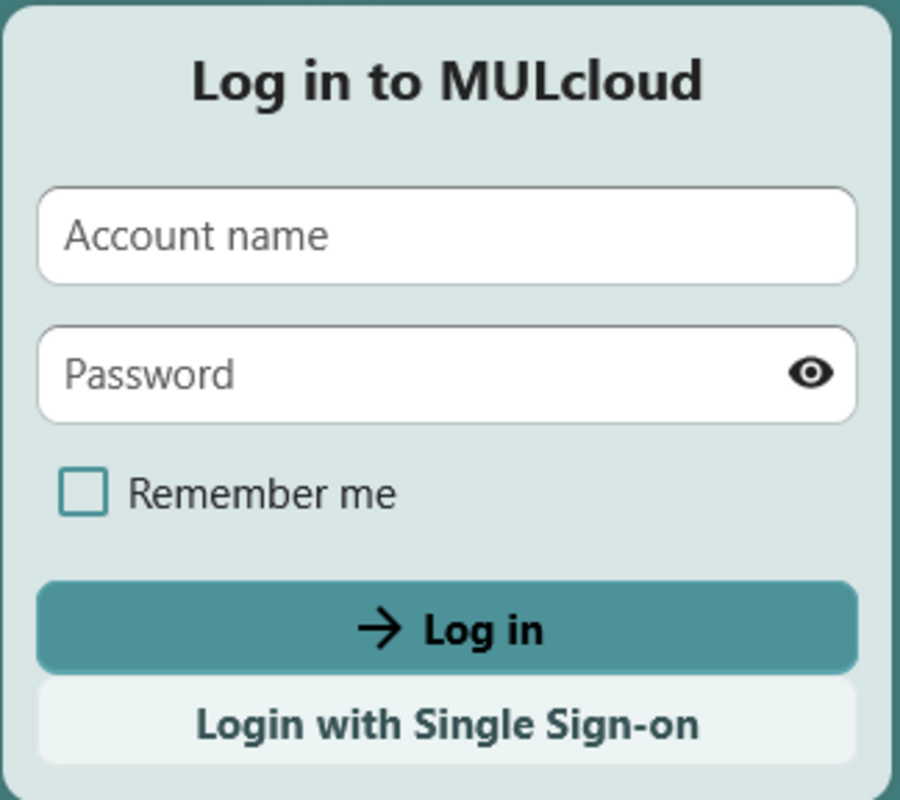
Login page of MULcloud: https://cloud.unileoben.ac.at/ or https://oc.unileoben.ac.at
Members of Montanuniversität are requested to sign in via Single Sign-On.
External users without an SSO account, please use the Standard Login.
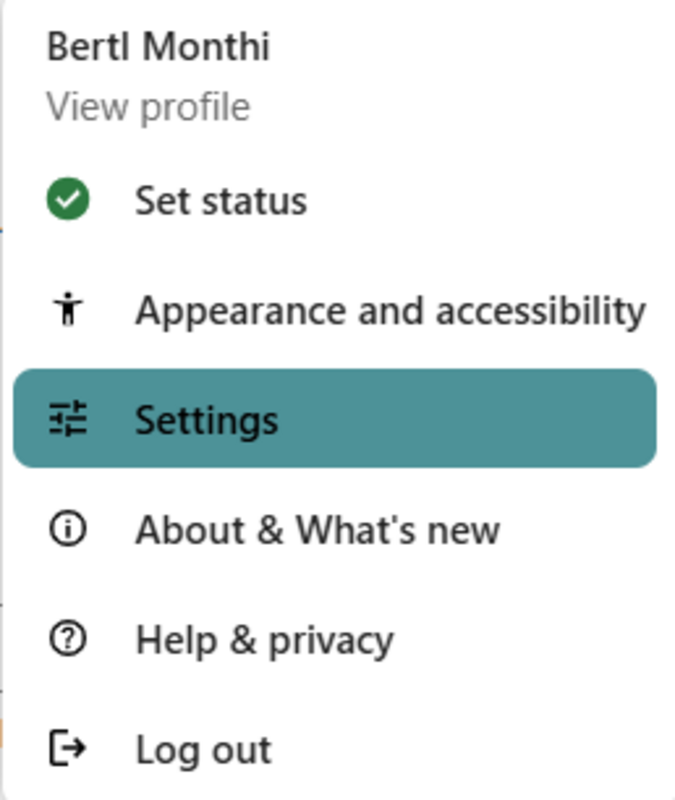
Click on your profile picture in the top right corner to access your account options. Within this menu, you can:
- Update your status to show your availability.
- Customize the layout, such as switching to Dark Mode.
- View software information and version details.
- Manage personal details under the "Settings" section.
Topbar
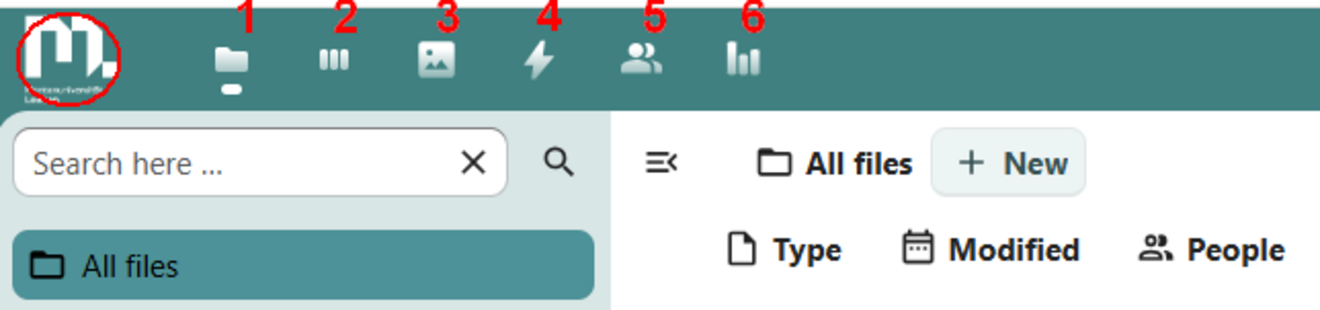
- 0 Home: Click the university logo in the top left corner to return to your designated start page.
- 1 File View: Provides access to your stored files and documents.
- 2 Dashboard: Displays your personalized overview and widgets.
- 3 Photo Gallery: Opens your image collections.
- 4 Activity Log: Shows recent updates and system activities.
- 5 Contacts: Accesses the contact management application.
- 6 Polls: Opens the tool for creating and managing surveys.
Sidebar
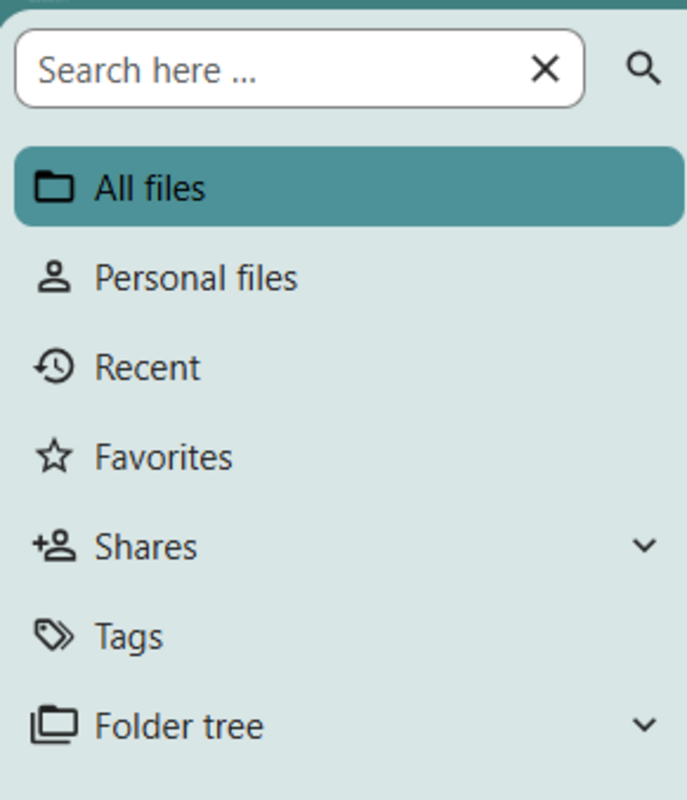
The sidebar provides quick access to the following sections:
- All files: A comprehensive view of both personal and shared content.
- Personal files: Your private documents that have not been shared.
- Recent: Displays files that were recently uploaded or modified.
- Favorites: Shows all items you have marked as favorites within MULcloud.
- Shares: Manage files you have shared with others and those shared with you.
- Tags: Access and manage system-wide tags used to categorize your data.
- Folder tree: Displays the complete folder hierarchy of your MULcloud account.
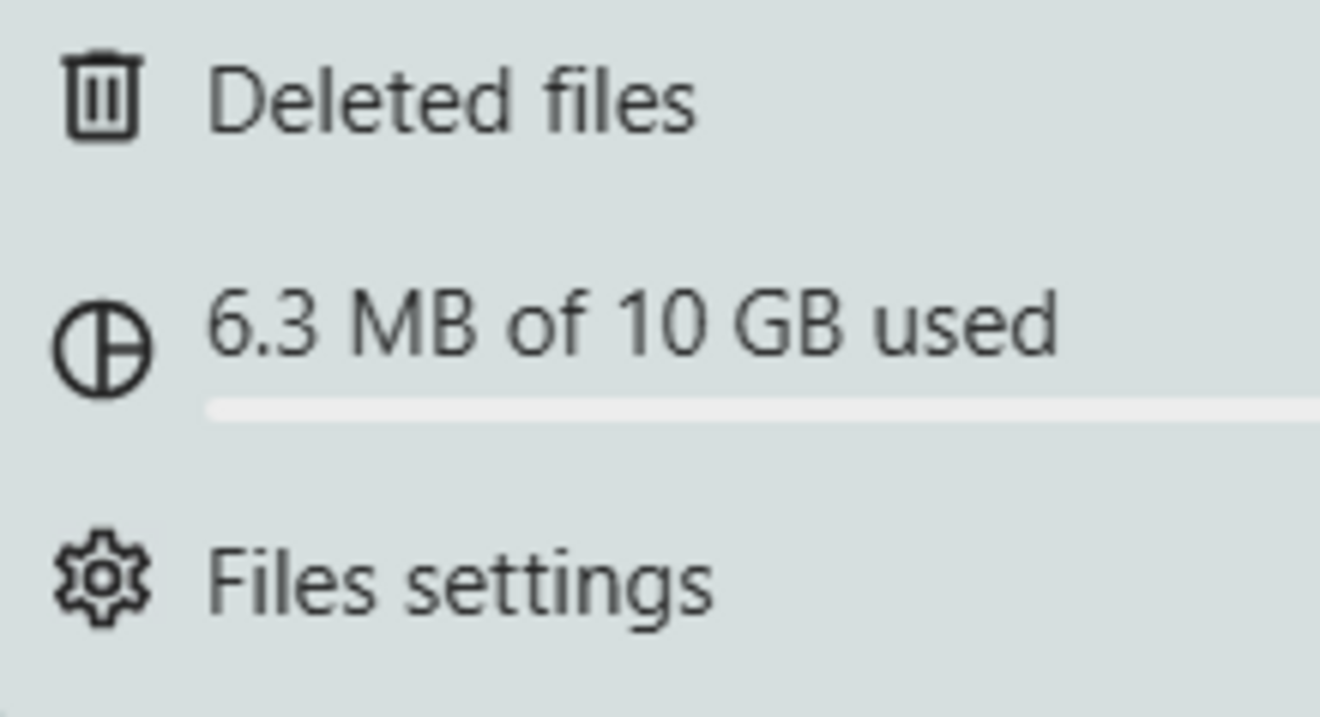
The bottom section of the sidebar provides access to essential system tools:
- Deleted Files (Trash): Access your deleted items and restore them if necessary.
- Storage Usage: View your current storage consumption relative to your total allocated space.
- File Settings: Customize the appearance and configuration of your file management interface.
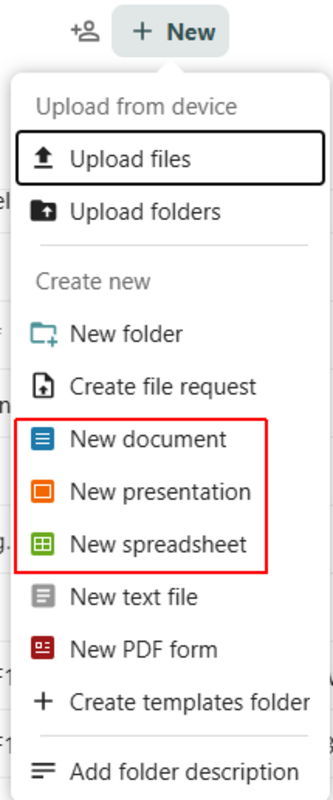
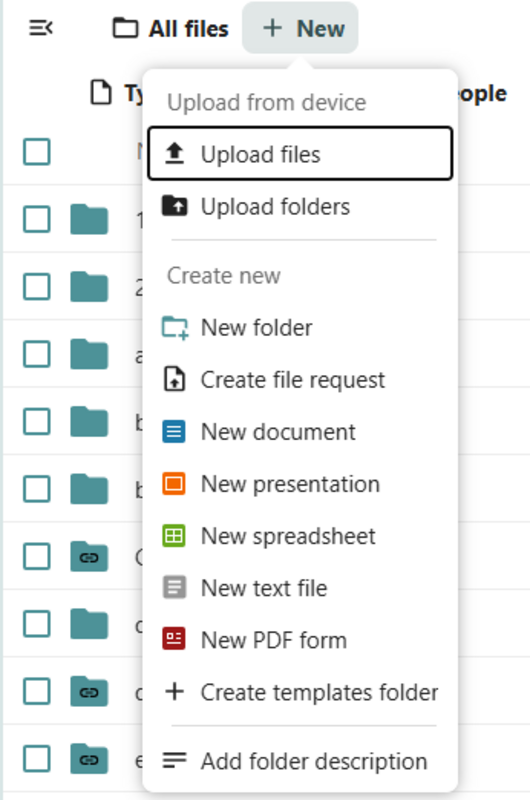
To add content to your MULcloud, click the plus (+) icon in the center of the top navigation bar. You can choose from the following options:
- Upload: Select files or entire folders from your local device.
- New File/Folder: Create a new folder or a plain text file directly within the cloud.
- Office Documents: Create and edit professional documents using the integrated OnlyOffice document server.
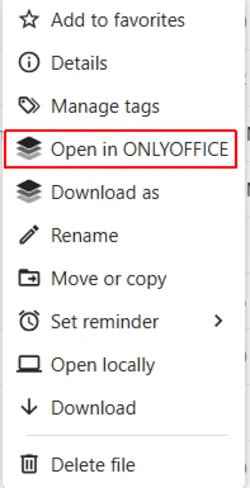
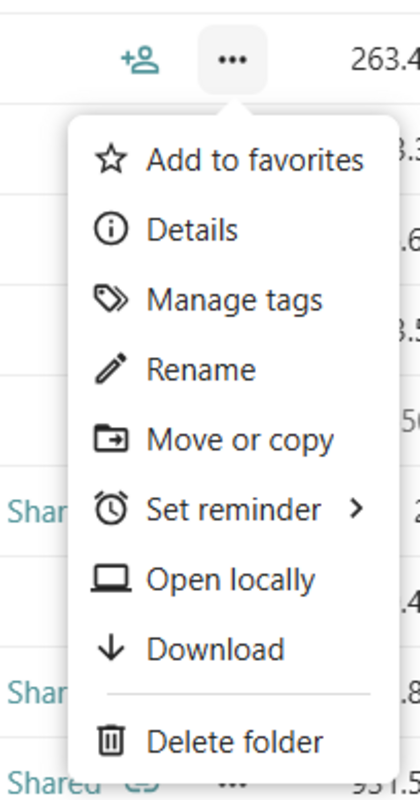
The three-dot menu (⋮) on the right provides various options for interacting with your stored data:
- Organize: Add to favorites, rename, move, or copy items.
- Details & Tags: View file information or assign system-wide tags for better categorization.
- Reminders: Set a specific date and time to receive a notification for a file or folder.
- Open Locally: This option downloads the file temporarily and opens it using the default application on your device.
- Downloads & Deletion: Download files to your local storage or remove them from the cloud.
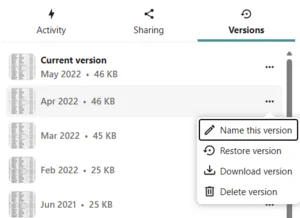
If you need to undo changes or recover a deleted item, MULcloud provides the following recovery options:
Restoring Deleted Items:
Navigate to the Trash (bottom of the sidebar). Select the desired files or folders and click "Restore" to move them back to their original location.

Important Notes on the Trash Bin
- Retention: Deleted files remain in the trash indefinitely by default.
- Storage Quota: Please note that items in the trash still count towards your total storage limit.
- Automatic Deletion: If your storage space is full, the system will automatically delete the oldest files in the trash to free up space.
- Manual Management: You can permanently delete individual files or empty the entire trash at any time to regain storage capacity.
MULcloud offers several ways to collaborate and share data. Access these options by clicking the Share icon:
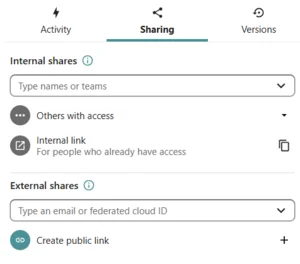
Internal Sharing:
Type the name or email address of a student or staff member to share items directly. You can manage permissions, such as allowing editing or resharing.
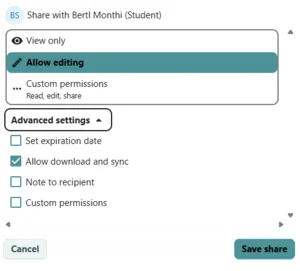
Public Links:
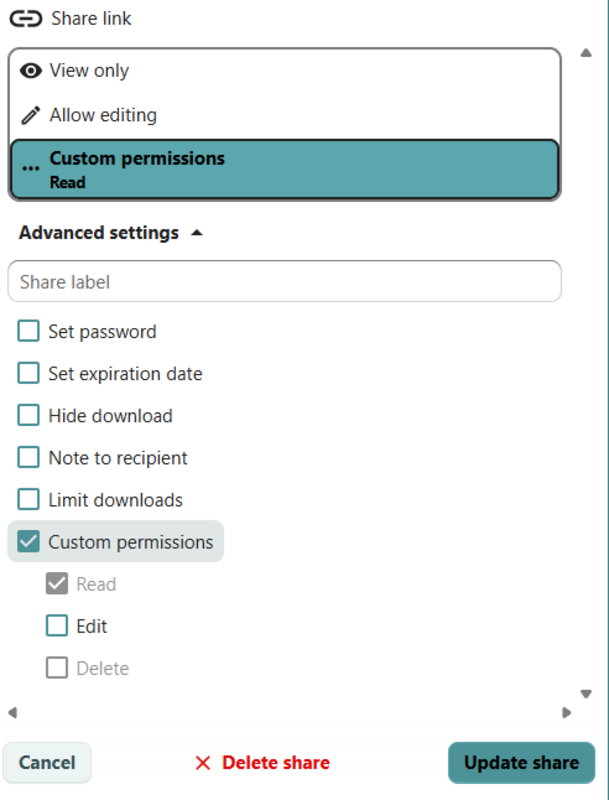
For collaborators without a MUL account, you can generate a shareable link.
Protection: For enhanced security, you can set a password and an expiration date, you can also limit the number of allowed downloads,
File request/file drop:
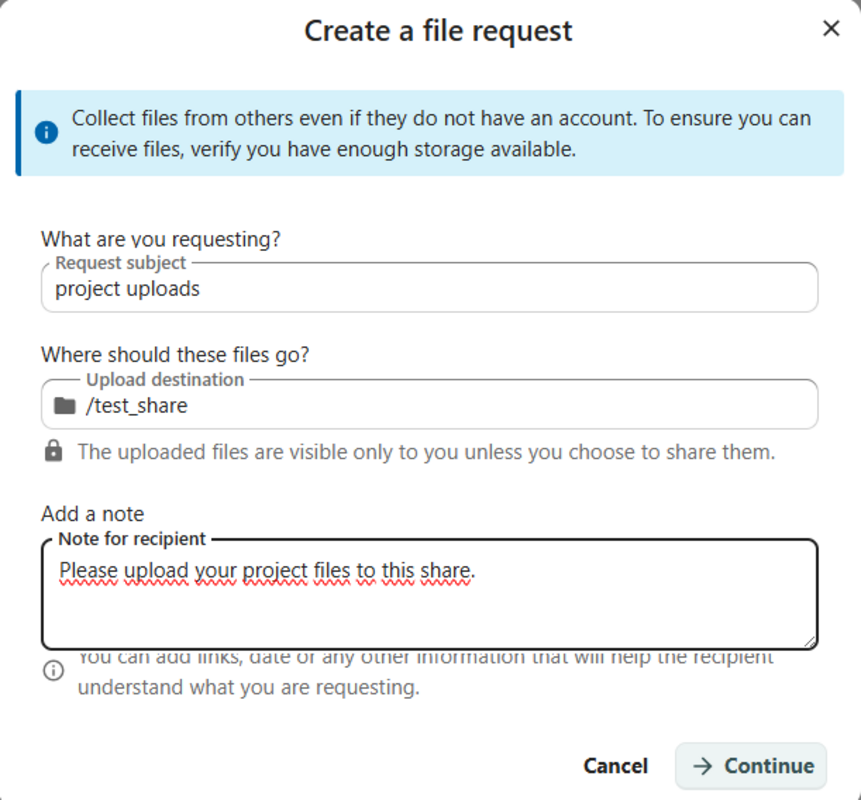
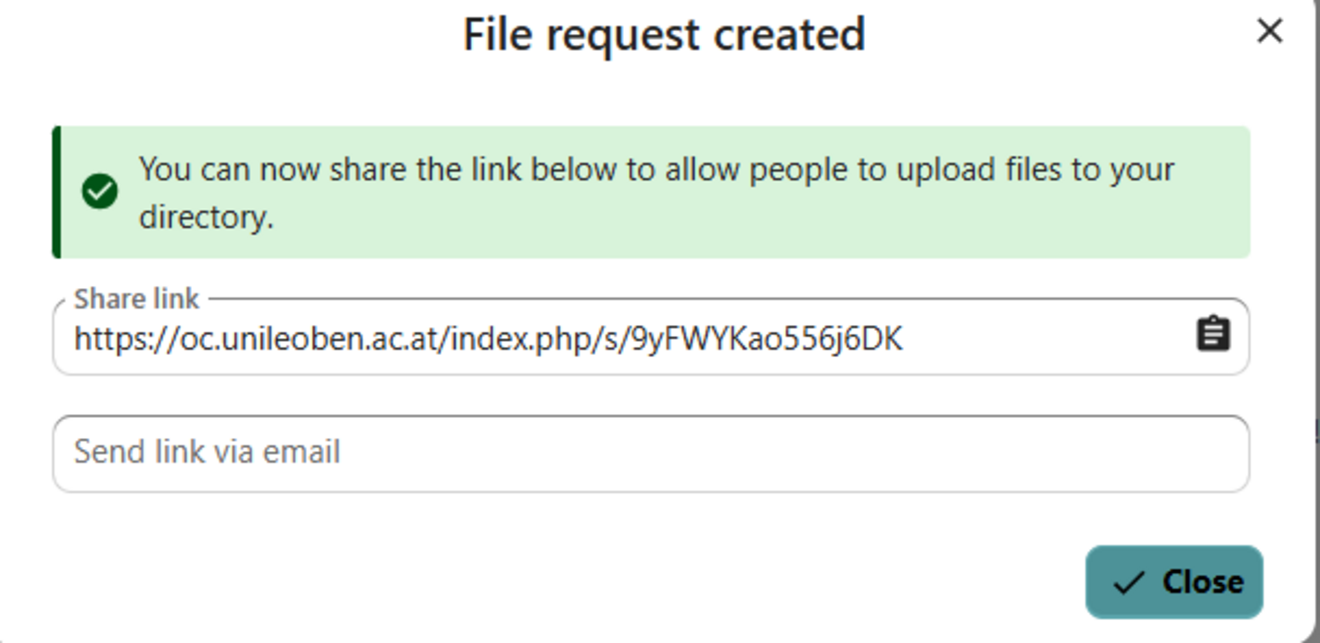
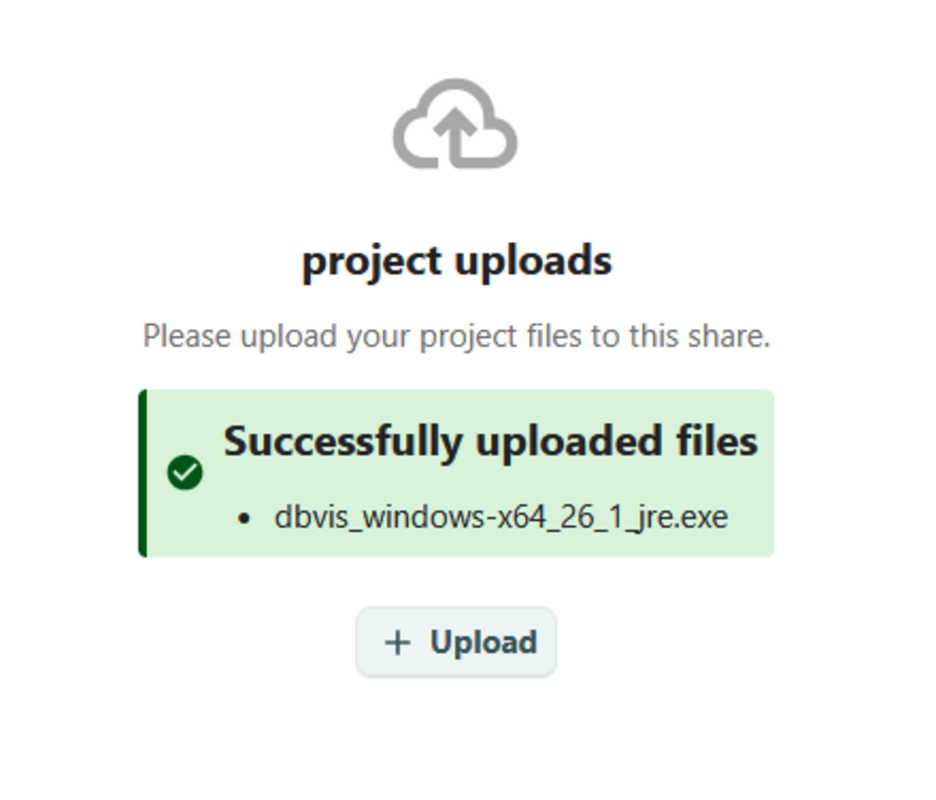
To allow others to securely upload files to your account, select "New – Create file request". This is ideal for collecting documents from external partners.
Setup:
Enter a subject for the request and select the destination folder. You may also add optional notes for the uploader.
Access Control:
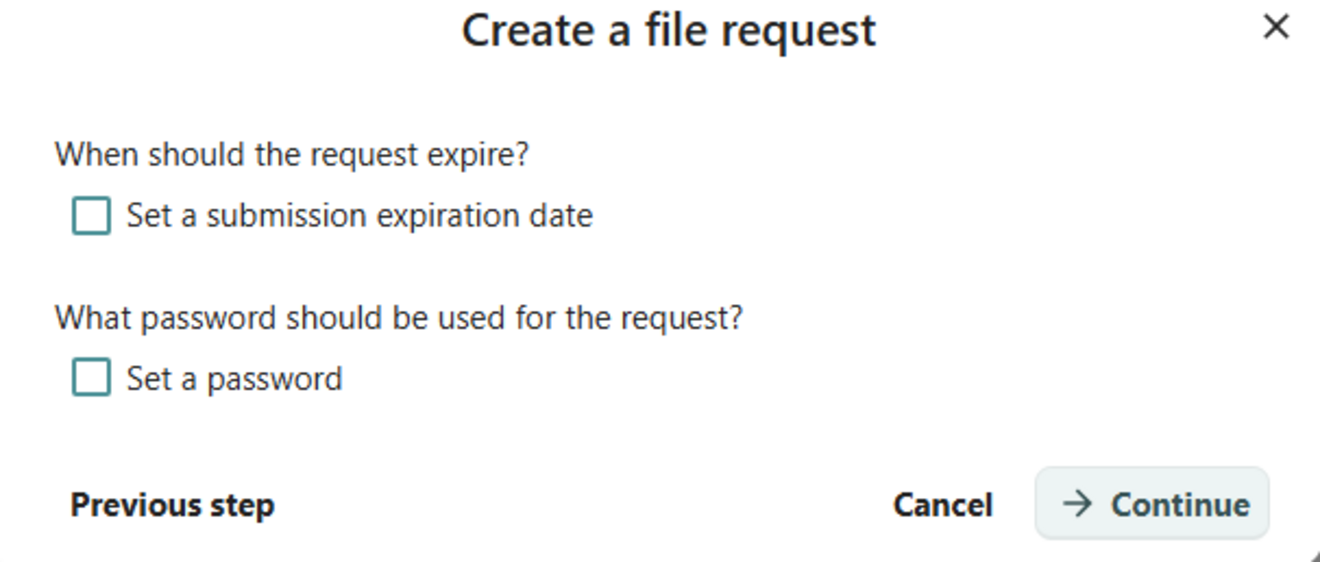
For enhanced security, you can set a password or a submission deadline (expiration date).
A Team (or Circle) is a user-defined group that allows you to share files, calendars, and folders with a specific set of people without needing administrative privileges. This is ideal for research groups, project teams, or study circles.
Features:
- Self-Management: Any user can create a team and invite others.
- Granular Roles: You can assign different levels of control (Member, Moderator, or Admin).
- Integrated Sharing: Once a team is created, it appears in the sharing menu of Files, Deck, and Talk.
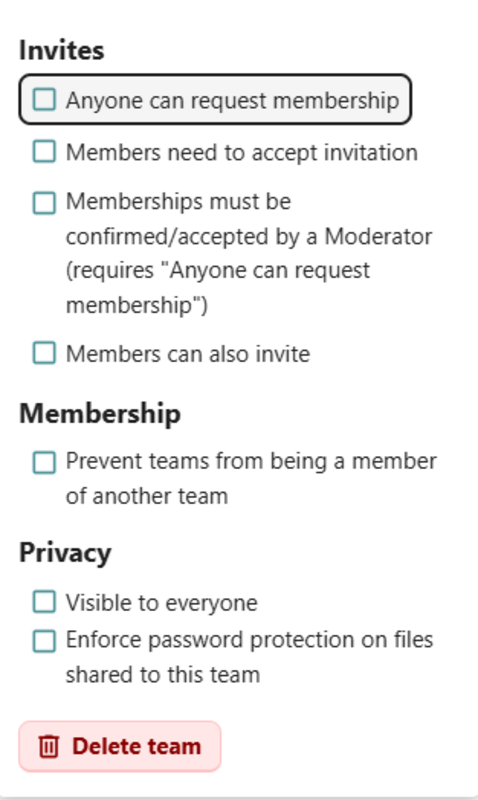
- Visibility Control: Teams can be public (anyone can join), restricted (request to join), or private (invite-only).
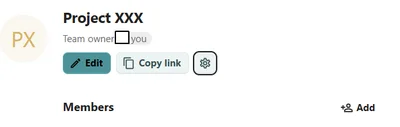
- Click on the Contacts icon in the top navigation bar.
- On the left sidebar, look for the Teams section.
- Click Create a new team and give it a name (e.g., "Physics Lab Group B").
- Choose the gear icon and adjust the settings for your new team
Adding members
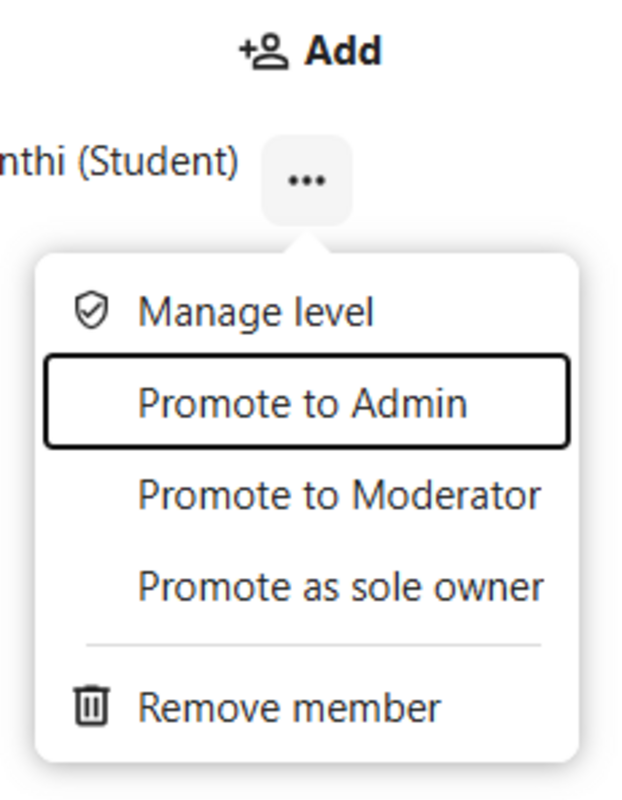
Inside your new team, choose add and use the search bar to find colleagues by their name or university email. Assign roles via the three dot menu:
- Member: Can access shared resources.
- Moderator: Can add/remove members.
- Admin: Full control, including deleting the team.
Sharing Content with Your Team
- Go to the Files app.
- Click the Share icon next to a folder.
- In the search field, type the name of your Team.
- Select it, and everyone in that team instantly gains access.
Important: Use the Team settings to transfer the "Owner" status to another member if you are leaving the university, ensuring the data remains accessible to the remaining researchers.
The integrated OnlyOffice document server allows you to create, edit, and collaborate on documents, spreadsheets, and presentations directly in your web browser without needing to install any software.
Key features:
- Maximum Compatibility: Work seamlessly with Microsoft Office formats (DOCX, XLSX, PPTX) while maintaining perfect formatting.
- Real-Time Collaboration: Work on the same document simultaneously with colleagues or fellow students. You can see their edits as they happen and use the integrated chat and commenting features to stay synced.
- No "Save" Button Needed: All changes are saved automatically to your MULcloud account, ensuring you never lose your progress.
- Advanced Tools: Use professional features like pivot tables in spreadsheets, complex page layouts in documents, and high-quality transitions in presentations.
- Privacy: Unlike commercial cloud suites, all your document data stays on our university servers. No data is sent to external third-party providers while you are writing your papers or analyzing research data.
While ONLYOFFICE is fully compatible with Microsoft Office in most cases, discrepancies or rendering issues may still occur in certain situations, particularly with highly complex documents.