MathWorks MATLAB & Simulink
The Montanuniversität Leoben provides all staff members with a MathWorks MATLAB single-user license.
MATLAB is available for the following operating systems:
- Microsoft Windows
- macOS
- Linux
General information
The MathWorks license provided is a user-specific single-user license (individual license), meaning that the software can be used on a PC only by the person under whose user account the software was activated.
Licence renewal
The license expires annually on November 30 andmust be renewed by the user.
- Matlab can still be launched: In the open application, select Help -> Licensing -> Activate Software.
- Matlab can no longer be launched: In the Start menu, under the MATLAB R202x folder, click “Activate MATLAB R202x” and then follow the instructions.
Right of use
Use of the software is permitted on personal devices, but this permission expires upon termination of employment at MUL.
MATLAB can be downloaded from the MathWorks MATLAB portal:
MATLAB Portal for the Montanuniversität Leoben
MATLAB is downloadedfrom the MUL server. The main differences from an individual license are that the network license does not need to be renewed annually by the user. Furthermore, the network license appliesto all user accounts on the computer.
However, to use the software, a network connection to the license server at MUL is required.
Release: Matlab R2025b
- Matlab R2025b Windows
- Matlab R2025b macOS (Intel)
- Matlab R2025b macOS (Apple Silicon)
- Matlab R2025b Linux
- Lizenzdatei und Installationsanleitung
Offline-Dokumentation:
INSTALLATION (INDIVIDUAL LICENCE)
To install the software, you need a MathWorks account, which can be created during the installation process. Please follow the instructions provided by the installer.
- Open the following link in your web browser: MATLAB access and support for MU Leoben.
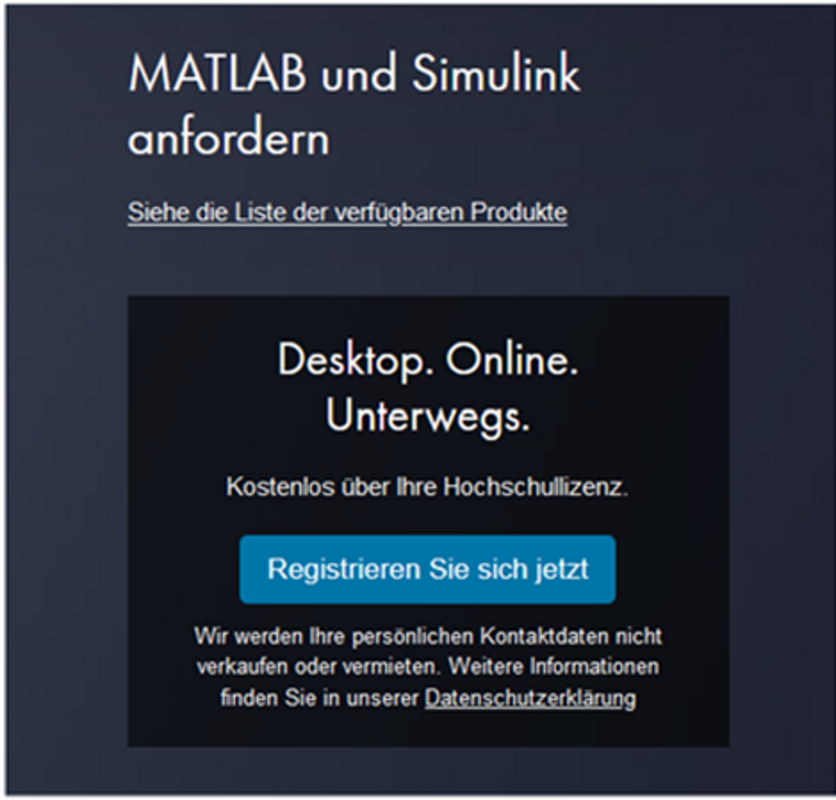
- You will be prompted to enter your MuOnline login credentials. In a new window, confirm the data to be sent to MathWorks.
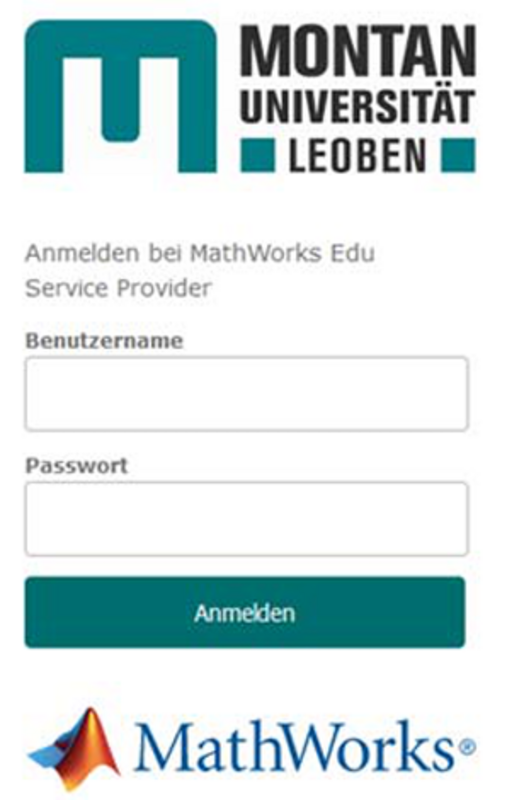
- If you already have a MathWorks account, you can sign in right away; otherwise, you'll need to create a MathWorks account now.
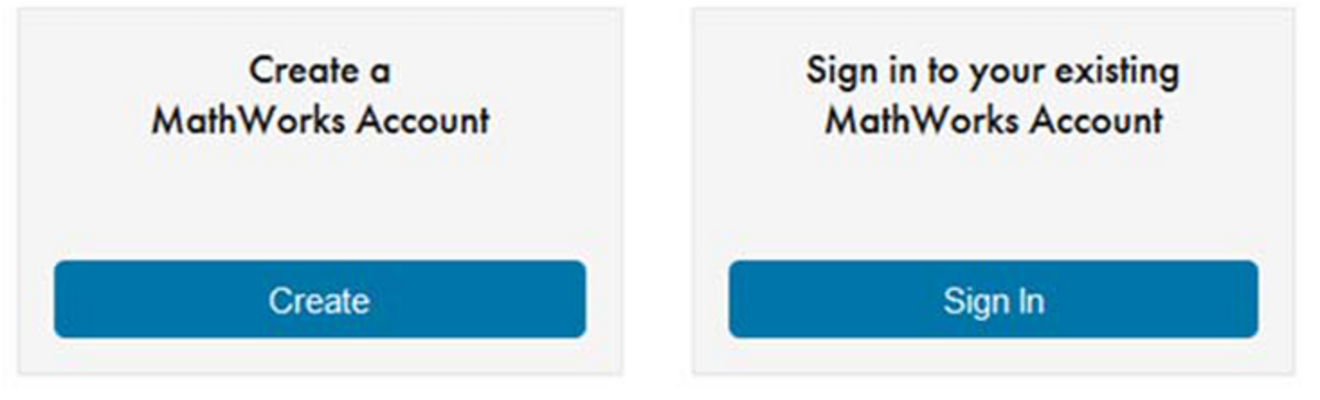
- Once you have logged in, you can download the installer for the desired version.
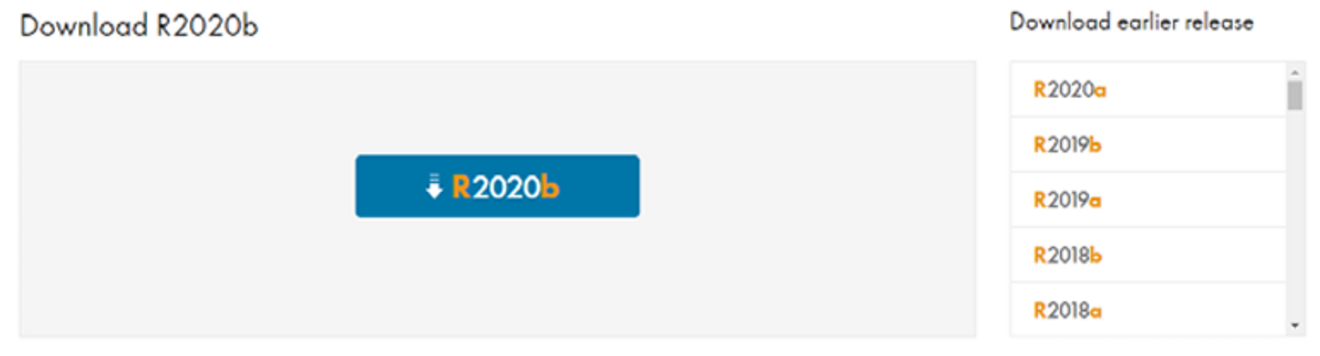
- Go to the download directory and double-click the installer. The files will now be extracted to a temporary directory, and the installer will launch.
- Enter your MathWorks account credentials, starting with your email address.
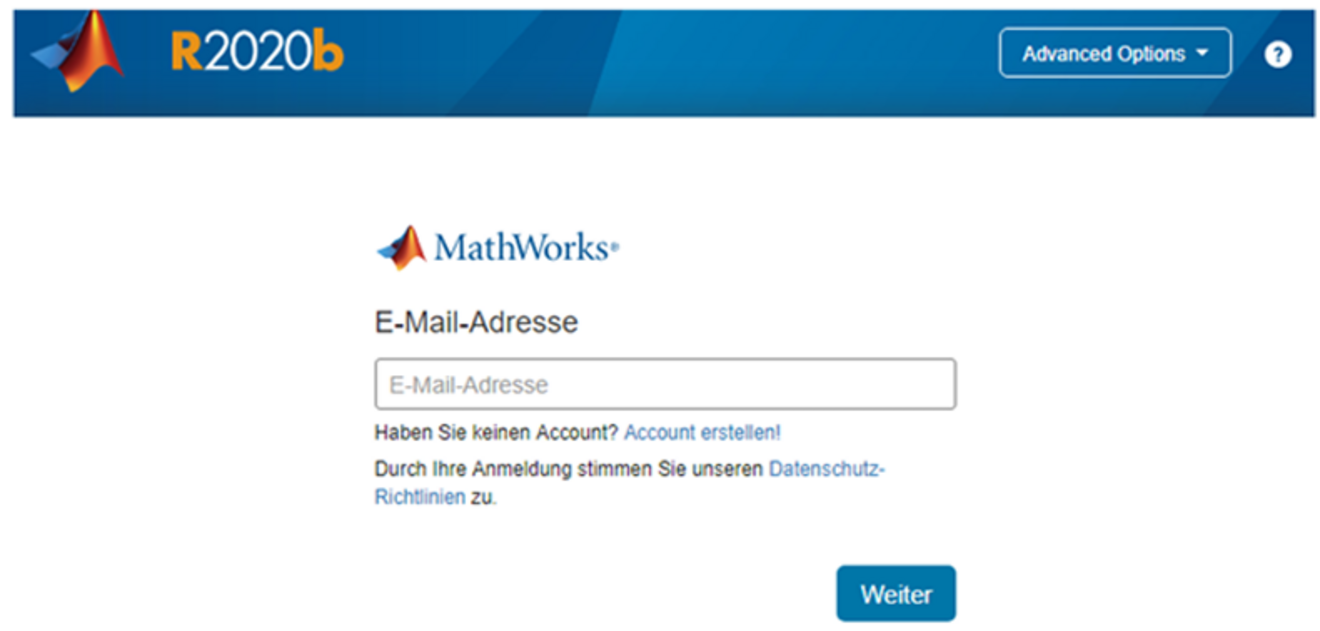
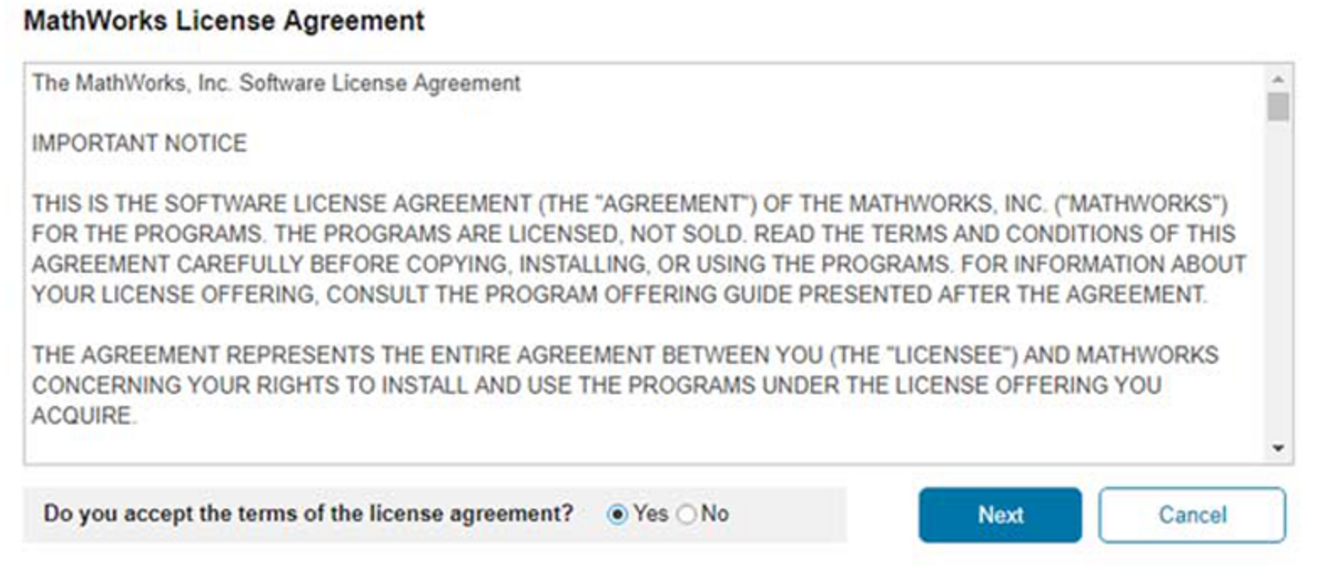
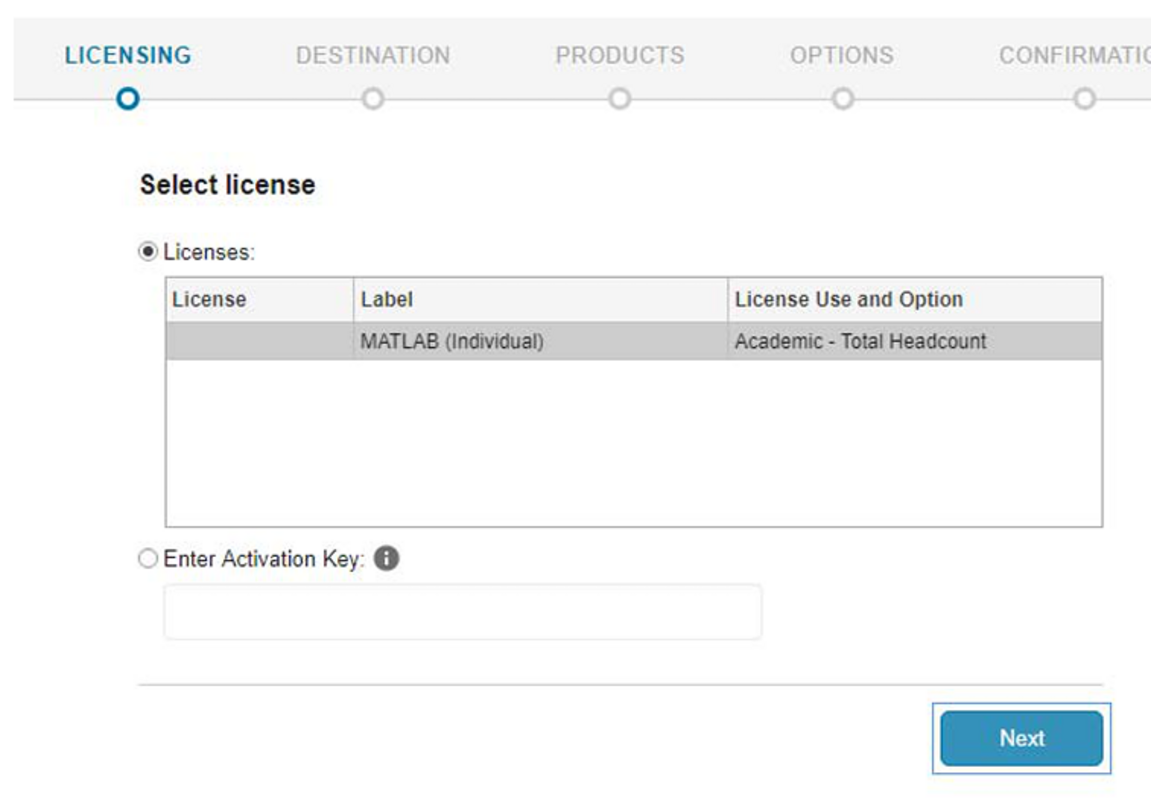
- Select the MATLAB (individual) license and click “Next”.
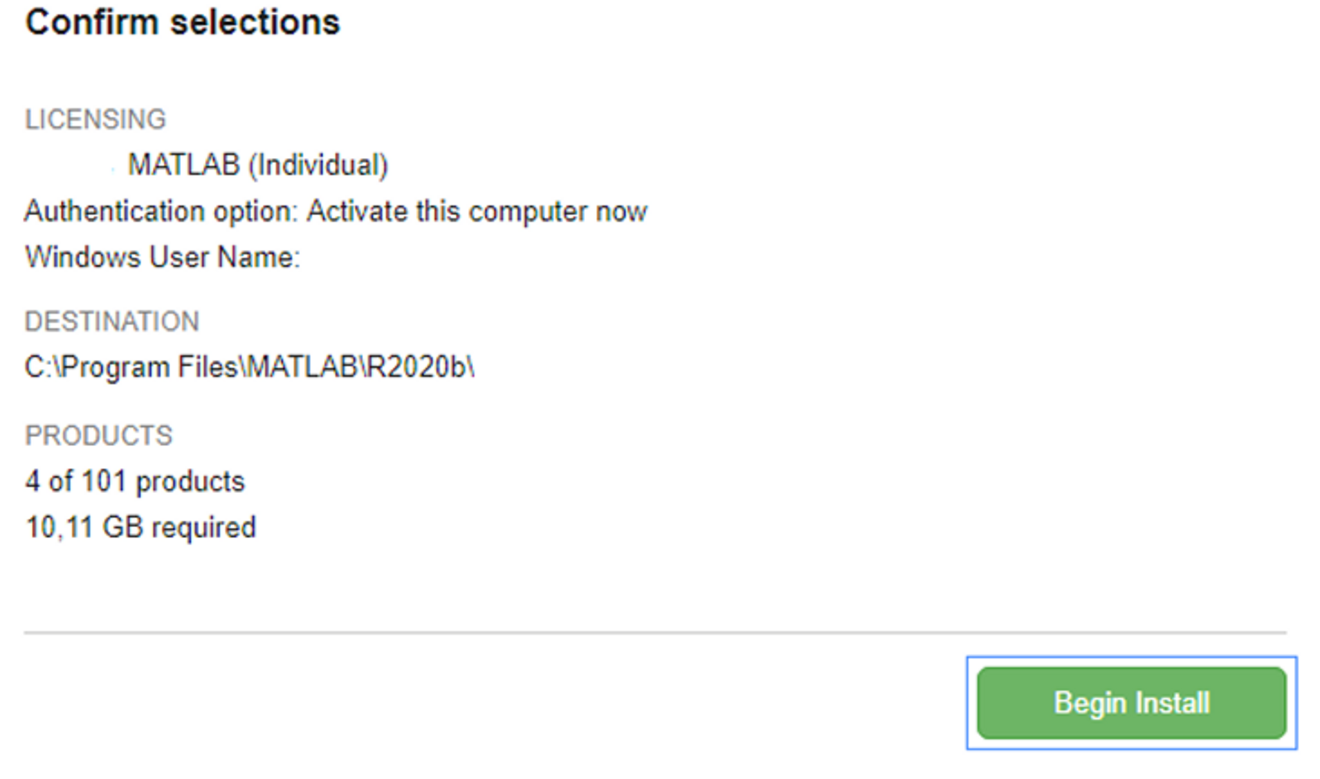
- Check the account details. Please note that the single-user license only works under the specified user account!
- Next, select the toolboxes you need. Please note that selecting all toolboxes may result in a very long installation process!
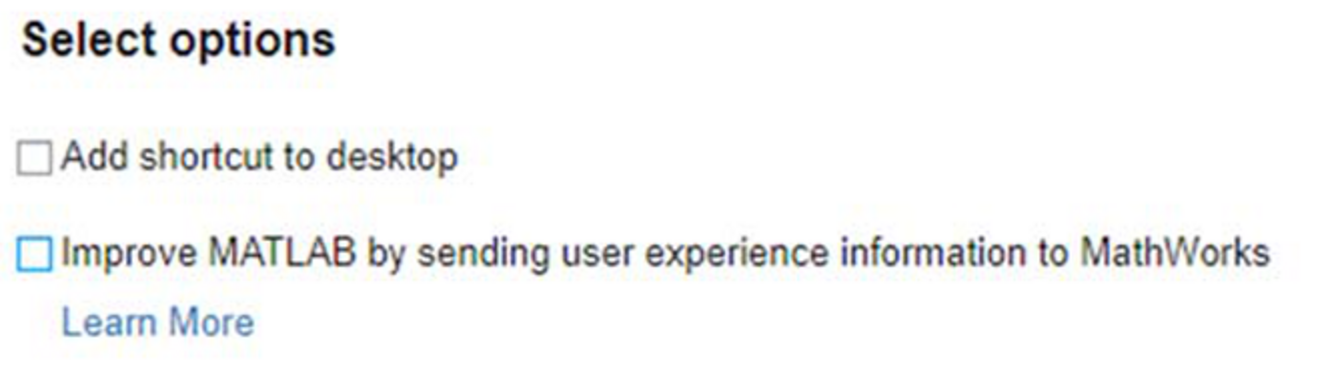
- Disable the transmission of telemetry data to MATLAB.