Map network drives
!!! A connected “Cisco AnyConnect Secure Mobility Client” is required to mount external network drives!
Step 1:
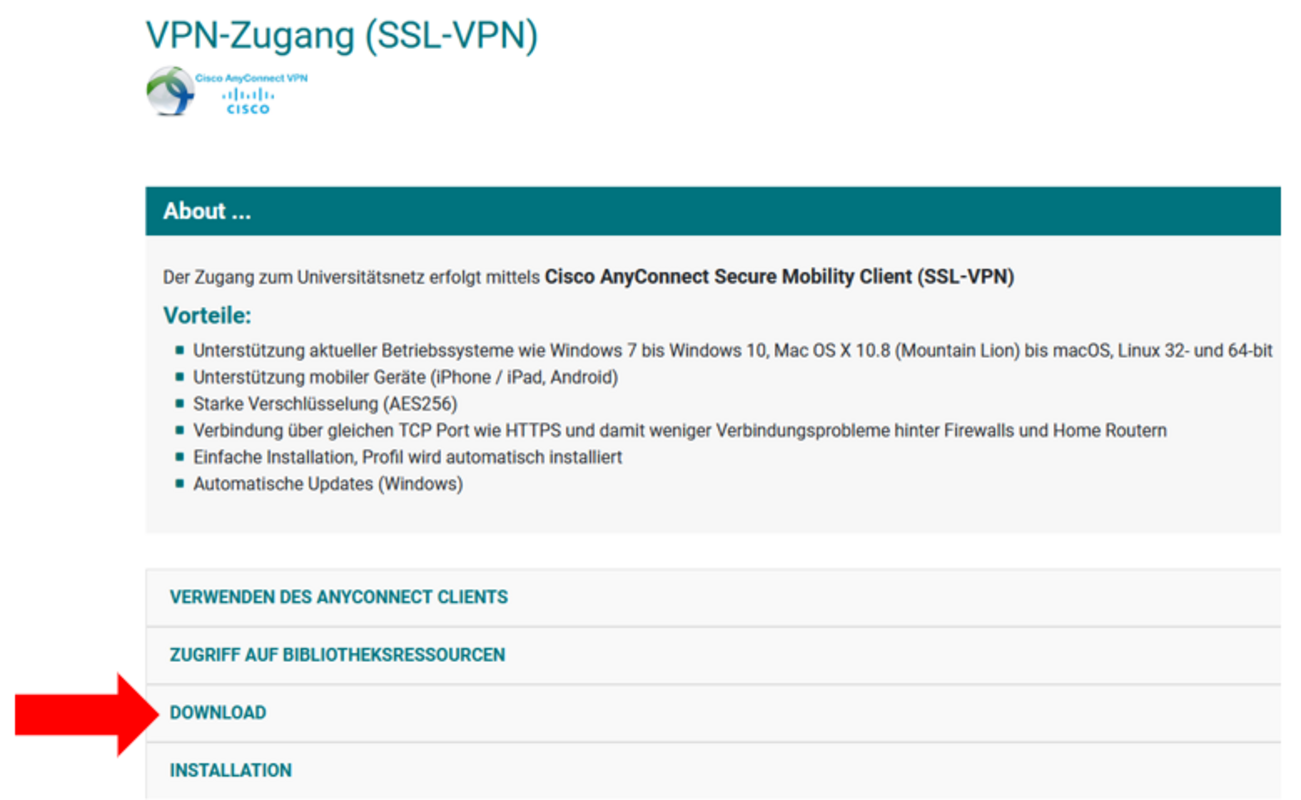
Open the link https://ict.unileoben.ac.at/infrastruktur/vpn-zugang-ssl-vpn in your browser and download the file for your operating system.
Step 3:
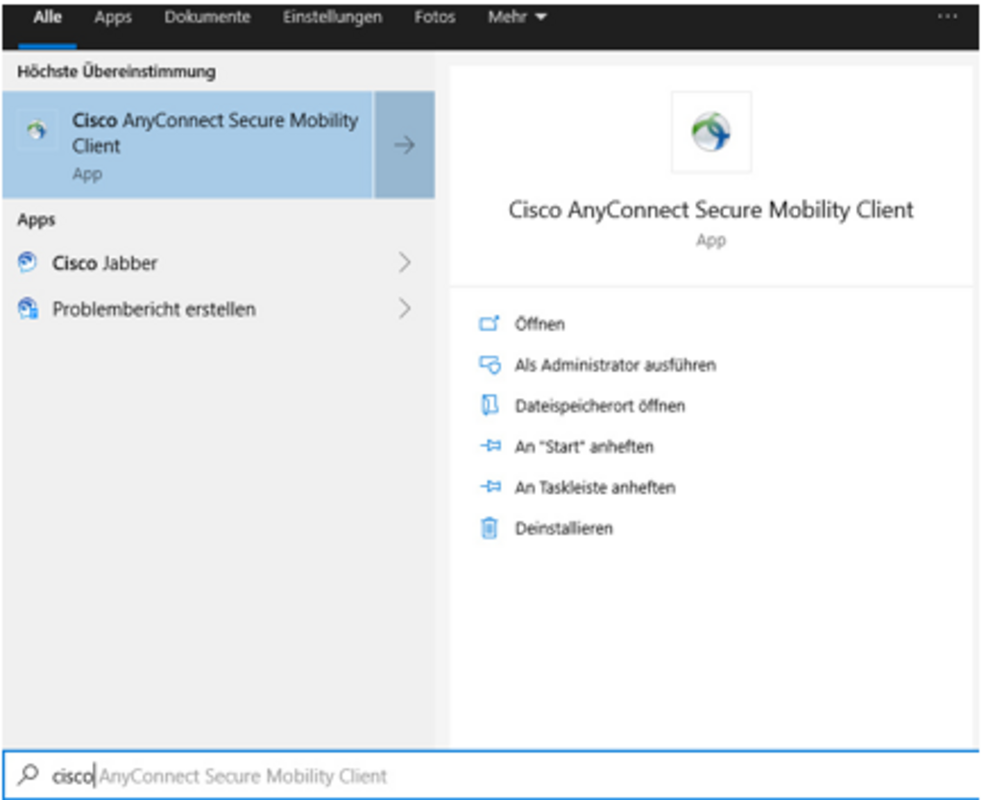
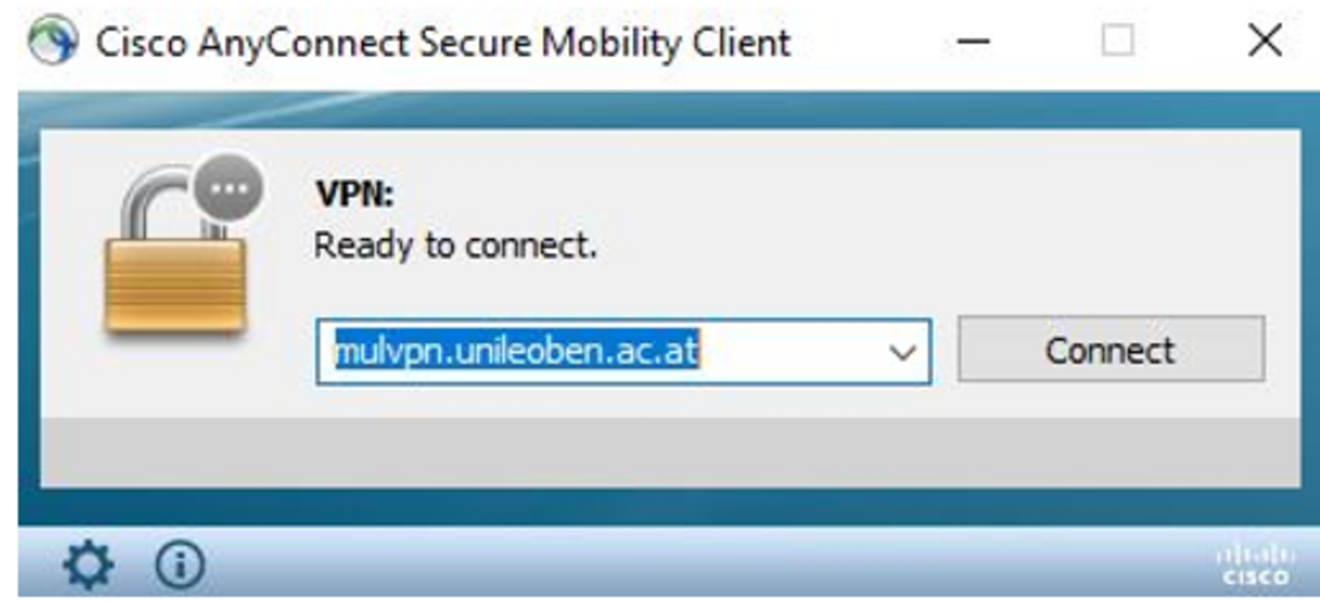
Once the installation is complete, launch the Cisco AnyConnect Secure Mobility Client.
Step 4:
Enter the server addressmulvpn.unileoben.ac.at (only required the first time!). Then click “Connect”.
Step 5:
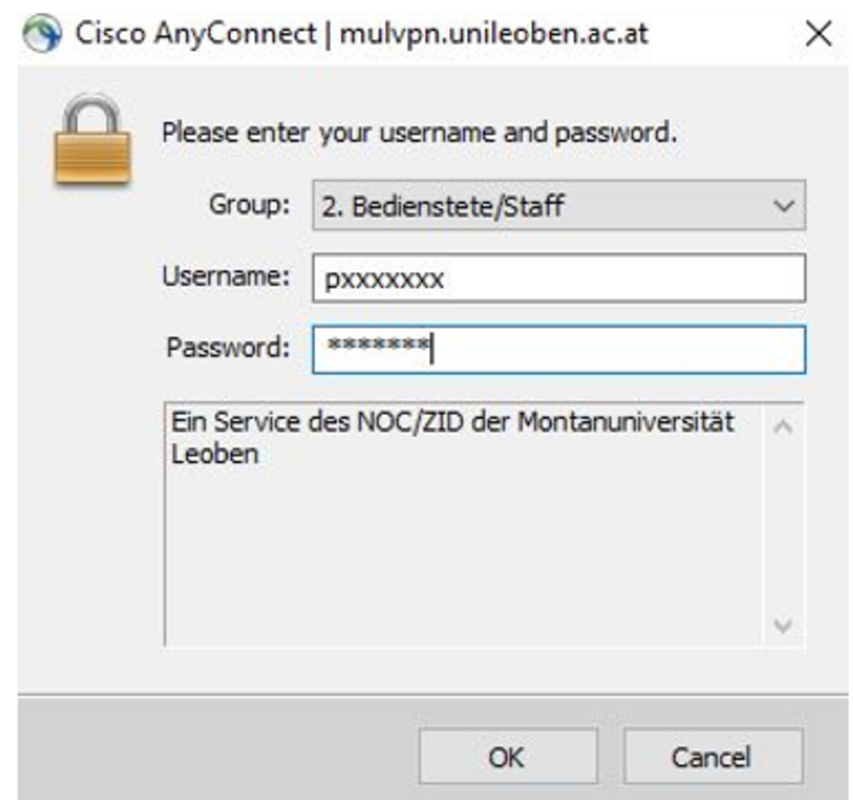
Switch to Group 2 (only necessary the first time!) and enter MUonline username and MUonline password . Then click “OK”.
Step 6:
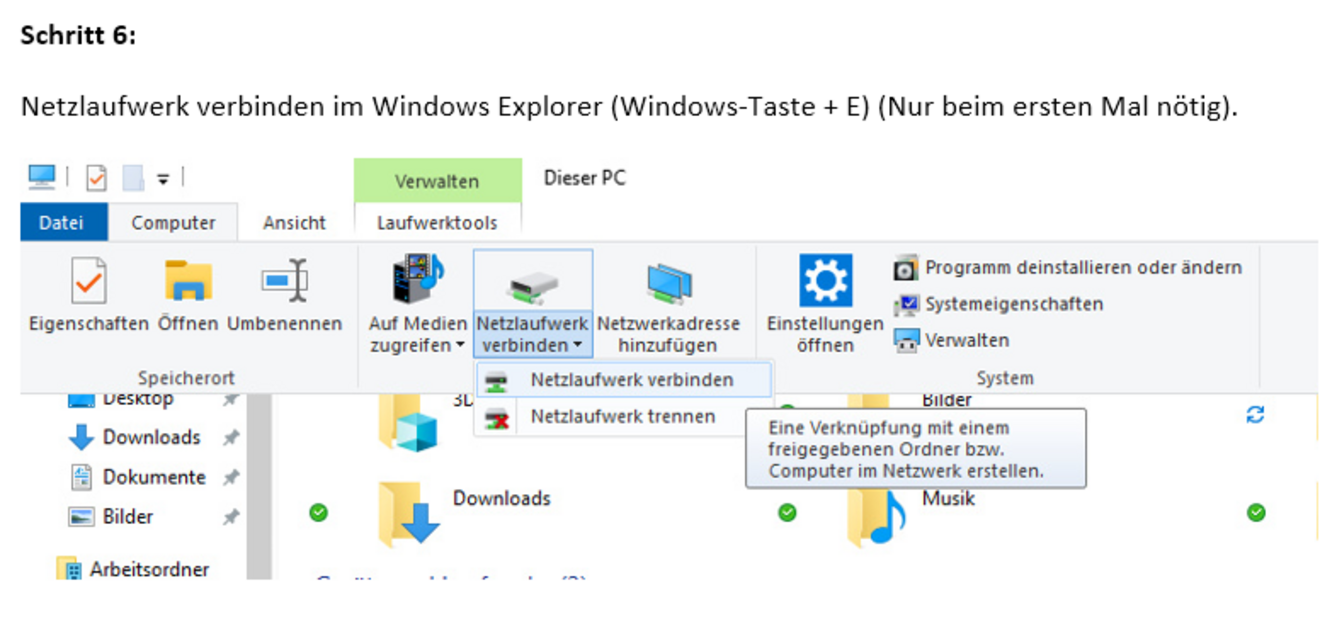
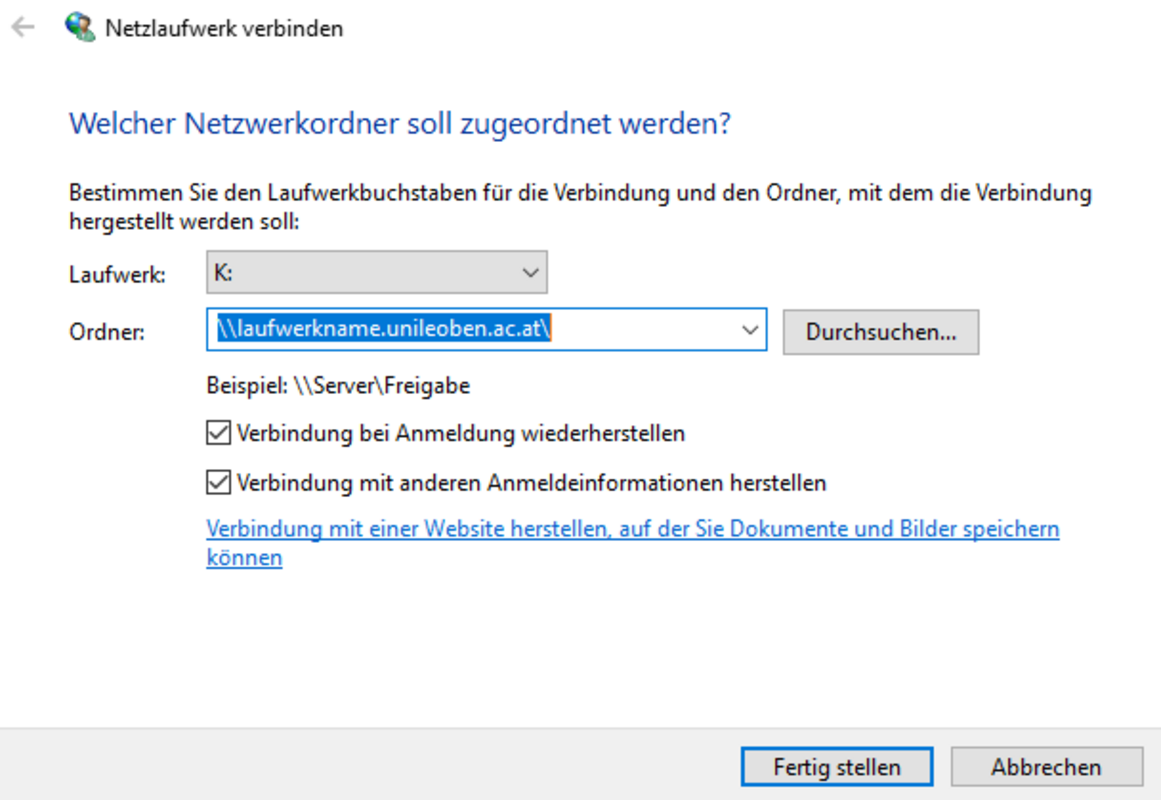
In Windows Explorer, click ‘Map network drive’ – Windows key + E (only required the first time!).