Checking HCL Notes email via Mozilla Thunderbird
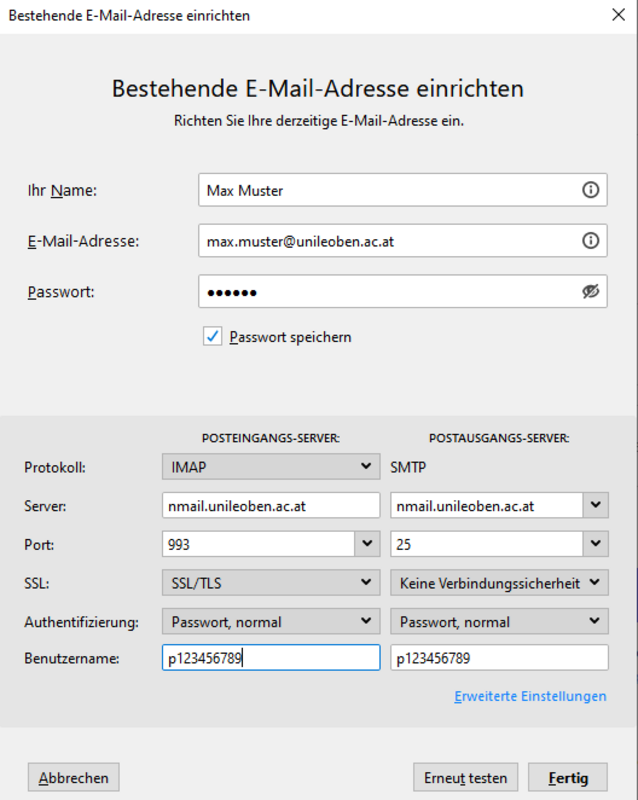
When you first launch Mozilla Thunderbird, click on “Manual setup…” and fill in the fields as shown in the image below.
For users who already use Thunderbird for other email accounts, simply click on the menu, then select “New” and “Existing email address”.

HCL Notes über MS Outlook 2016/Outlook 365 abrufen
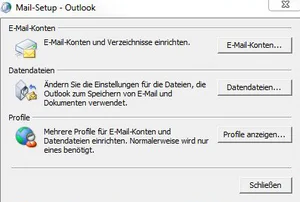
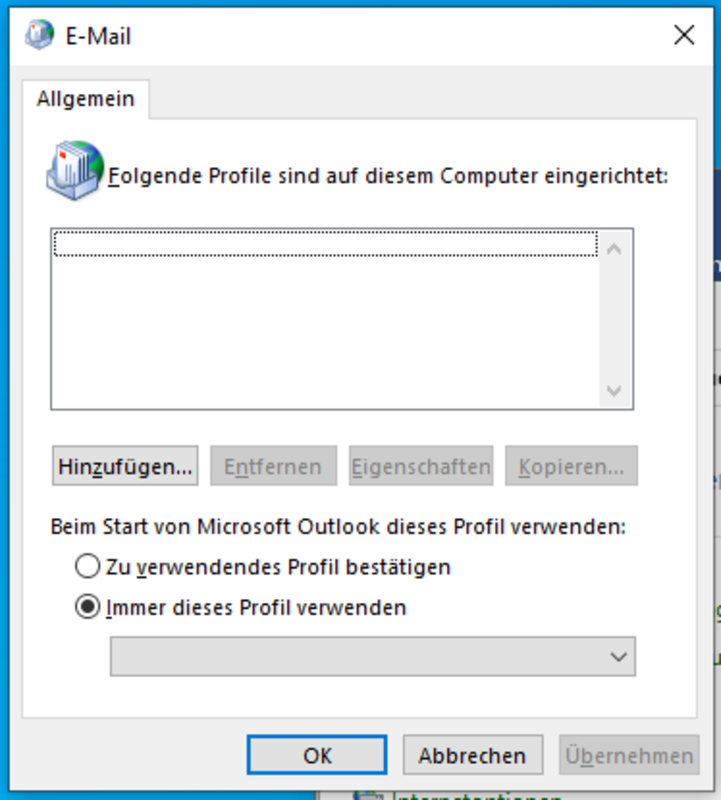
Open the Control Panel(set the view to ‘Small icons’ in the top-right corner) and select ‘Mail (Microsoft Outlook …)’, then the menu option ‘Email Accounts…’ (Office 2016)
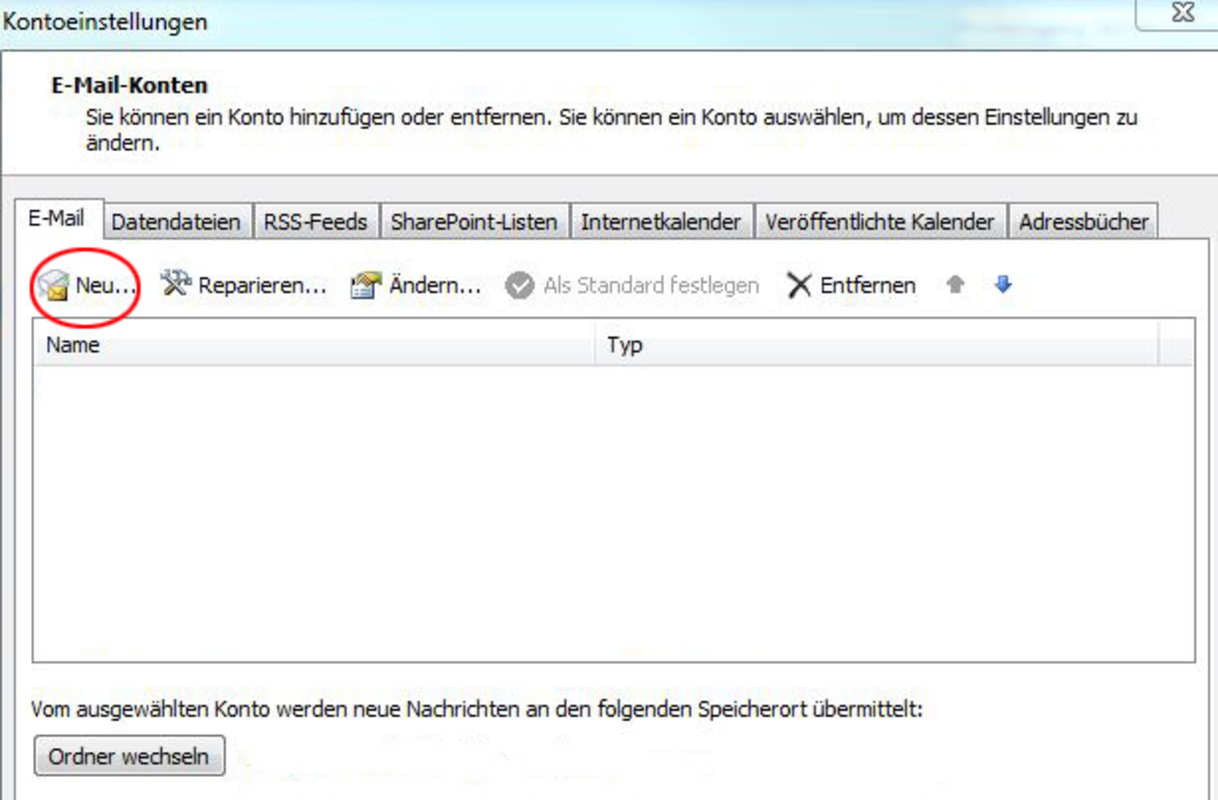
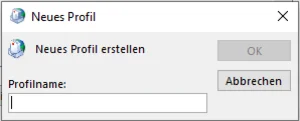
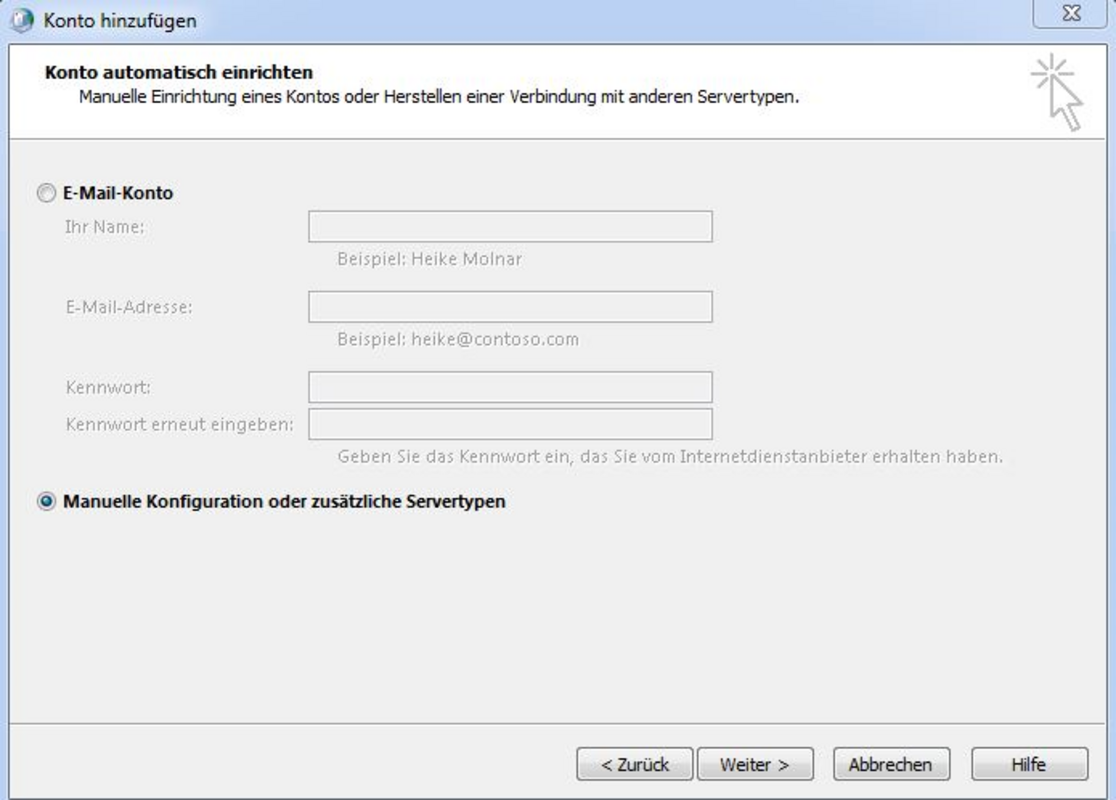
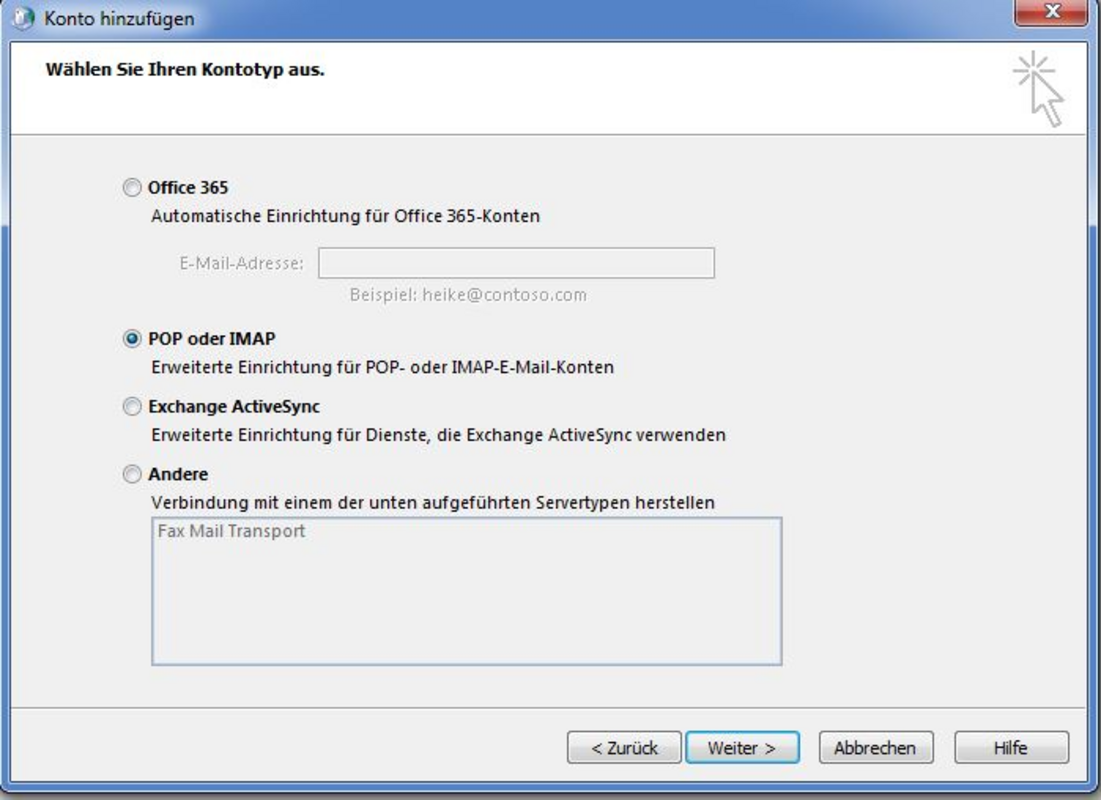
On the next page, please enter your login details (HCL Notes Webmail login details) as follows:
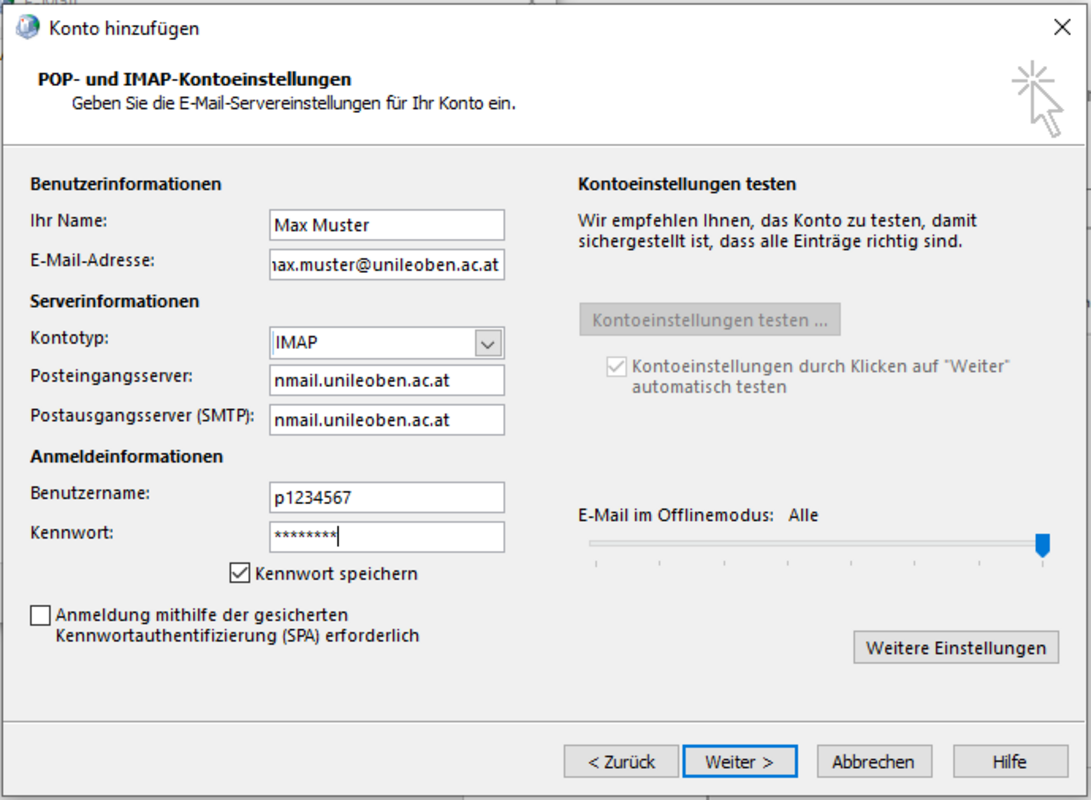
Under the menu item ‘Advanced settings’, change the following settings:
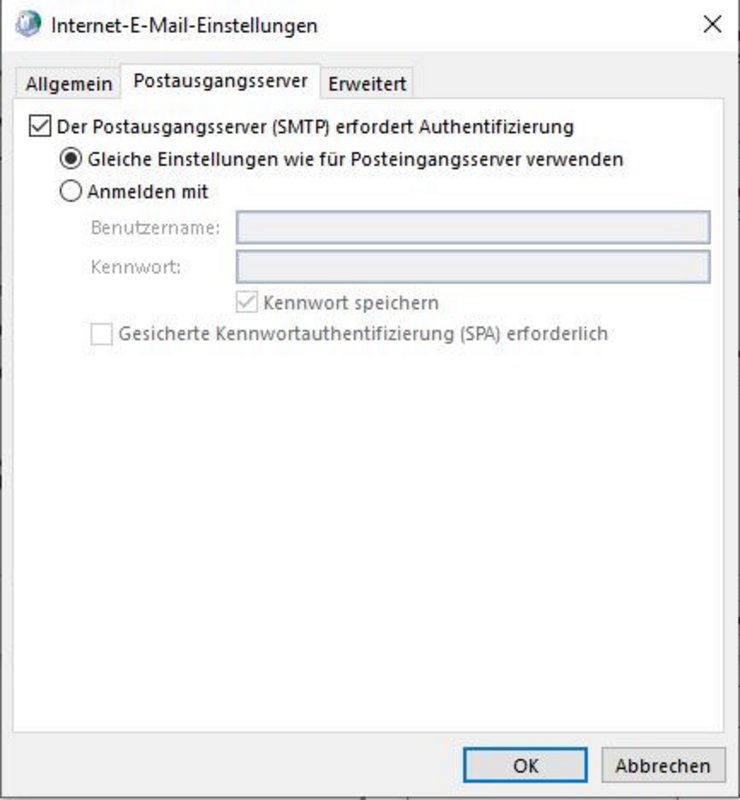
In the Outgoing mail server tab
Here, you must tick the box labelled ‘The outgoing mail server (SMTP) requires authentication’.
In the Advanced tab
| Incoming mail server (IMAP): | Use 993 (SSL/TLS) |
| Outgoing mail server (SMTP): | 25 |

Changing your webmail password
Open the MU-Leoben Address Book in your Notes client by double-clicking (left-click) on it.
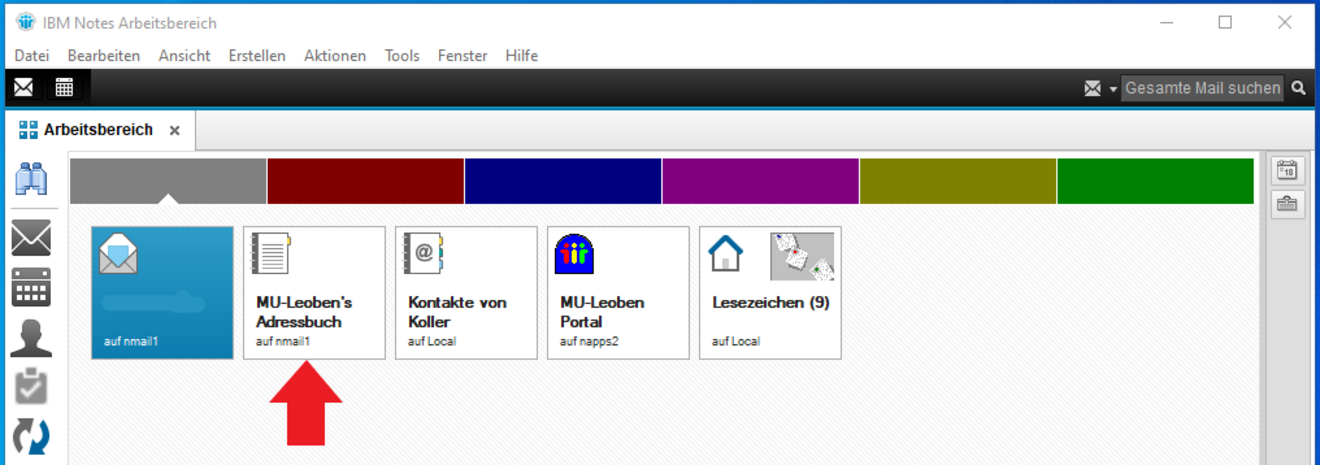
Search for your personal document.
Note:
The search window opens by pressing Ctrl+E, or by right-clicking on the list and starting to type.
Please ensure that the list is sorted by name, as the search is always performed in the first sorted column.
Open your personal document by double-clicking (left mouse button) and switch to edit mode by double-clicking again (left mouse button) or by clicking the ‘Edit’ button in the action bar.
Note:
The keyboard shortcut Ctrl+B opens the document immediately in edit mode.
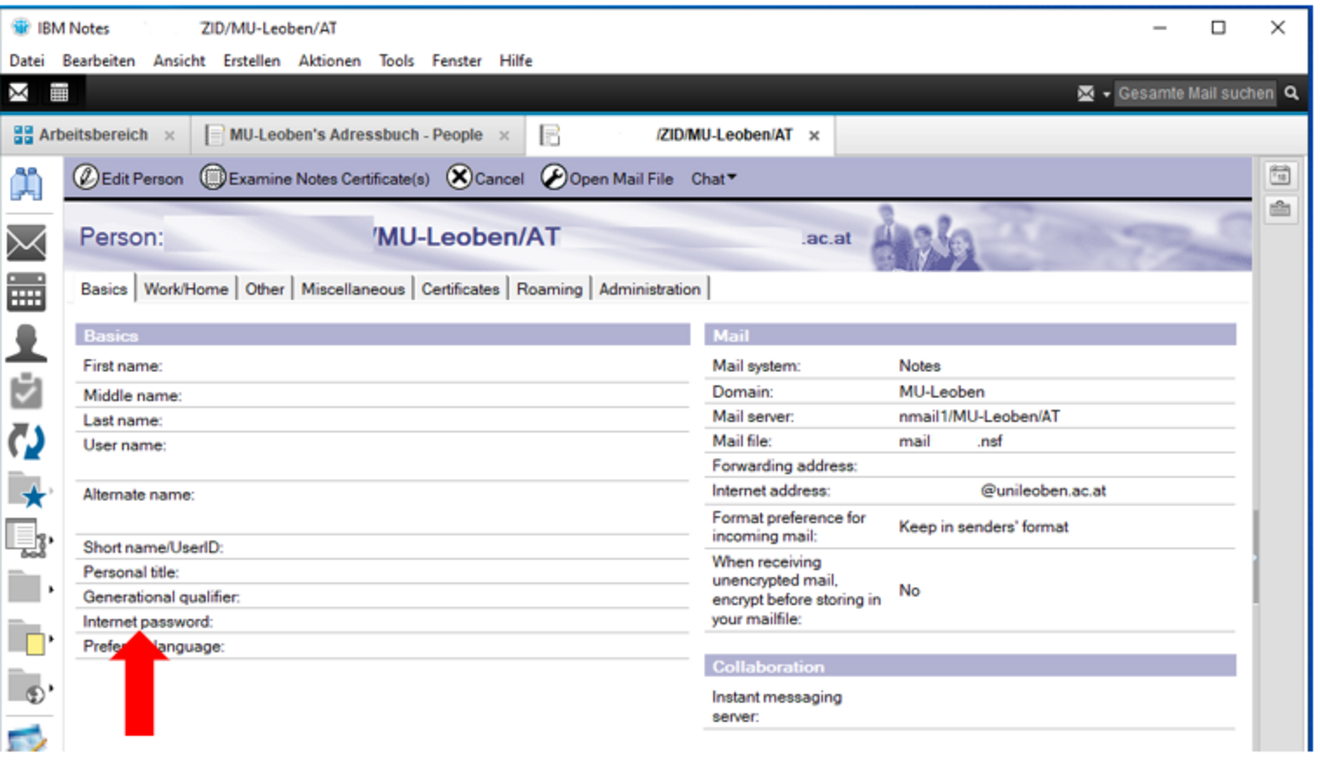
An ‘Enter Password’ button will appear, which you can use to set your webmail password.
It takes approx. 10–15 minutes for your change to take effect.
HCL Verse for Android
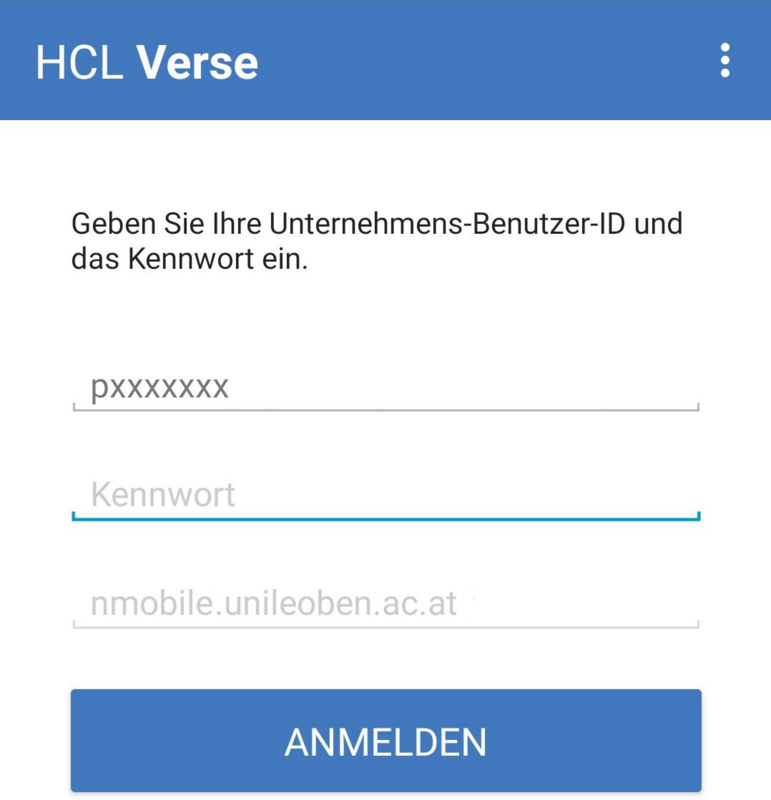
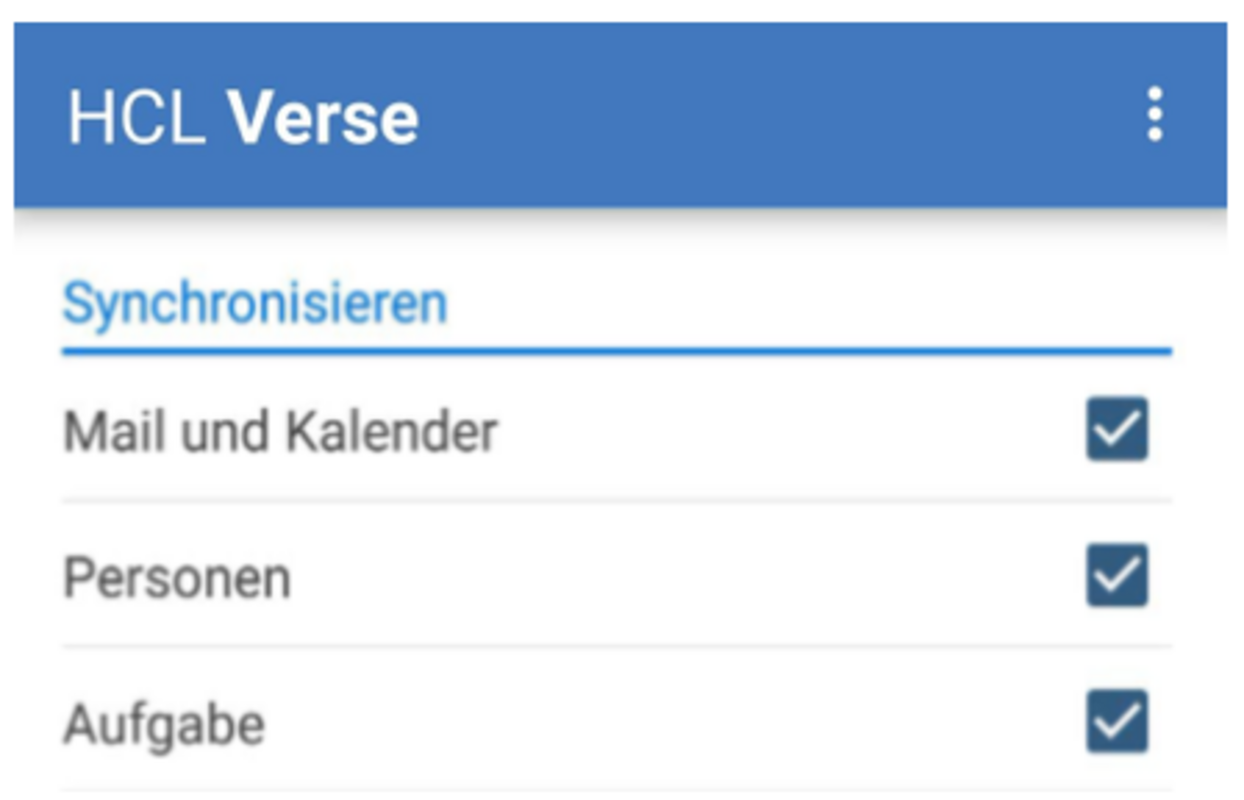
To use HCL Notes Traveler on Android, you must first have your account activated via a CCDB database request, and then proceed as follows:
1.) Download the HCL Verse app from the Google Play Store.
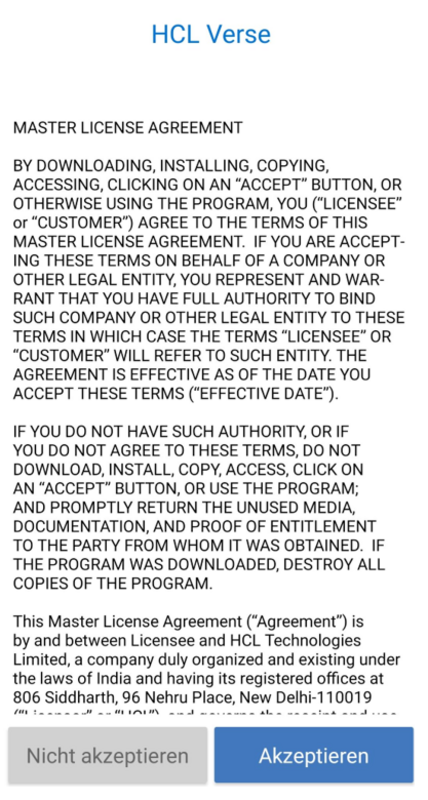
2.) Once the installation is complete, open the HCL Verse app and accept the licence agreement.

HCL Verse for iOS
To use HCL Notes Traveler on iOS, you must first have your account activated via a CCDB database request, and then proceed as follows:
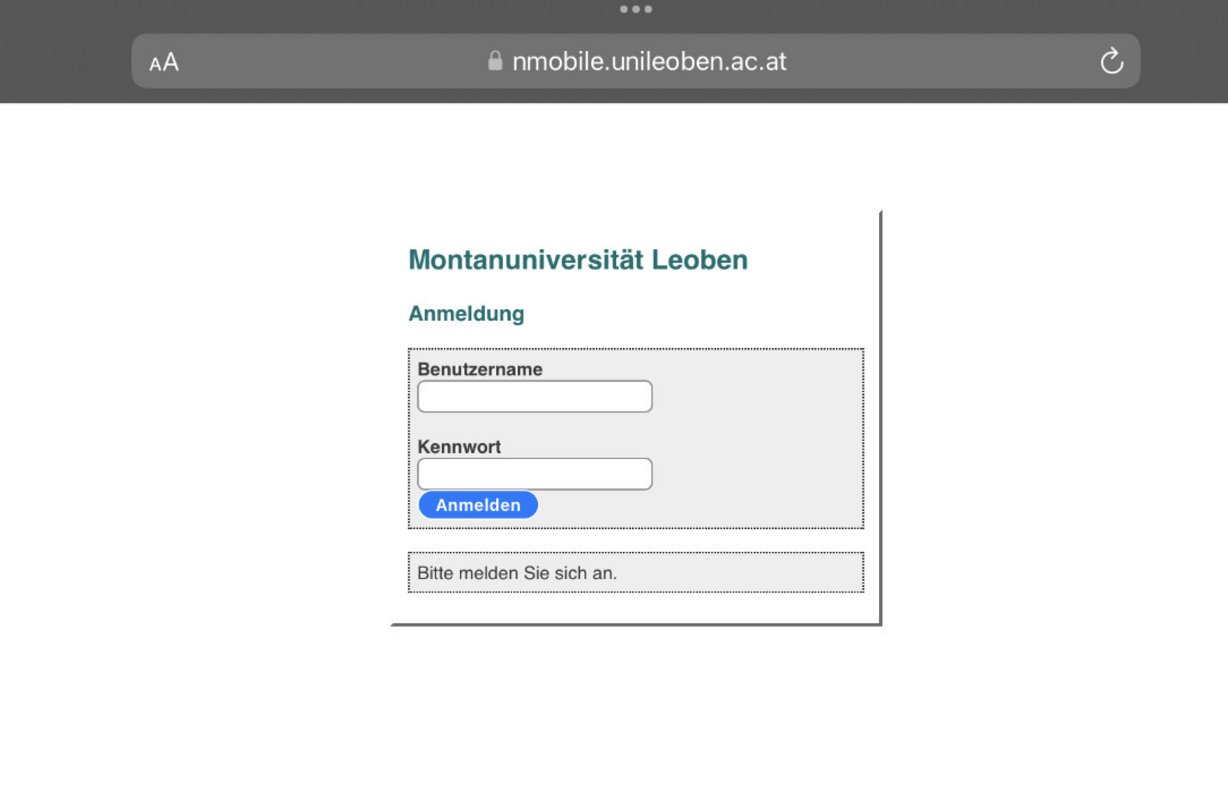
- Please connect to the following website via your web browser: https://nmobile.unileoben.ac.at. You must use the iOS browser Safari; alternative browsers will not work.
- If the page does not open, or if you are outside the university network,
- please ensure that your browser has not removed the ‘https’ part from the URL. External connections are only accepted via port 443 – hence the request URL https://nmobile.unileoben.ac.at – from outside the network.
- If you are on the university network (active university Wi-Fi connection such as Eduroam or via VPN) but the page still does not open, please enter:
nmail.unileoben.ac.atas the address. - Once the page has loaded, please click in the address bar again and replace
“nmail” with “nmobile”.
- Log in to the website using your HCL Notes Webmail login details.
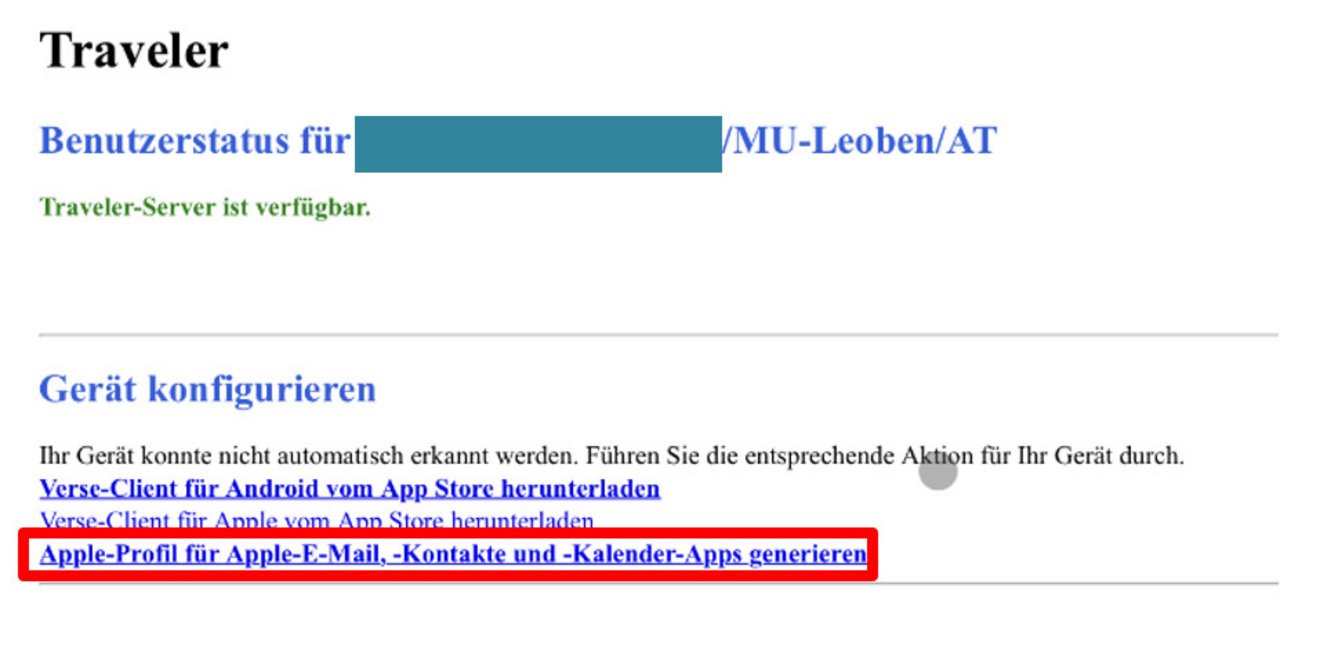
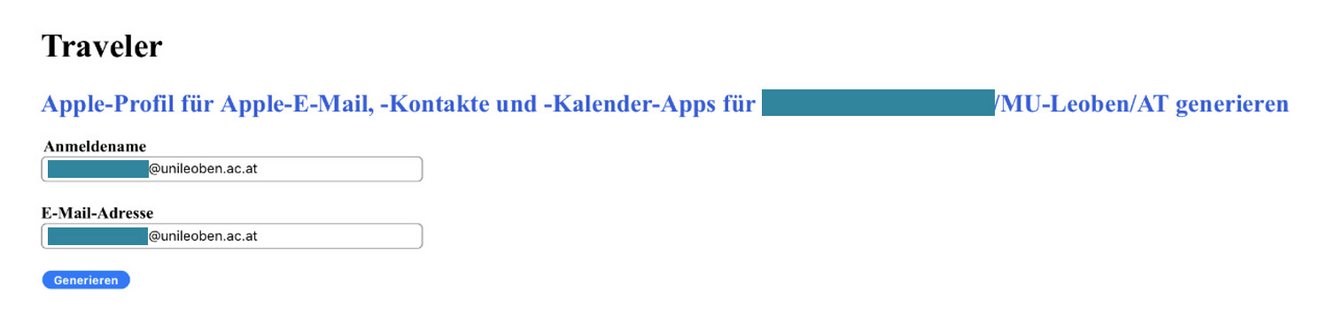
4. Once you have logged in successfully, select “Generate Apple Profile for Apple Mail, Contacts and Calendar apps”.
5. Please check that your email address has been entered correctly. Then select “Generate”. You can confirm the pop-up “This website is trying to load a configuration profile. Do you want to allow this?” by clicking “Allow”.
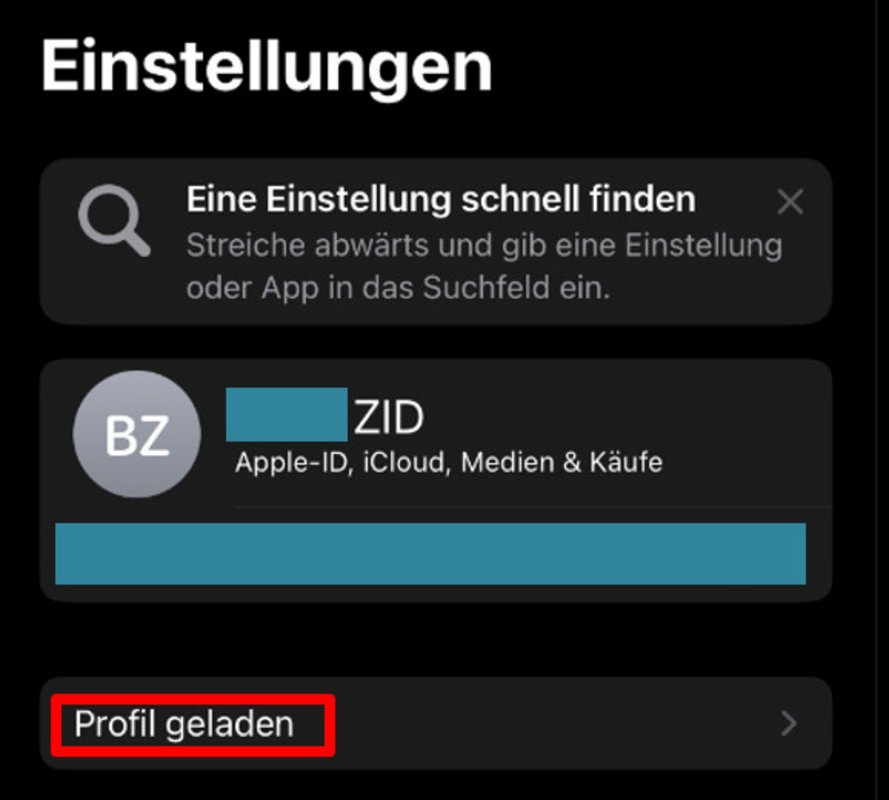
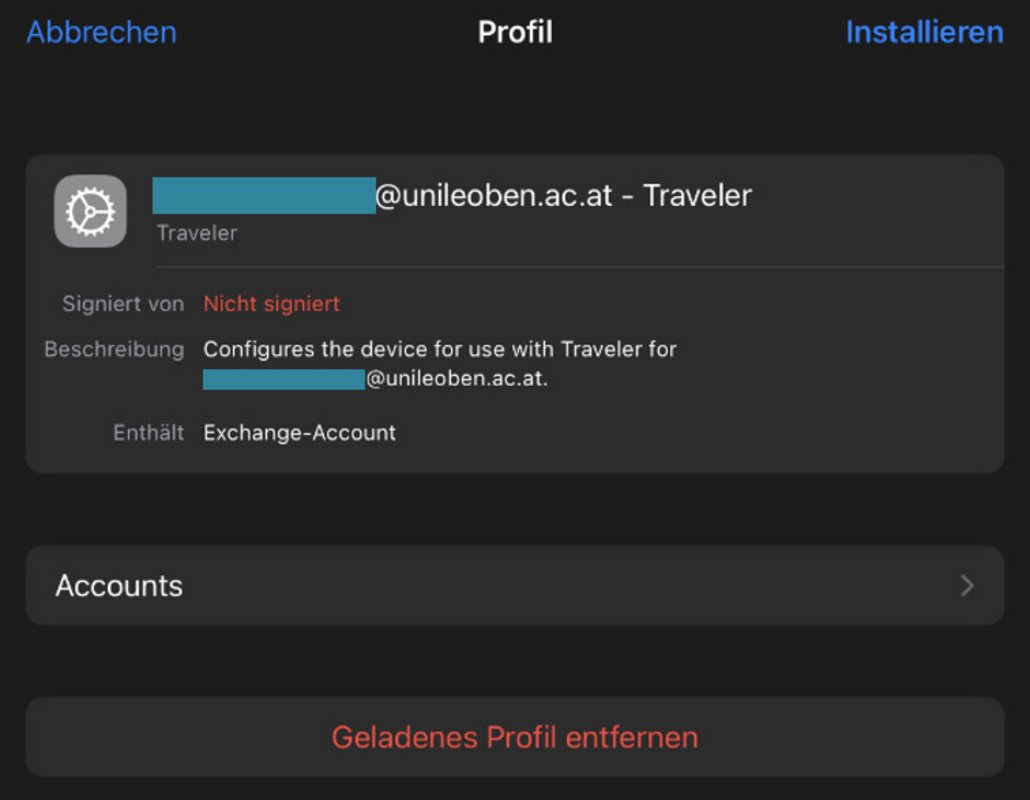
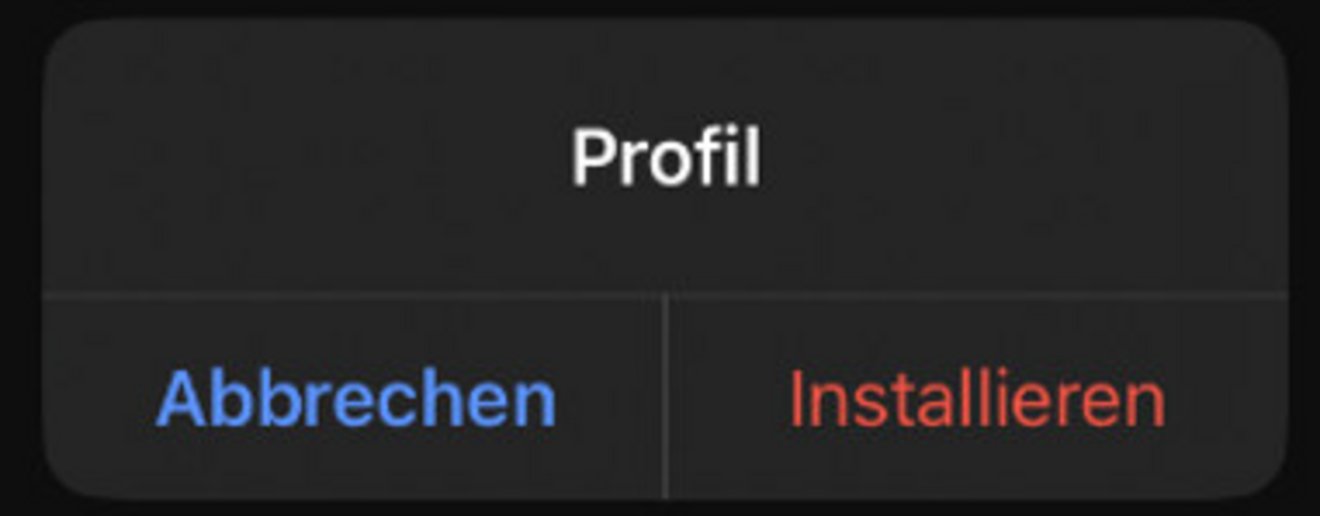
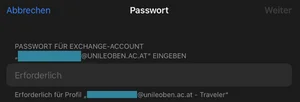
6. Once your profile has been generated, the system will prompt you to import it: Go to Settings → General and, in the subsequent dialogues, select “Install”.