What is MFA?
The term multi-factor authentication (also two-factor authentication) refers to a system that secures the login process using several independent features (factors) and protects your account from unauthorized access.
In this case the first factor is your password, which in the best case scenario only you know.
The Factors can be classified into the following areas:
- Knowledge (e.g., personal data, security questions)
- Ownership (e.g., smart card, hardware token, mobile phone/software token)
- Inherence (e.g., facial recognition, fingerprint scanner, iris scanner)
The most common example of multi-factor authentication is the ATM.
You need a bank card (ownership) and the respective PIN (knowledge).
How do i setup MFA?
The following steps must be performed to set up MFA:
Take a moment and read through the individual steps carefully to avoid problems with your login.
1. MFA app installation
To use MFA an app is required which manages the so-called MFA token.
The Technical University of Leoben recommends using the app PrivacyIDEA as a second factor.
You can download this app for your mobile device as usual from your store for Android or iOS for free.
Alternatively, the following apps can also be used: Google Authenticator and Microsoft Authenticator.
However, if you do not want to use a mobile device, you can also set up MFA using the KeepassXC application.
2. MFA setup page
After successfully installing the app for MFA, you can access the MFA setup page by clicking the following button:
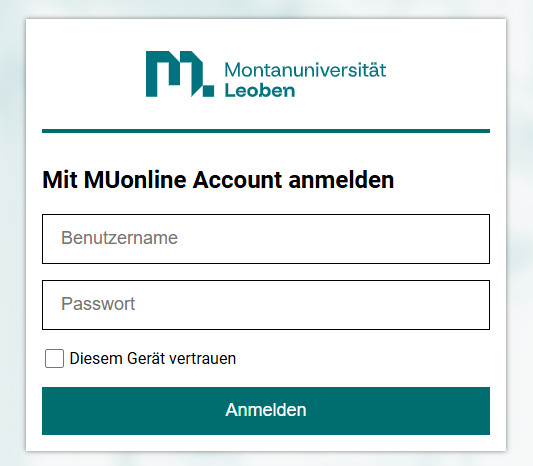
Log in to this page with your MUonline username (p-number/matriculation-number) and the corresponding password.
If you are the only one with access to the current device, you can optionally select the “Trust this device” box.
This option saves your login for a longer period of time, so you do not have to re-enter your password and second factor every time you log in.
3. MFA token enroll
On the MFA setup page, you will find an overview of existing MFA tokens and you can create new ones.
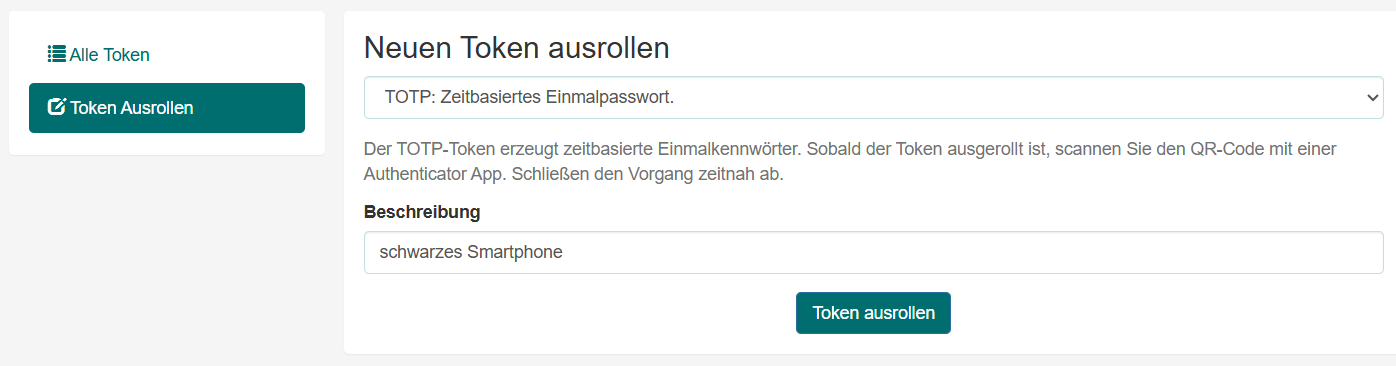
Now select “Enroll Token” in the menu and assign a unique description to the mobile phone on which the MFA app is installed.
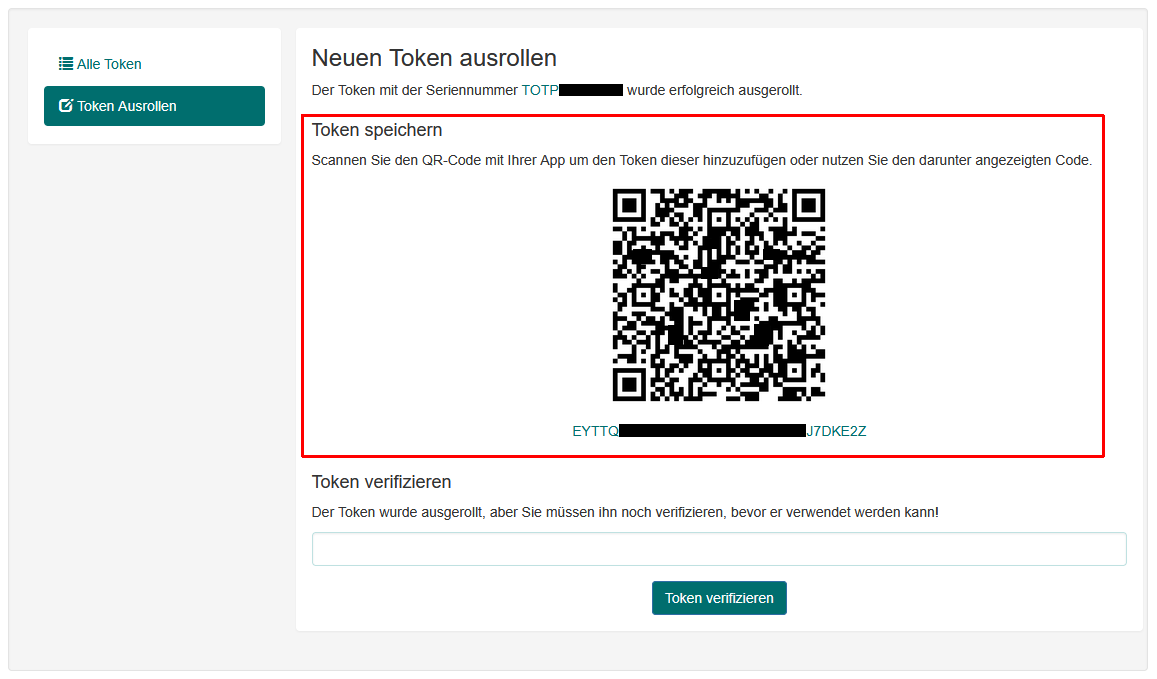
Click the “Enroll Token” button to create the MFA token, which must be transferred to the app in the next step.
4. MFA token scan
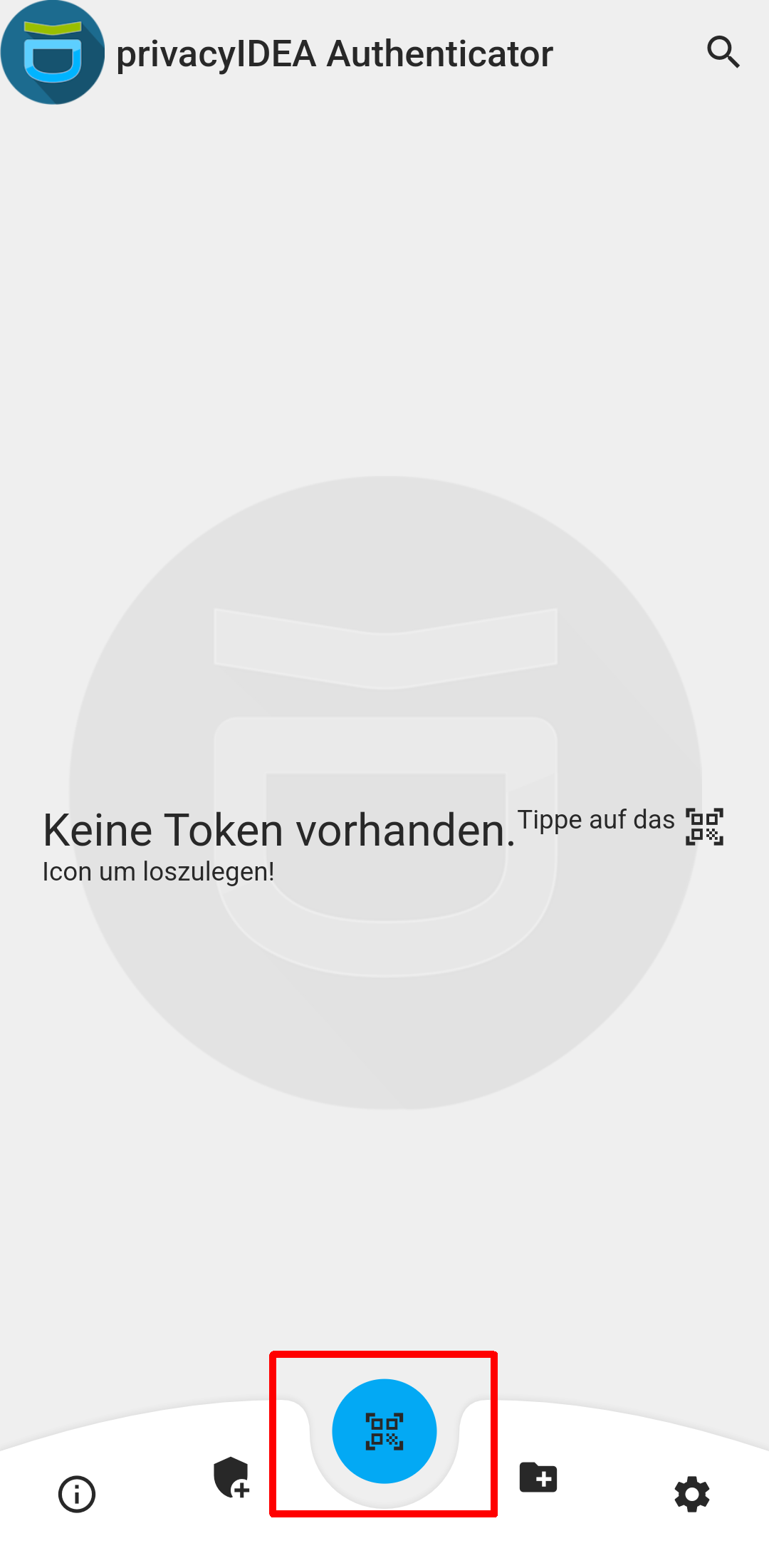
Now launch the app PrivacyIDEA on your mobile phone and click the blue button at the bottom of the app.
The camera on your mobile phone should now open. Hold your mobile phone so that the QR code now displayed on the website can be scanned with the app.
If you are unable to scan the QR code, you can also use the link or secret below the QR code.
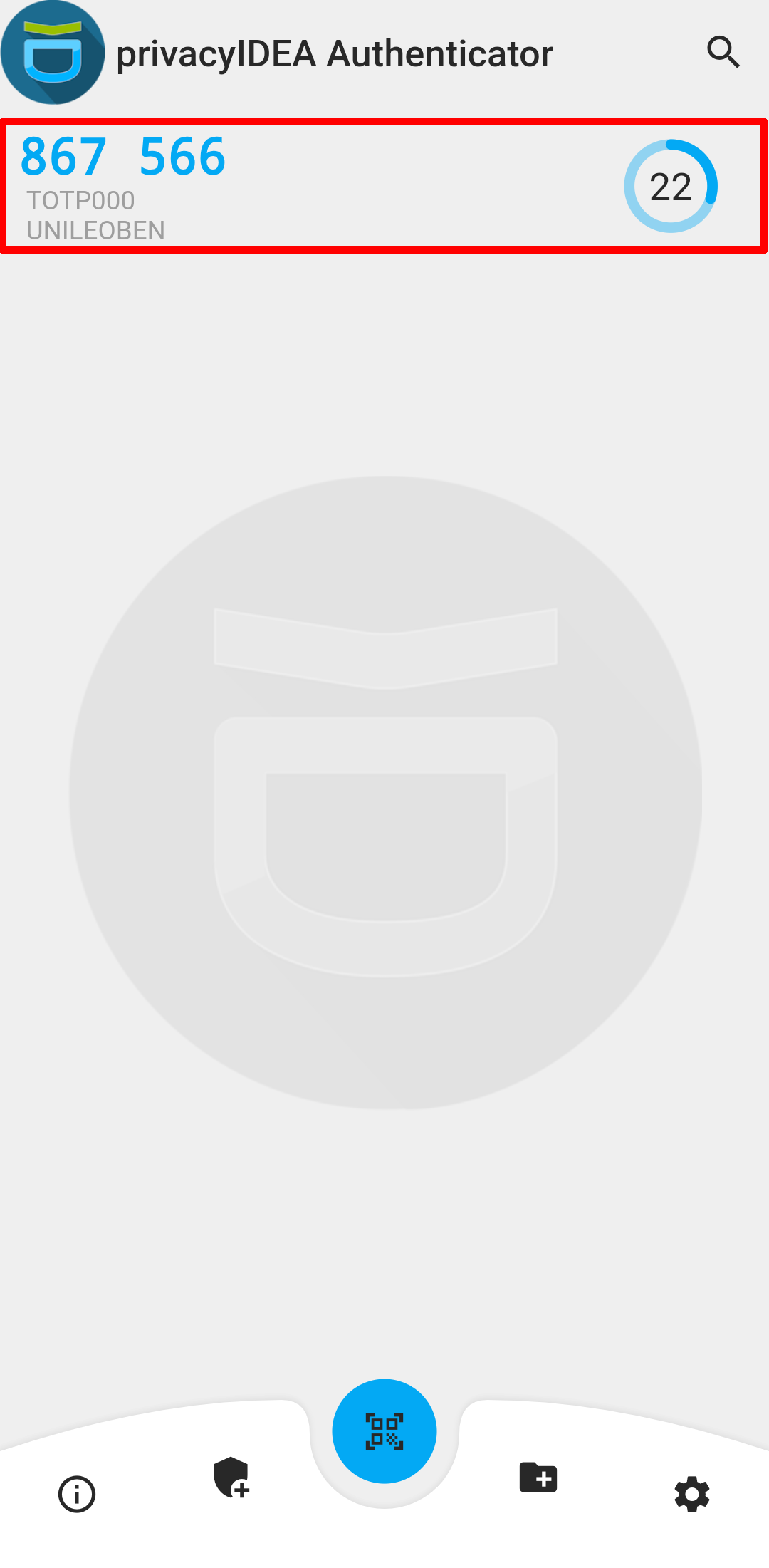
Once the MFA token has been successfully recognized, a new entry will appear in the app.
This entry is your second factor, which now needs to be verified in the last step.
5. MFA token verify
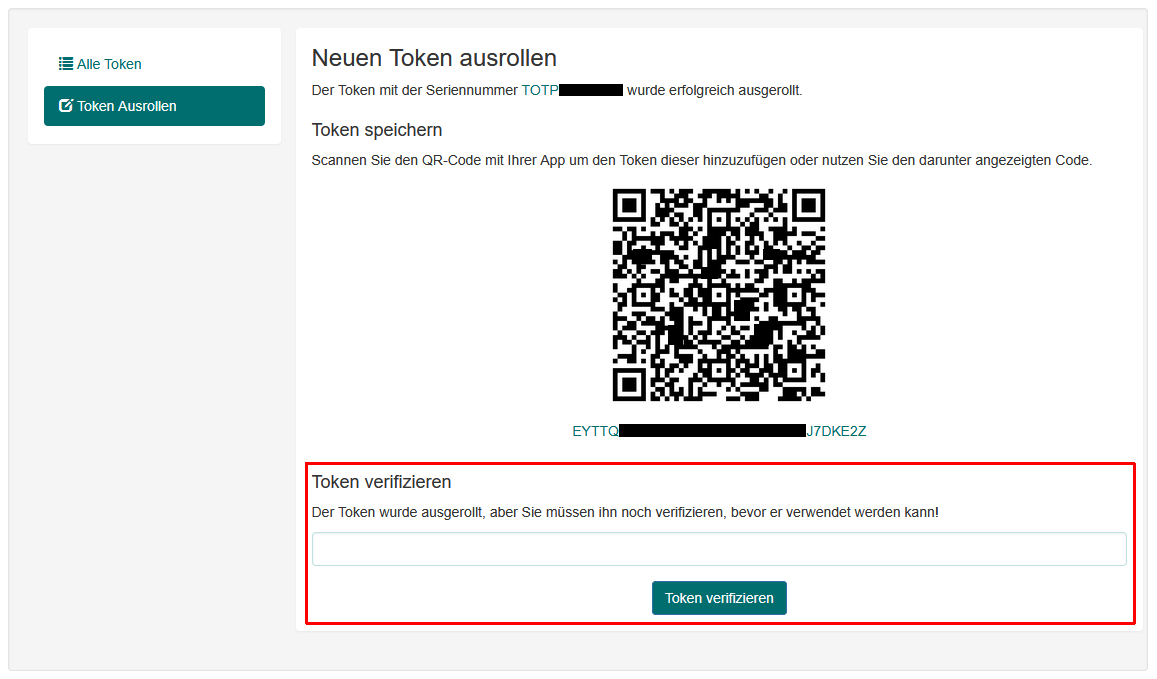
The second factor must be verified to ensure that it is functioning properly.
Enter the current code from the app on the MFA setup page below the QR code.
Afterwards your second factor is set up and ready to use.
How do i log in with MFA?
All systems that support single sign-on have the same login page and therefore support MFA.
First, log in on this login page with your MUonline username (p-number/matriculation-number) and the corresponding password.
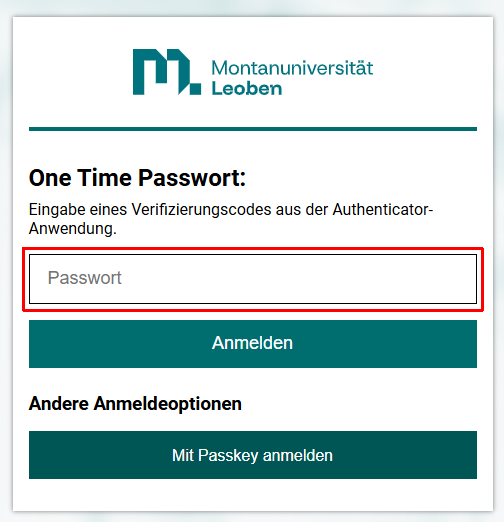
If you have already set up at least one MFA token, you will be prompted to enter the Code of the MFA app.
To do this, open the app PrivacyIDEA and search for the token “UNILEOBEN”.
Now enter the current Code in the app on the login page.
If it is correct, you will be redirected as usual and will now be logged in.