Option 1 (available only in Outlook Classic)
1. Create a template:
- Open a new email.
- Enter the desired subject line and the text you want to include in the template. It is important to delete any signature, if present.
- Under “File,” select “Save As” and choose “Outlook Template (*.oft)” as the file type.


- The correct location will open automatically after you select “Outlook Template (*.oft).” Enter the desired name and click “Save.”

2. Use this template:
- Next to “New Email,” select the “arrow,” navigate to “More Items,” and click “Select Form.”

- Under “Search in:”, select “Templates in the file system” and open the desired template.
Note: If the signature was not deleted when the template was created, it may appear twice after the template is opened.


Option 2 (Outlook Classic View)
Note: With this option, you cannot add a subject line.
- Open a new email.
- Depending on which ribbon is set in Outlook Classic, you'll find the Templates section either directly on the ribbon or under the three-dot menu under “Show Templates” after you've opened a new email.


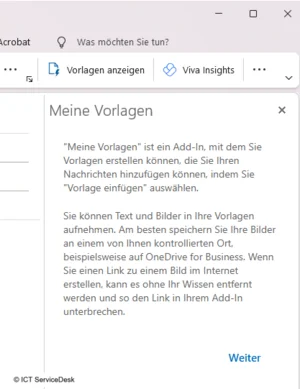
- Confirm the information page by clicking “Continue,” and the “My Templates” section will appear.
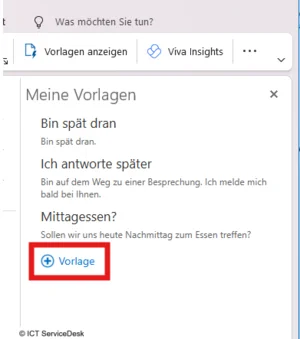
- Clicking “+ Template” opens a new dialog box where you can name the template and enter the text. After clicking “Save,” the template you created appears in the “My Templates” section.


- You can insert this template into your email by clicking on it.

Outlook New
- Open a new email and write the text you want. In the ribbon, under “Email Template,” select “Save Email as Template.”

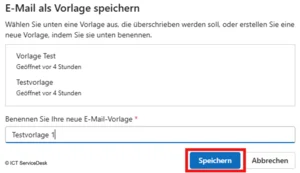

- To open a template, select the down arrow under “New” and click “Email from Template.” The templates will be displayed; select the desired template, and it will open as a new email.

IMPORTANT NOTE:
- In Outlook New and Outlook Web, you can create as many templates as you like, as long as the combined file size does not exceed 32 KB. With complex formatting or large images, this limit is often reached after just a few templates.
- In Outlook Classic, there is no fixed limit; since classic templates are saved as standalone .oft files on your hard drive, the number is limited only by your available storage space.