If Microsoft 365 is not still installed or if another version of Office is installed, uninstall the other version first and then install M365.
Download from the official website: Microsoft Office 365
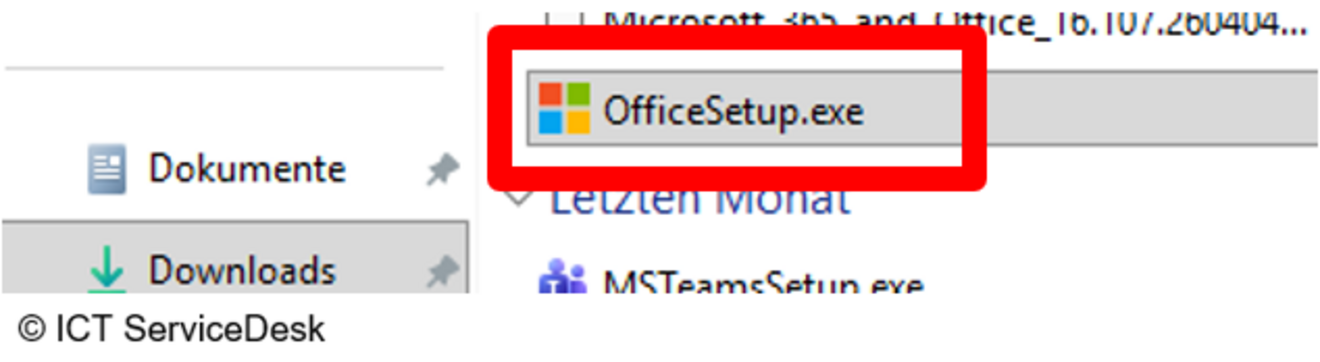
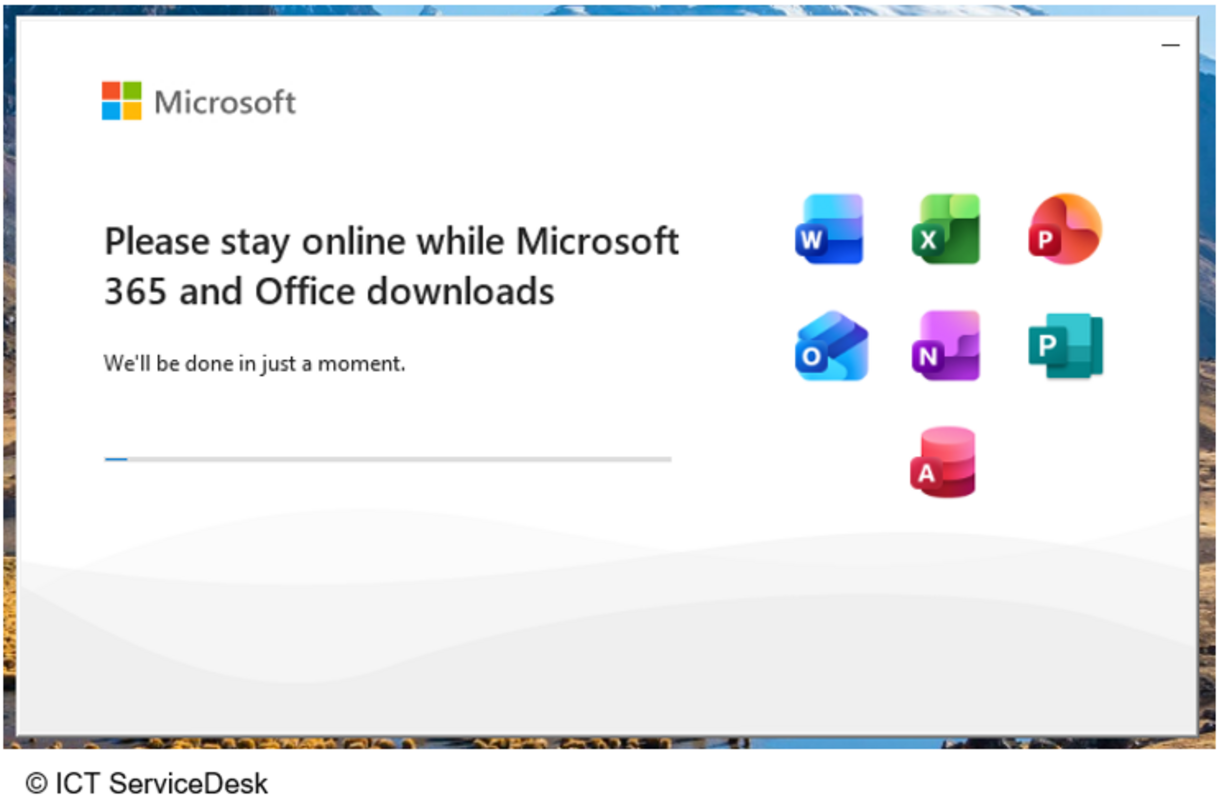
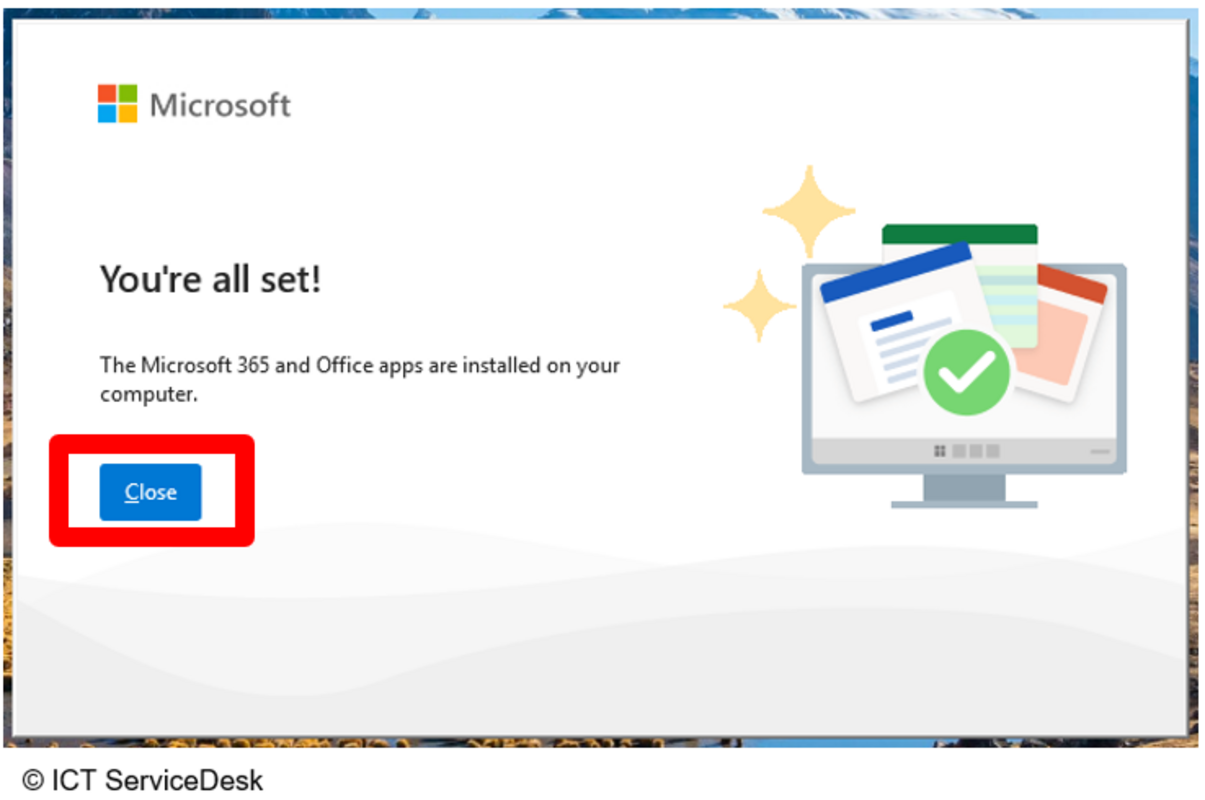
- Launch OfficeSetup.exe from the Downloads folder and wait for the installation to be complete.
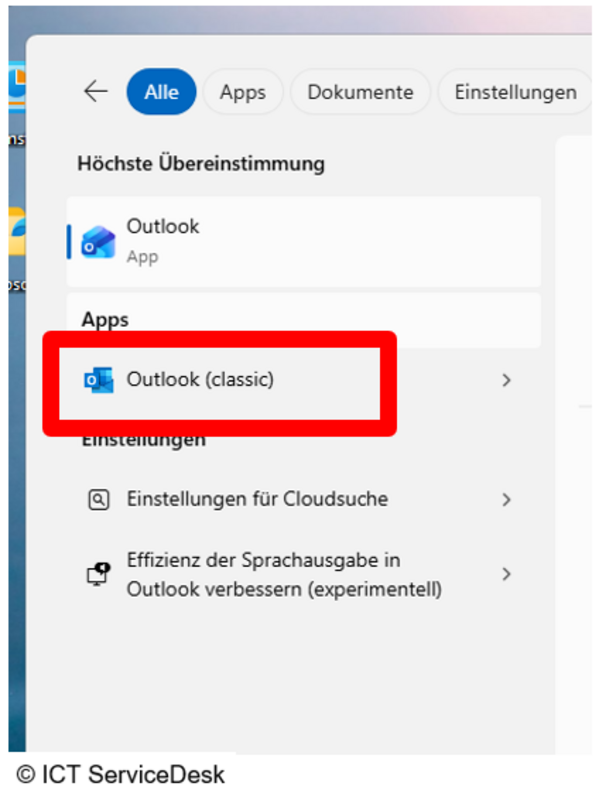
- Now search for “Outlook (classic)” in the Start menu and open it. (Not Outlook New!)
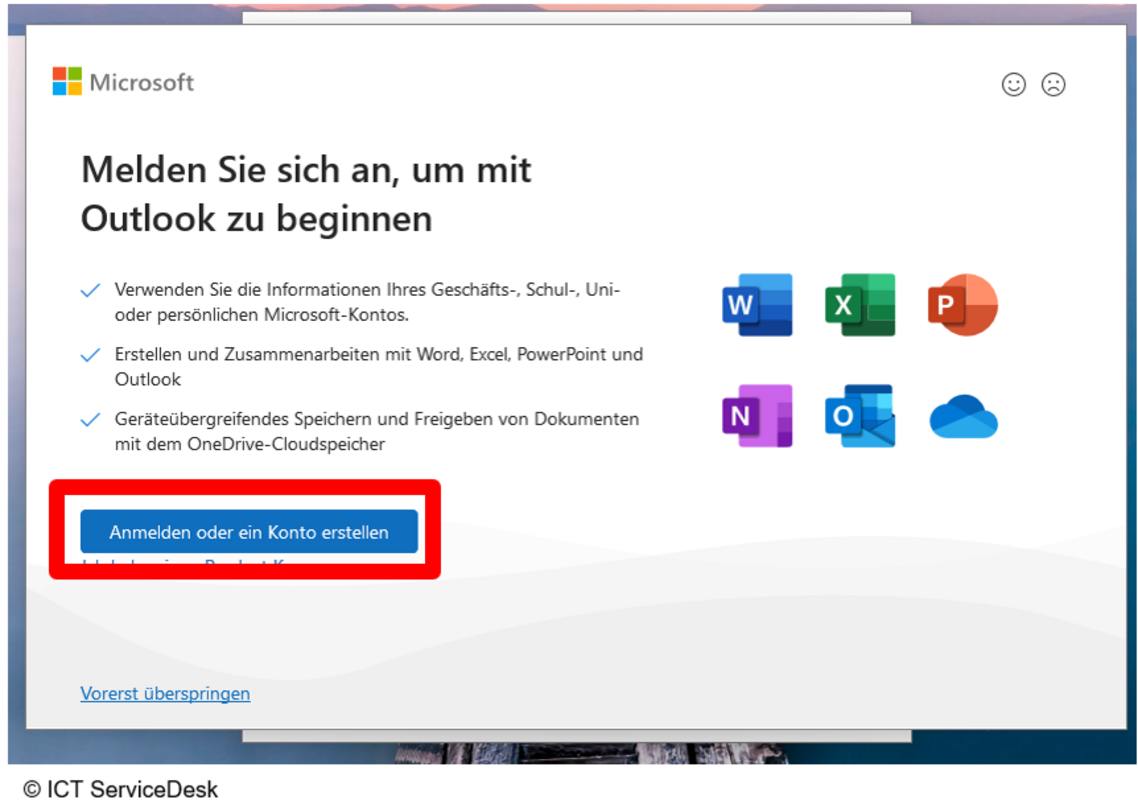
- The Microsoft sign-in screen will appear, select “Sign in or create an account” here.
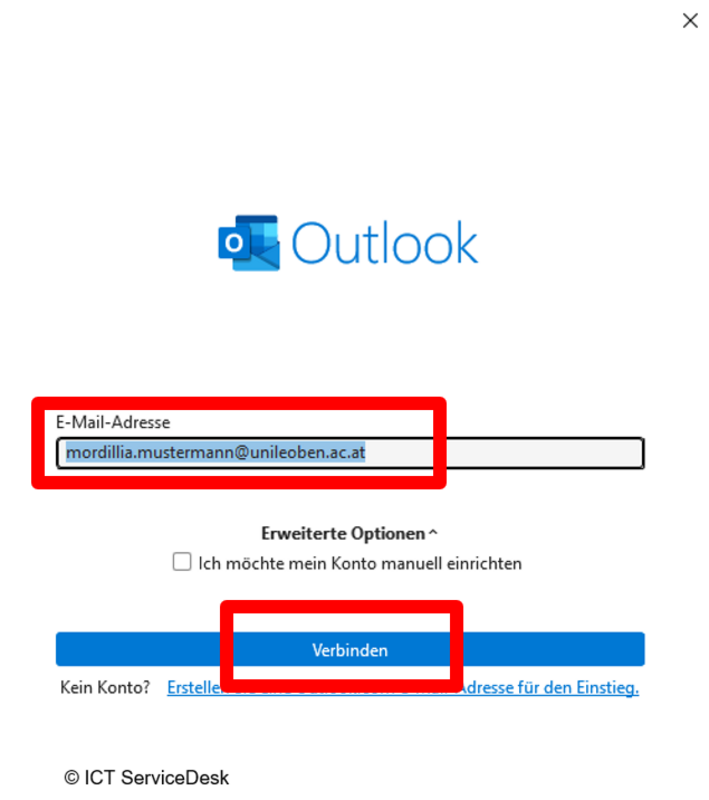
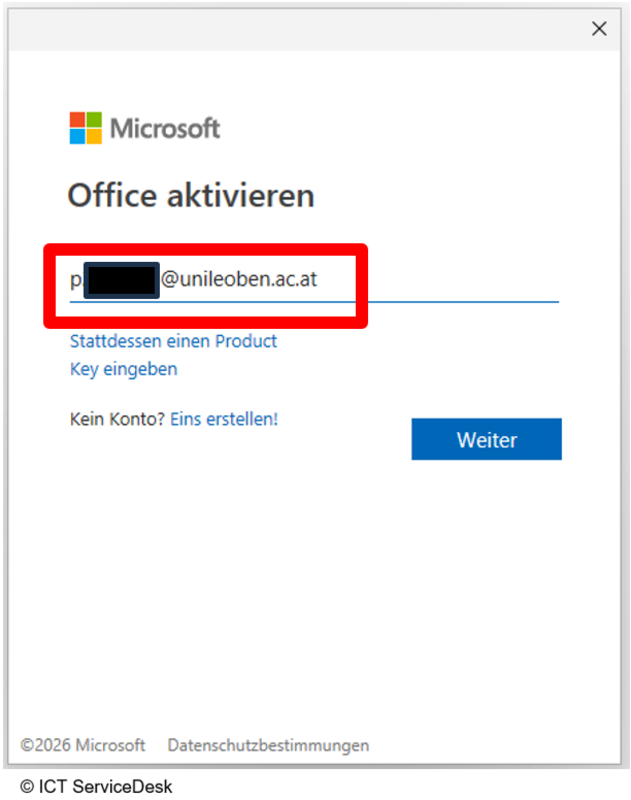
- Use “[MUonline username]@unileoben.ac.at” as your email address.
For example: „p1234567@unileoben.ac.at“, „m01234567@unileoben.ac.at“
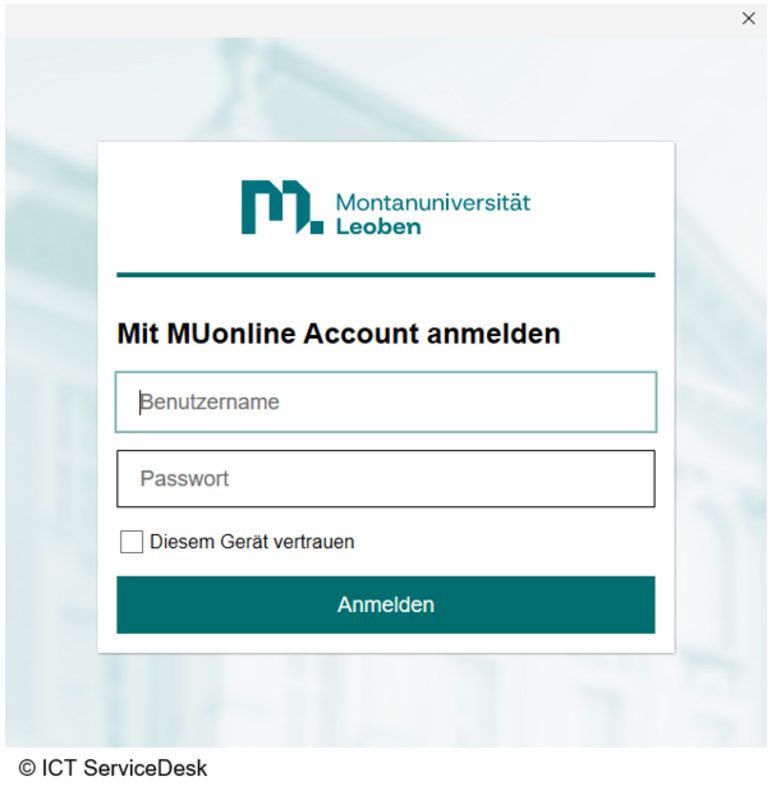
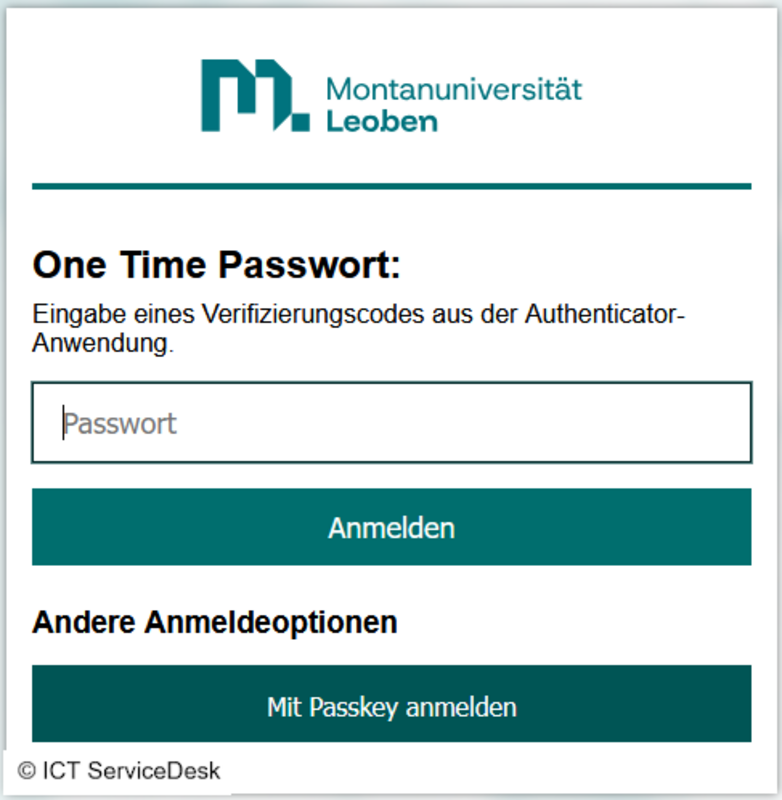
- On this page, log in using your MUonline username (P-number, student ID) and the corresponding password. If only you have access to the current device, you can optionally check the “Trust this device” box. This option saves your login credentials for an extended period, so you don’t have to enter your password and two-factor authentication every time.