Shared Mailbox

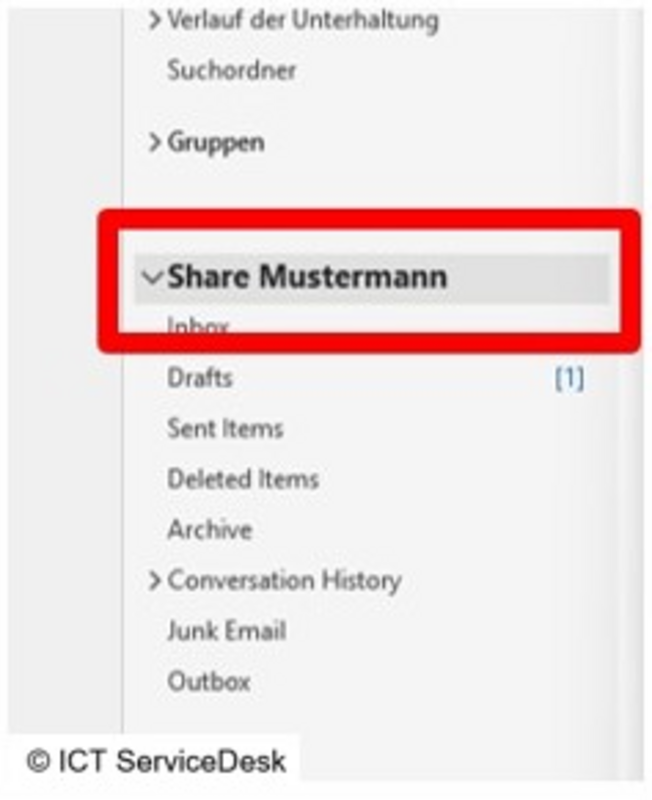
  • Access to a shared mailbox must be requested via a Ticket. Once access is approved, the mailbox will automatically appear after restarting Outlook.
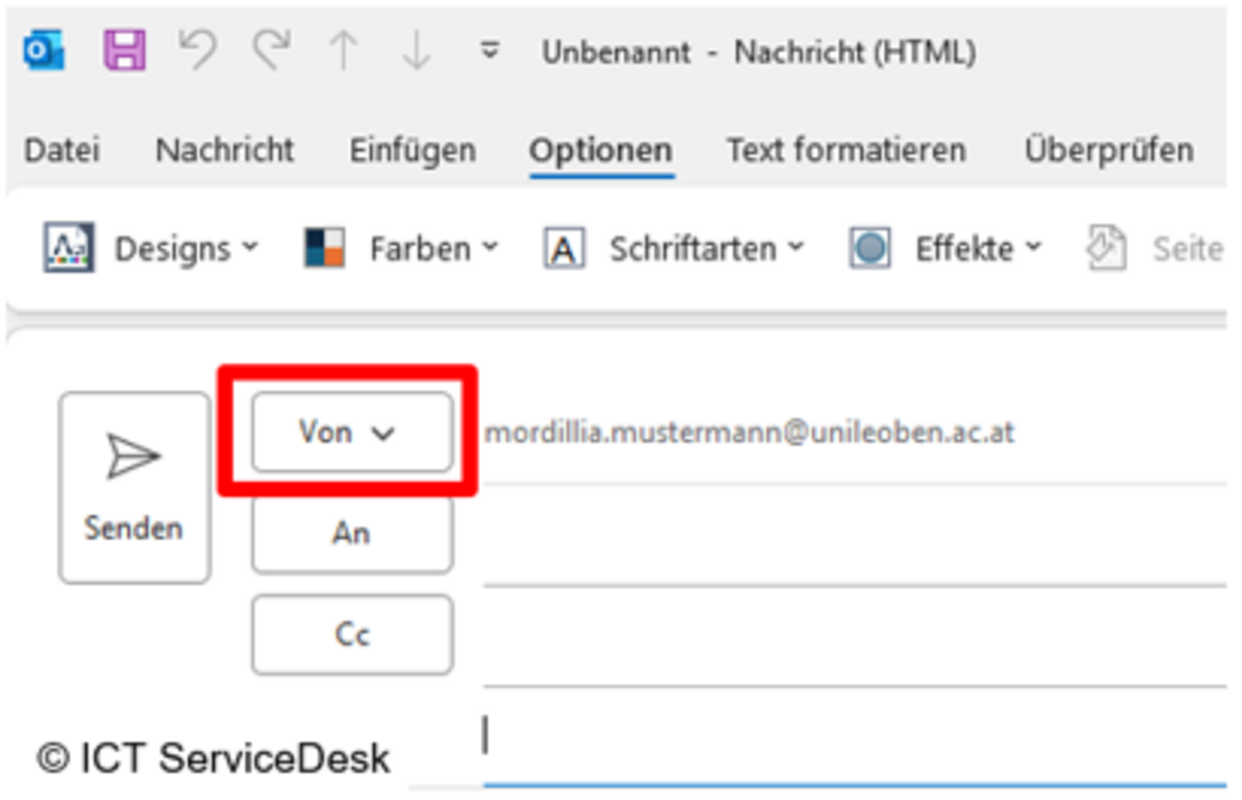
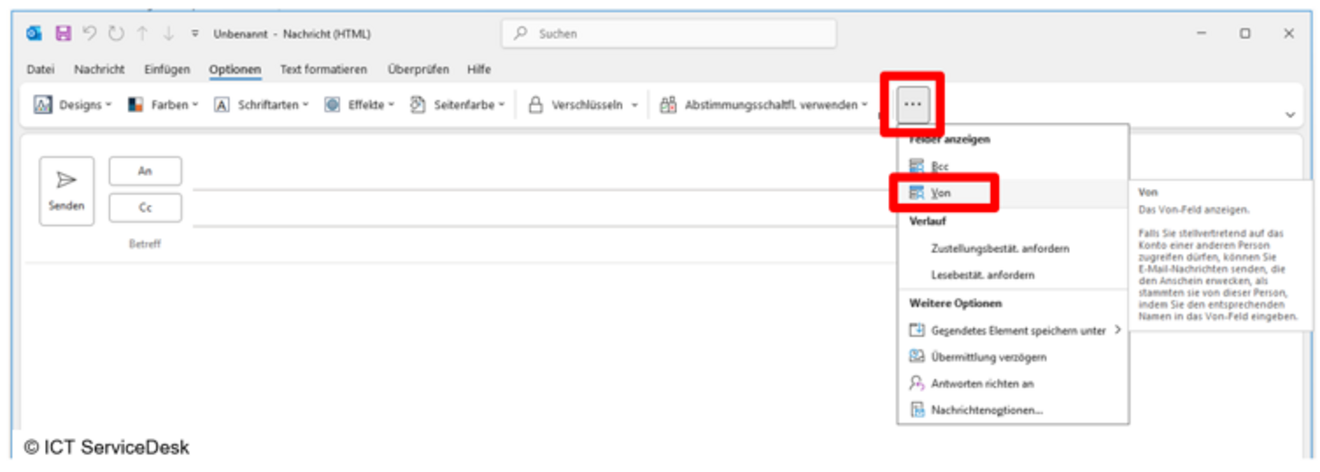
  • To send emails from this mailbox, you must enable the “From” field. To do this, open a new email, go to the Options tab, and select the field From.
  • The From field is now available.
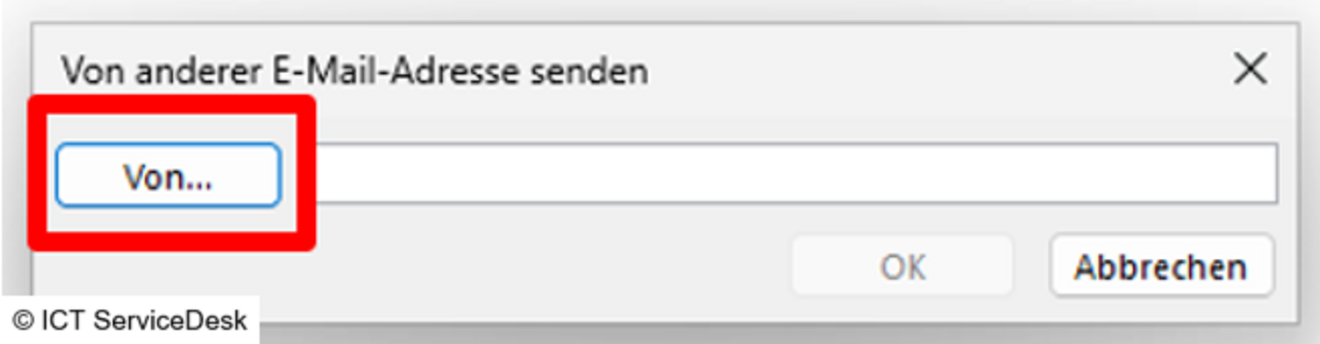
  • Clicking From allows you to add another email address.
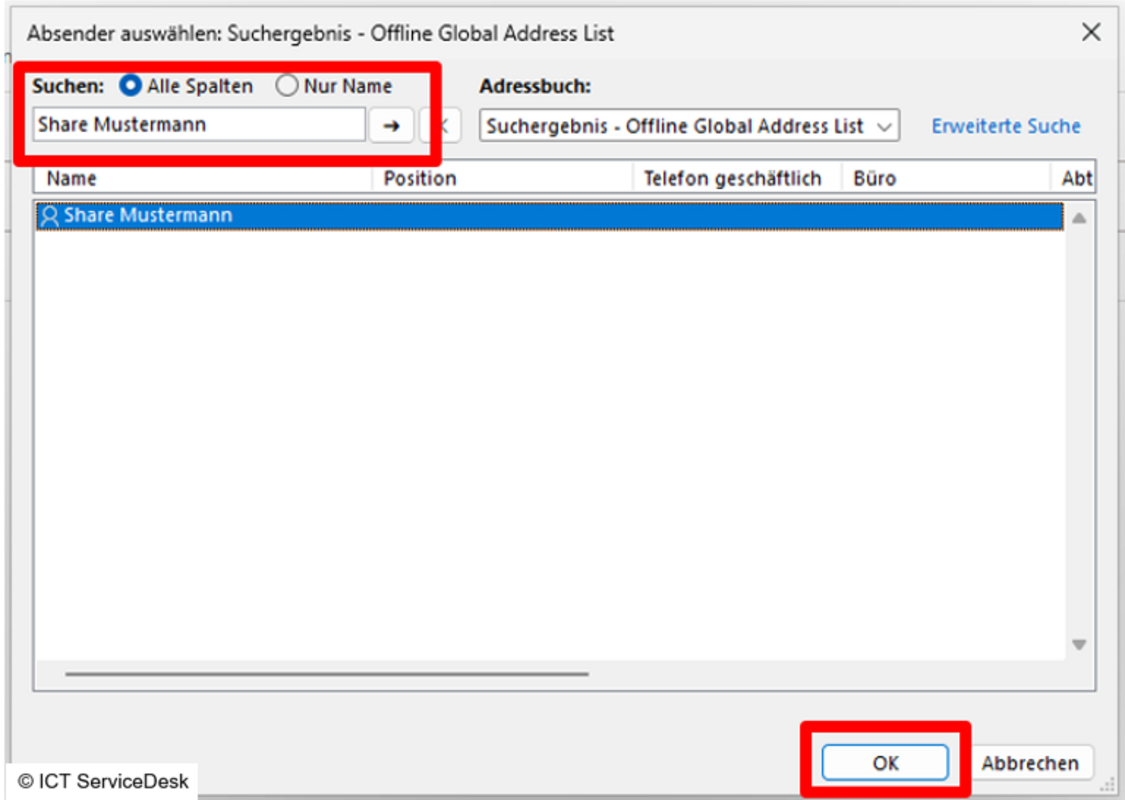
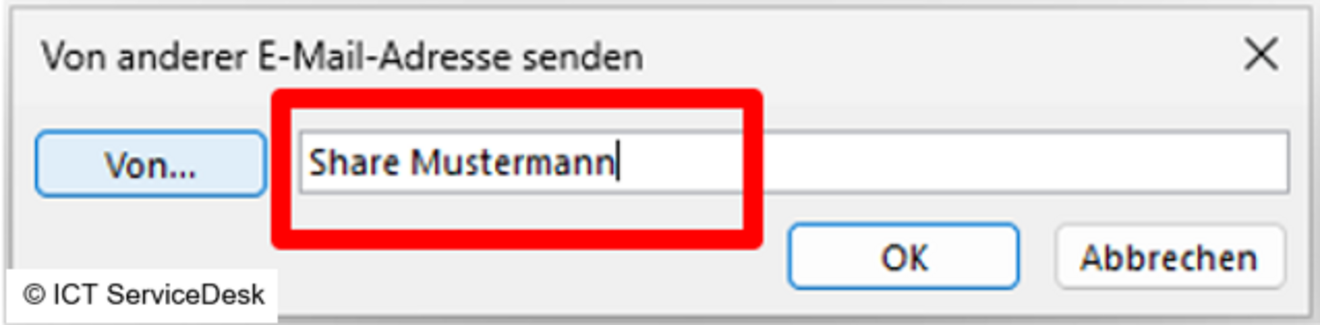
  • Now you can search for the mailbox using the From… button, or enter the correct name manually and confirm with OK.
  • Using the From… button:
  • Manual entry:
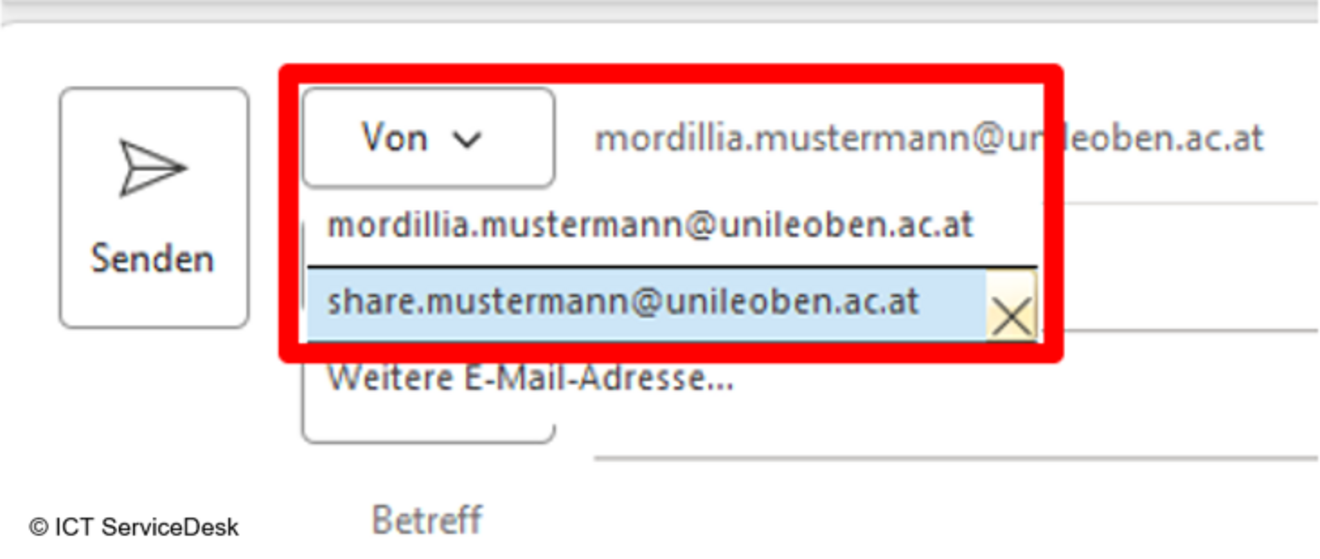
  • Select the correct Sender address by clicking From.
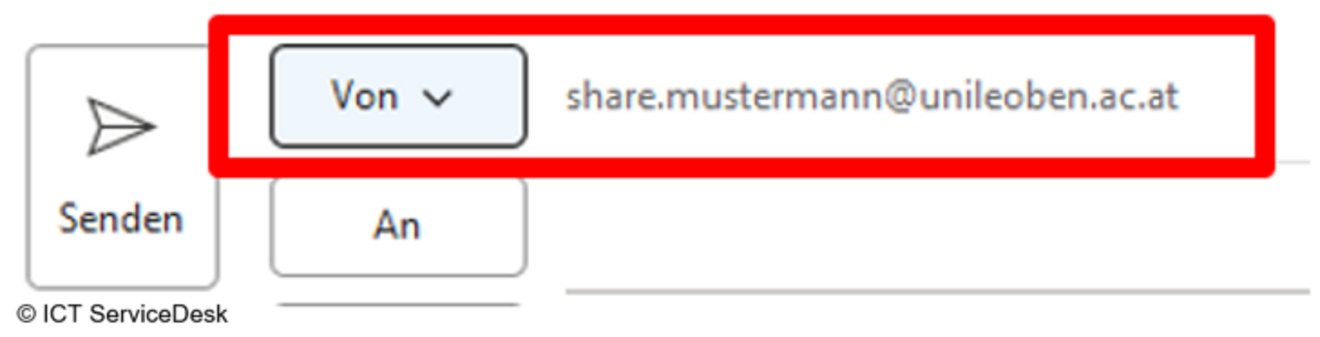
  • The correct Sender address is now visible, and emails will be sent from this mailbox.

Information:


Sent emails are stored in the user's Sent Items folder, but server settings can be configured to also save a copy in the shared mailbox.

Drafts are also saved by default in the user's Drafts folder, these must be manually moved to the shared mailbox folder.