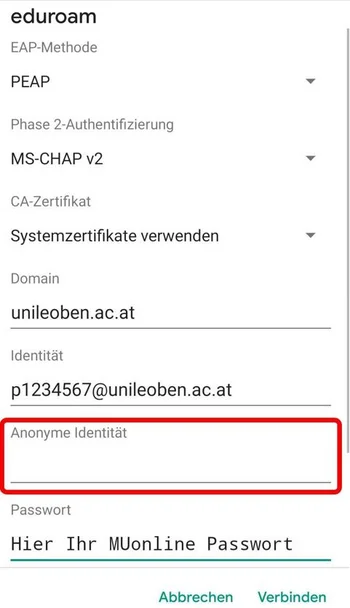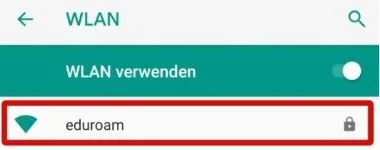
Enter the following information: your login credentials (MUonline username) + “@unileoben.ac.at” and the corresponding password, then click “Connect” (Figure 2).
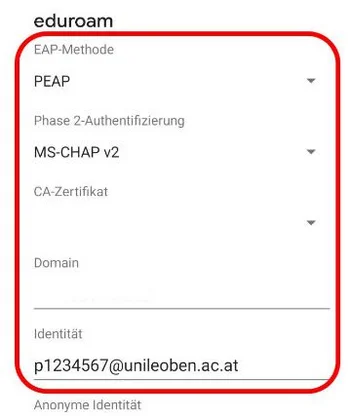
EAP method:
PEAP
Phase 2 authentication:
MS-CHAP v2
CA certificate:
Do not validate / Do not verify
Identity: MUonline username +
“@unileoben.ac.at“
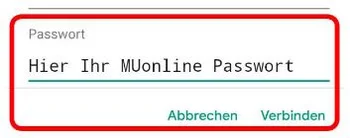
Password:
Your MUonline password
If you experience connection issues with new devices, please select "Use system certificate" and enter "unileoben.ac.at" in the Domain field. Ensure that the Anonymous Identity field remains blank.
Alternatively, on recent versions of Android, you may need to select the "Trust on first use" option in the CA Certificate section.