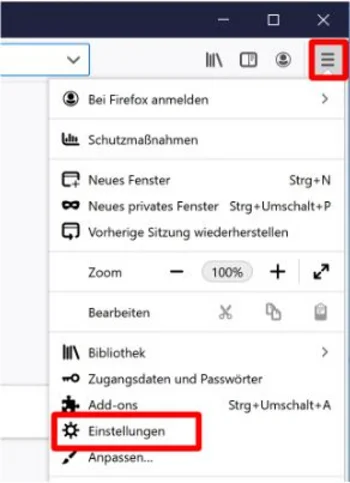
(1) Open your browser, click on the menu in the top right corner and open the settings.
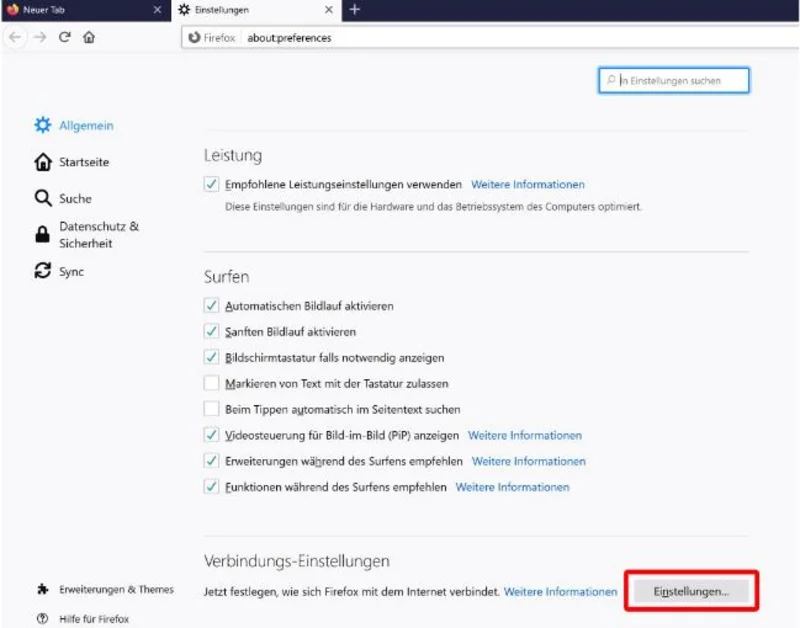
(2) In the General section, scroll down to the Connection Settings and click on Settings.
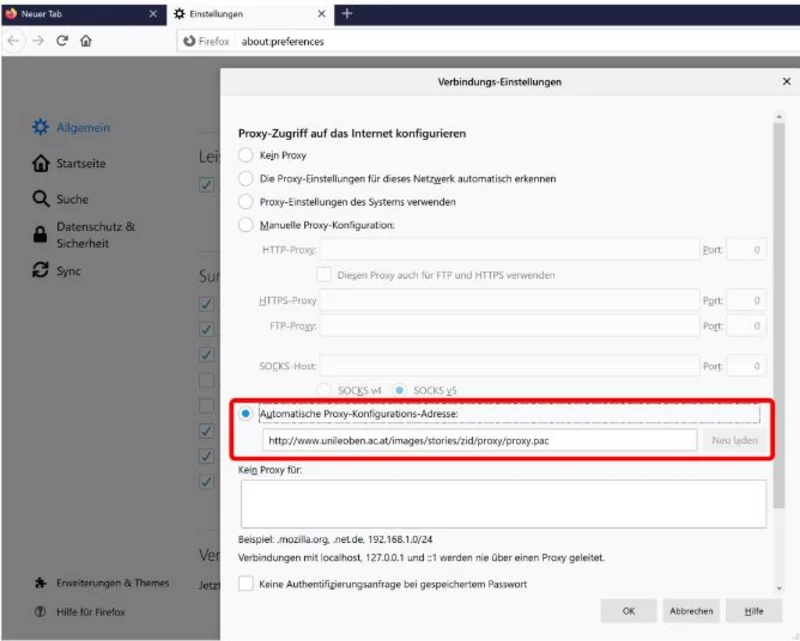
(3) Select the Automatic proxy configuration address option, enter http://www.unileoben.ac.at/images/stories/zid/proxy/proxy.pac in the field below, and close the window with OK. You can now close the settings.
(1) Open Internet Explorer, click on the gear icon in the top right corner of the menu bar, and open Internet Options.
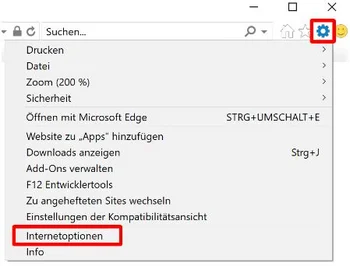
(2) In the Internet Options window that opens, click the Connections tab and open LAN Settings.
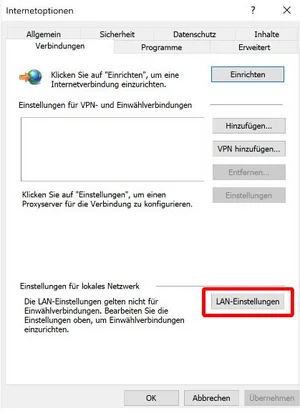
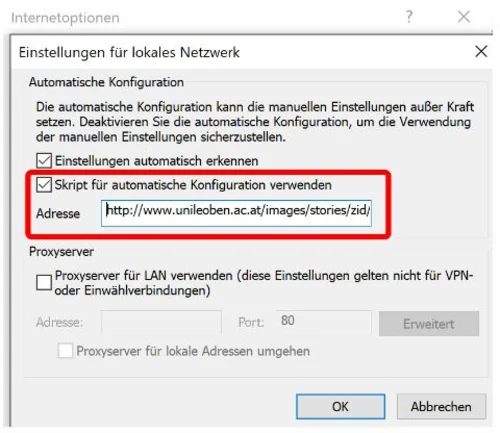
(3) The Local Area Network Settings window will now open. Here, select the Use automatic configuration script checkbox, enter http://www.unileoben.ac.at/images/stories/zid/proxy/proxy.pac as the address, and close the window by clicking OK. You can now close the settings.
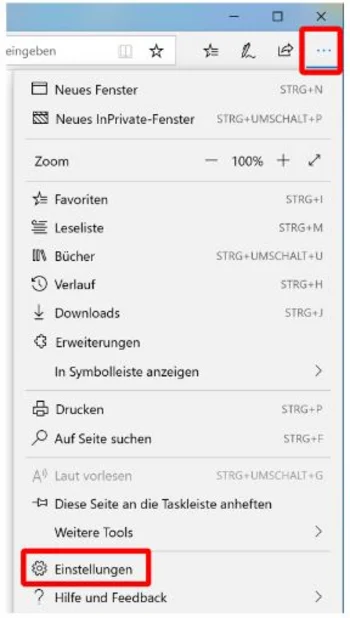
(1) Start Microsoft Edge, click on the menu in the top right corner, and open Settings.
(2) Go to the Advanced section and click Open proxy settings.
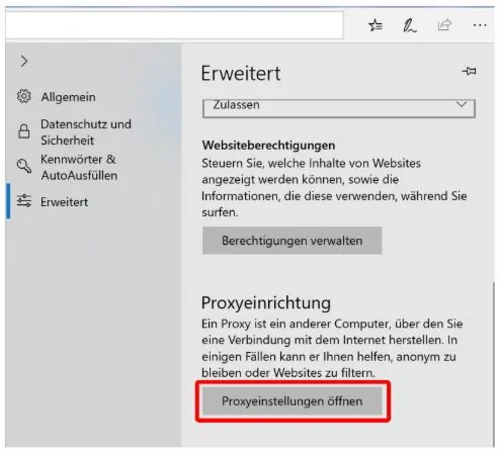
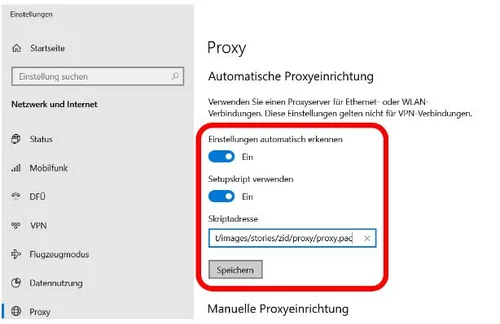
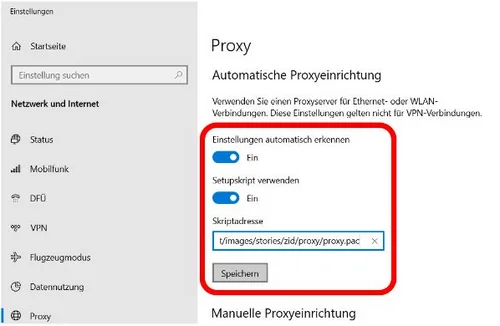
(3) You will now be redirected to the Windows settings. There, select the Use setup script tab, enter script address http://www.unileoben.ac.at/images/stories/zid/proxy/proxy.pac in the field below, and confirm by clicking Save. You can now close the settings.
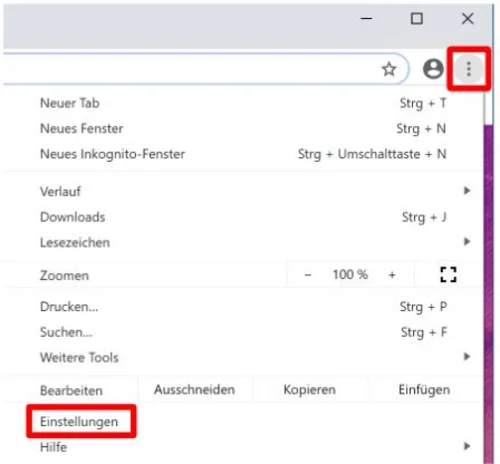
(1) Start Google Chrome, click on the menu, and open Settings.
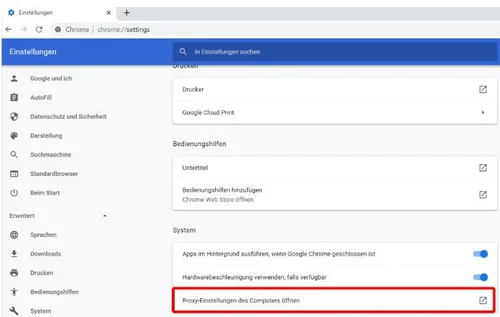
(2) Scroll all the way down in Settings, expand the settings, and scroll all the way down again. There, under System, you will find the option to open Proxy settings for this computer.
(3) You will now be redirected to the Windows settings. There, switch the tab for Use setup script to On, enter script address http://www.unileoben.ac.at/images/stories/zid/proxy/proxy.pac in the following field, and confirm with Save. You can now close the settings.