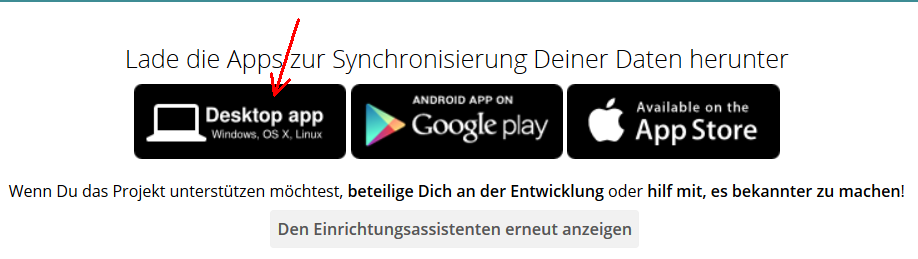
On the personal page, which you can access by clicking on your name in the top right-hand corner, you can also download the desktop app or the apps for Android or Apple, but unfortunately both of these are subject to a fee.
The desktop app allows you to use the servicewithout having to use a browser or email client.
If you make a change to the files on one of your computers, it will also be changed on all other computers via desktop synchronisation. This means that all your files are always up to date, no matter where you are or which computer you are using.
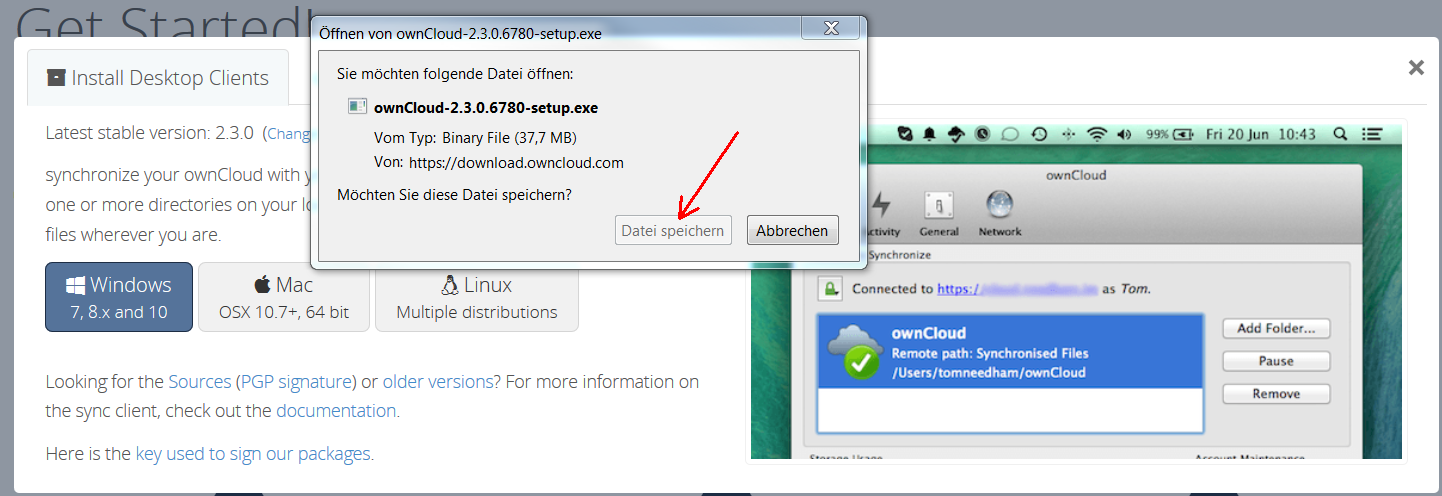
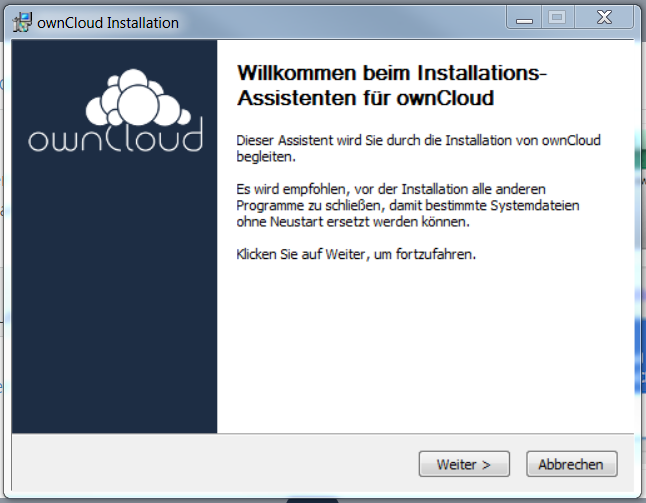
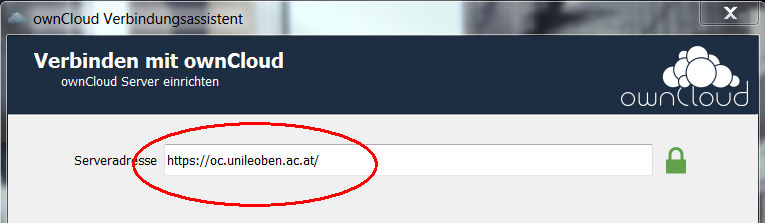
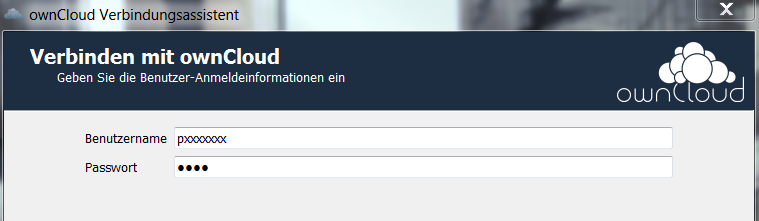
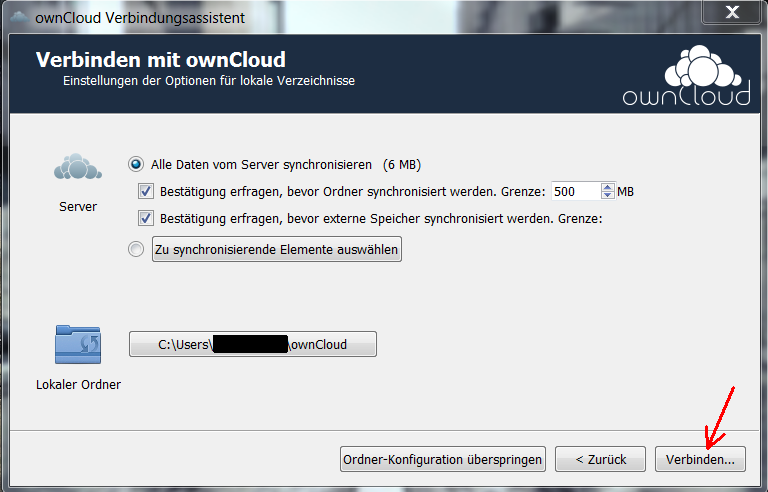
In the next window, you will be asked which files from the server should be synchronised: either all data that you have uploaded to ownCloud or you can select specific items that you want to synchronise. A local folder is also created here, where you can then find the synchronised items. After each synchronisation, the data is stored in this folder.
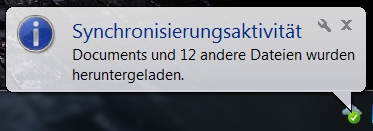
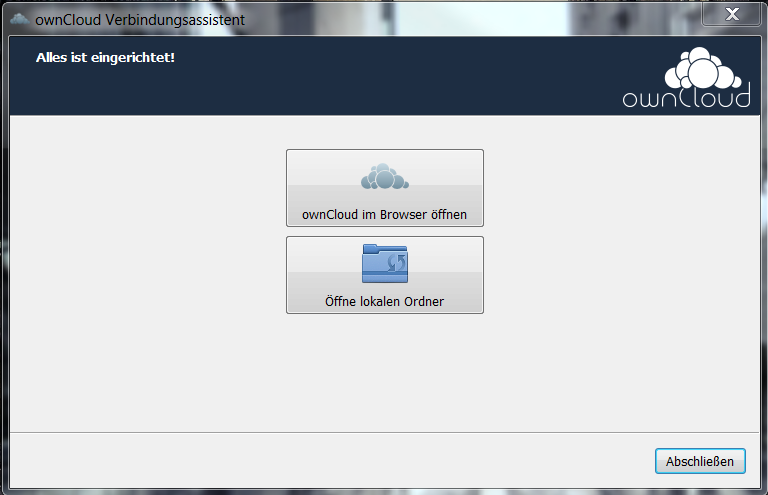
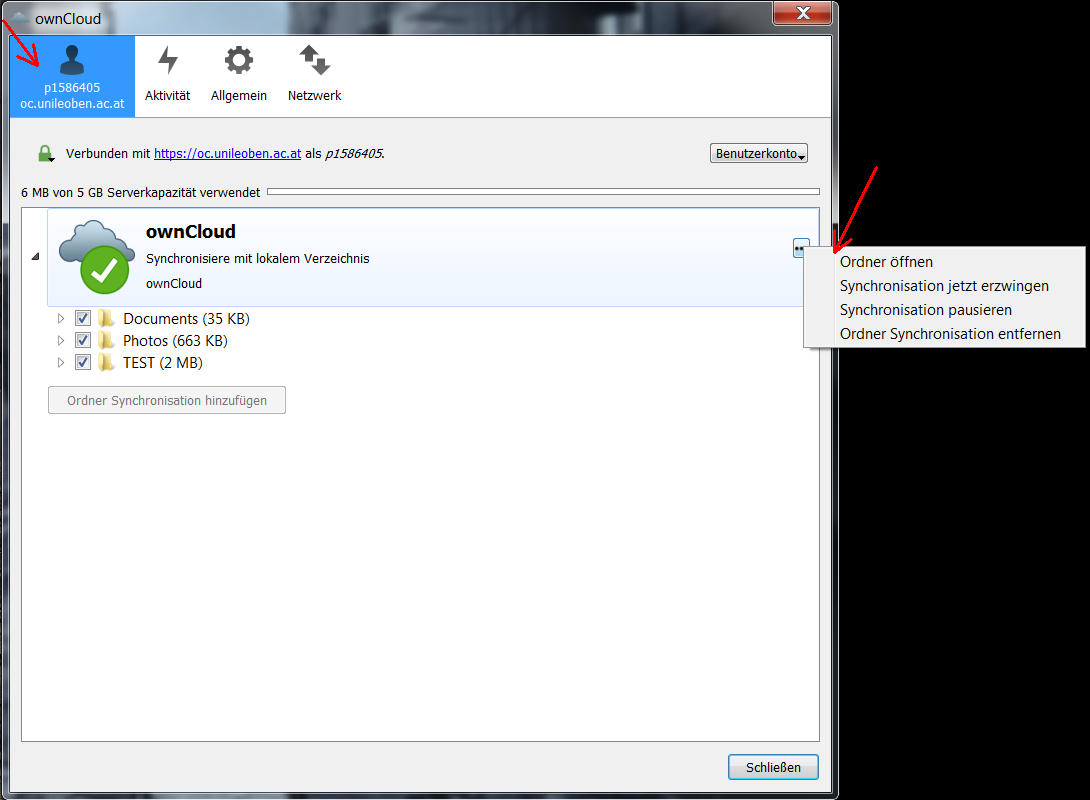
- When you open the ownCloud desktop app, you will see a tab with the p-number or matriculation number showing which objects have been synchronised and how much storage capacity you still have available.
- Here you can also open the local folder where the data is stored after synchronisation or select which folders should be synchronised with ownCloud and which should not.
- If you delete a folder synchronisation here, the data is not deleted from the local folder, but only the synchronisation is stopped.