Git Guide
Git is free, open-source software for managing projects of all sizes. It is designed to manage projects using version control.
This is intended as a tutorial covering the most common commands; please test and try out the commands and how to use them in small test scenarios BEFORE you start working on production systems!
Git Client
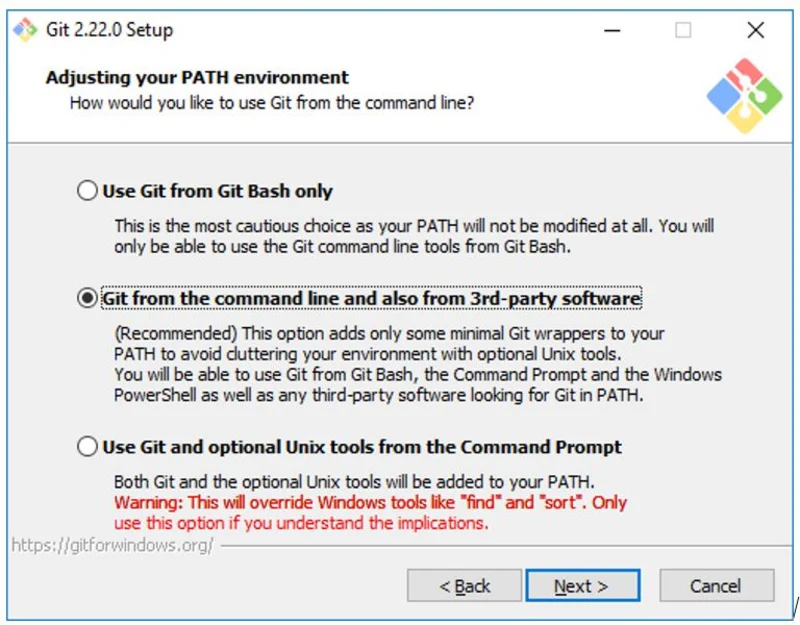
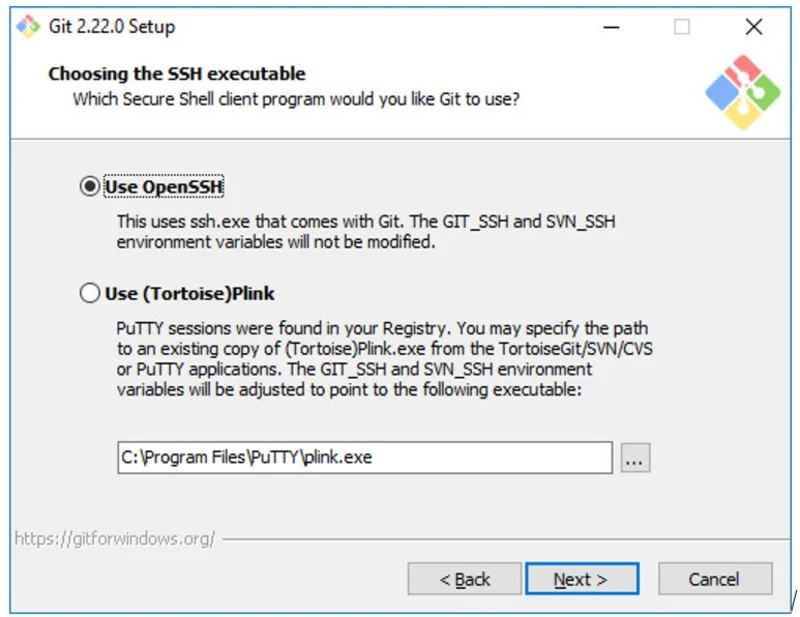
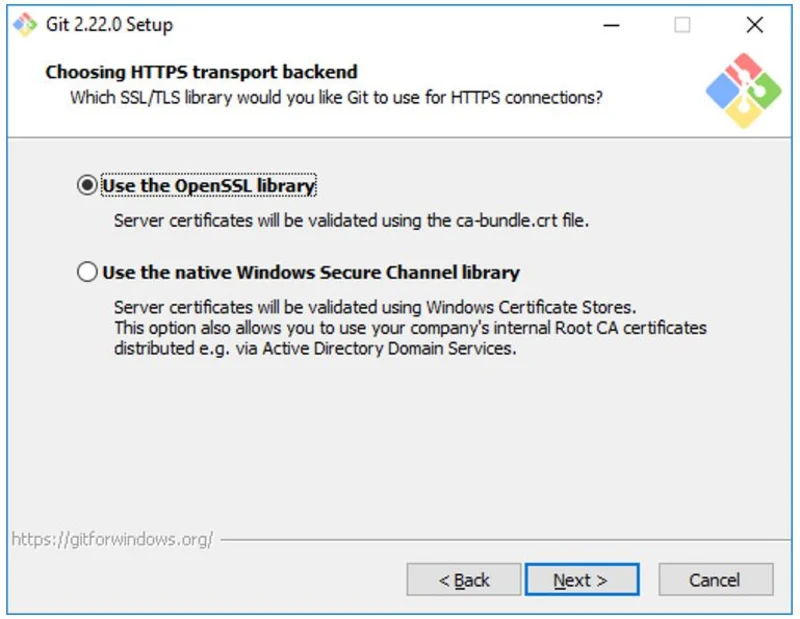
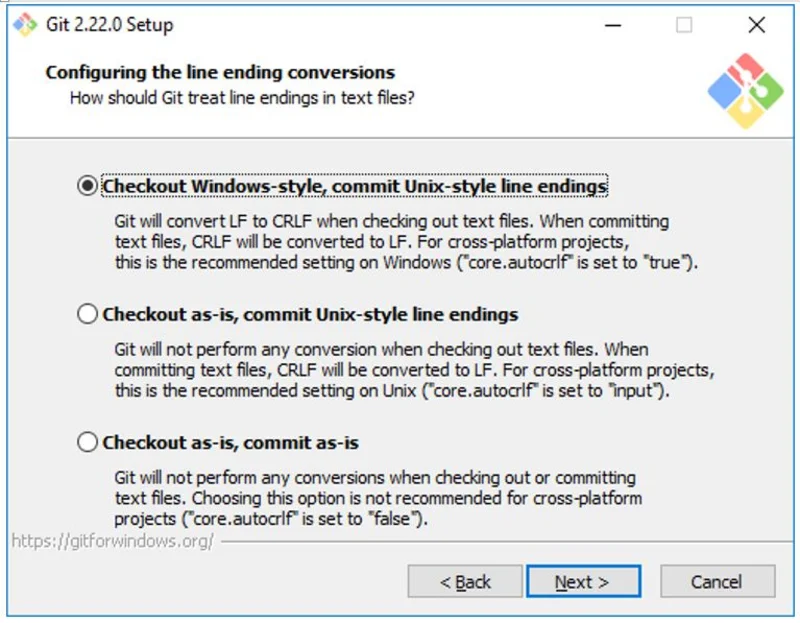
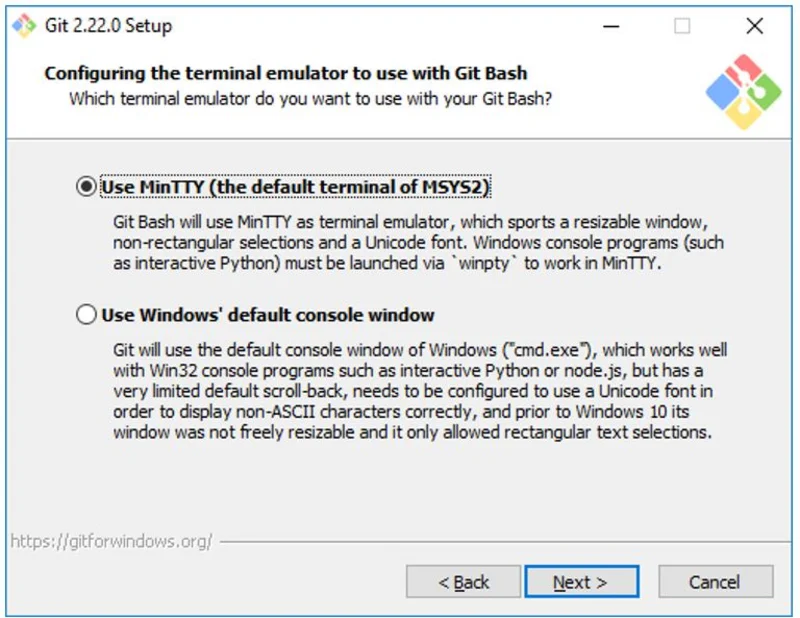
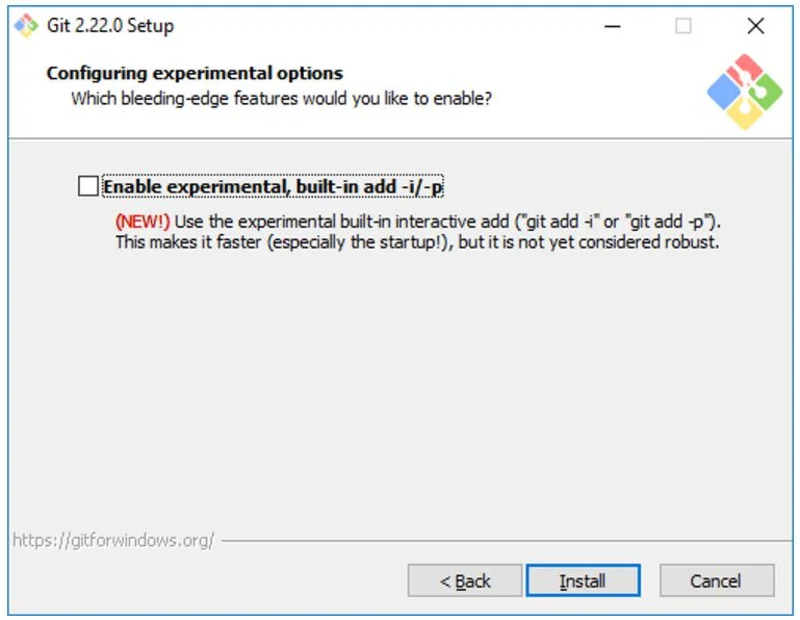
The Windows Git client Git for Windows can be downloaded from https://gitforwindows.org/. Normally, it can be installed in the default folder.
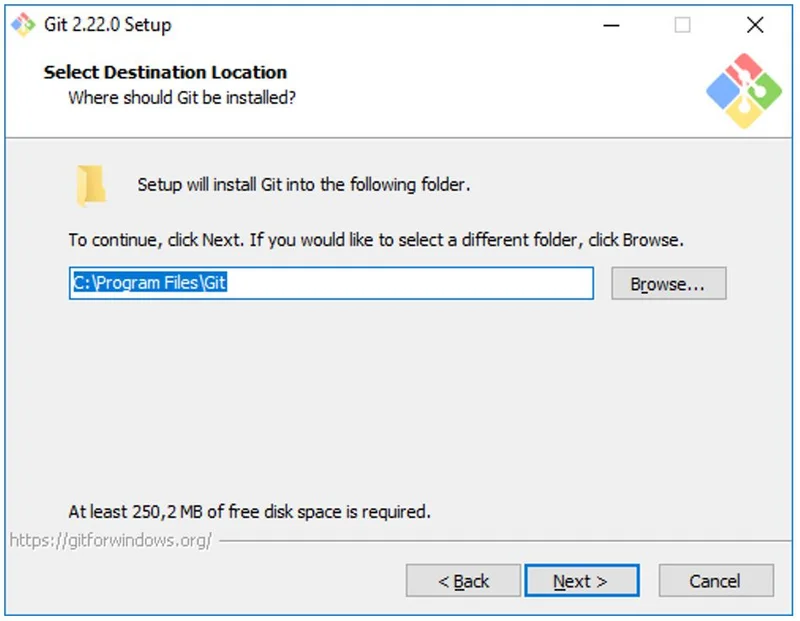
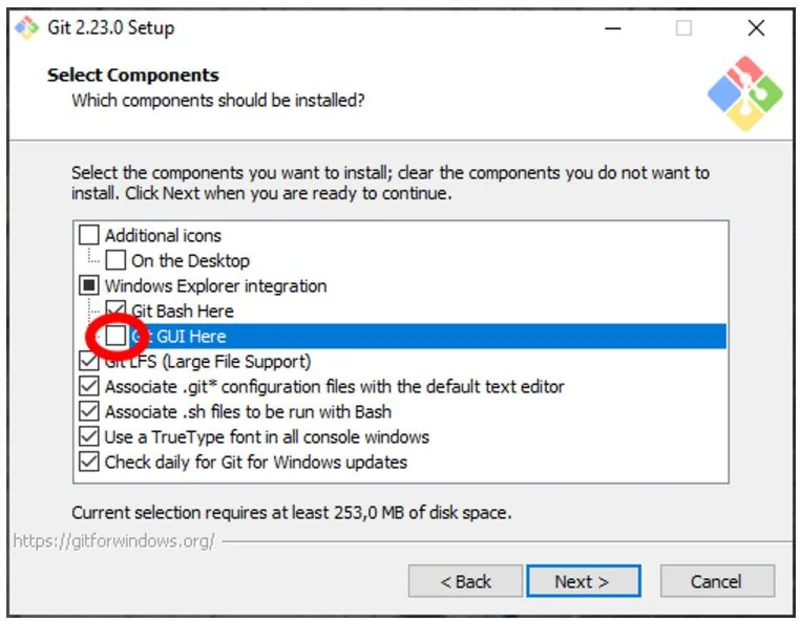
We recommend using TortoiseGit (see below) as a graphical interface for Git on Windows. If you want to use it, you can deselect the Git GUI Here option in the installer.
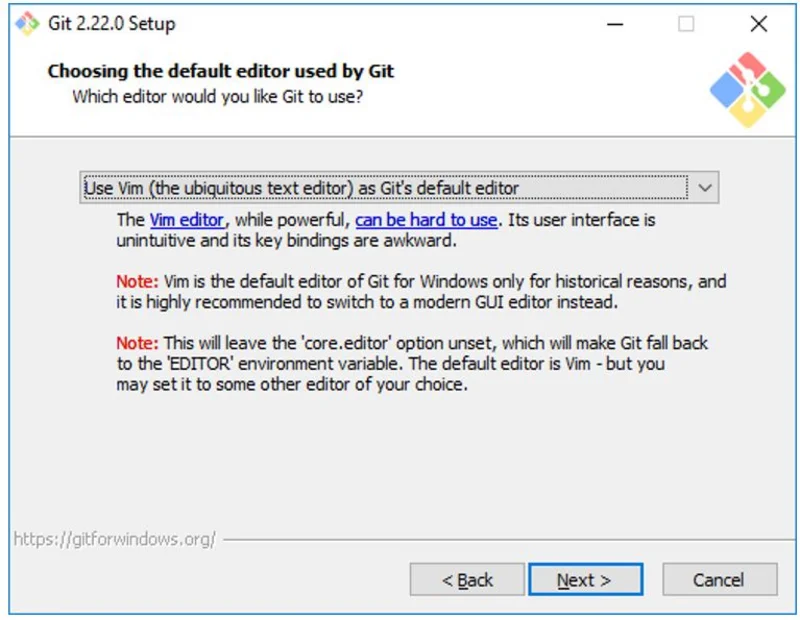
If you want to use a specific editor (e.g. Notepad++), you can configure this here.
On most Linux distributions, the Git client can be easily installed via the package manager.
Apt-based systems
e.g. Debian, Raspbian, Ubuntu, etc.
# apt install git
Yum-based systems
e.g. Red Hat, Fedora, CentOS, etc.
# yum install git
Compiling the source code yourself
If necessary, the source code can also be compiled and installed yourself – simple instructions for this can be found at:
Installing Git from git-scm.com:https://git-scm.com/book/de/v2/Erste-Schritte-Git-installieren
Without any additional tools or IDE integration, Git can be easily used via the command line of the respective operating system. For example, Command Prompt, PowerShell or Git Bash on Windows (installed by the Git for Windows installer) or Bash on Linux. ## Setup before first use If Git has never been used on the computer before, it is necessary to configure the global user and their email address.
$ git config --global user.name ‘[My User Name]’
$ git config --global user.email ‘[User @ Mailserver . TLD]’
The square brackets and their contents must be replaced accordingly. For example
$ git config --global user.name ‘Melanie Amirah’
$ git config --global user.email ‘melanie.amirah@unileoben.ac.at’
Checking out a repository that exists on the server
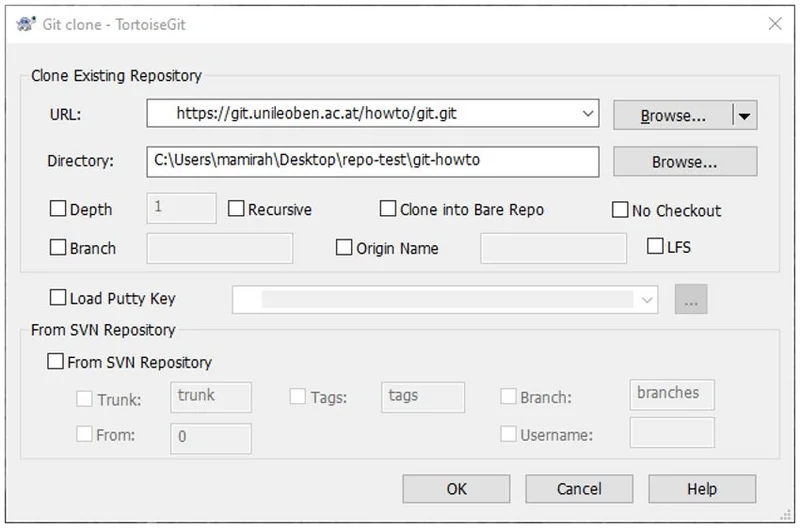
The clone command can be used to retrieve an existing repository, creating a local copy in the process.
$ git clone [repository URL]
The square brackets and their contents must be replaced accordingly. For example
$ git clone https://git.unileoben.ac.at/howto/git
Pushing a local directory to a repository
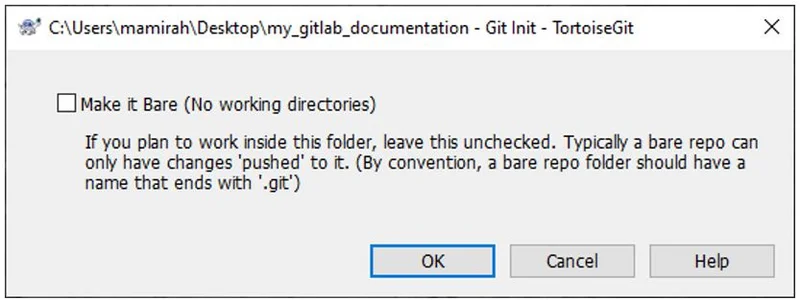
First, use the cd command to change to the appropriate directory. Then The init command is used to create a local repository for an existing directory. To upload this to a server, add the appropriate server with remote add, add the relevant files with add, combine them into a package with commit, and finally transfer them to the server with push.
cd my_gitlab_documentation
git init
git remote add origin https://git.unileoben.ac.at/howto/git
git add .
git commit -m ‘Initial commit’
git push -u origin master
Git with Windows Explorer extension (TortoiseGit)
TortoiseGit (https://tortoisegit.org/) is a very easy-to-use extension for Windows Explorer that allows you to use Git without the command line.
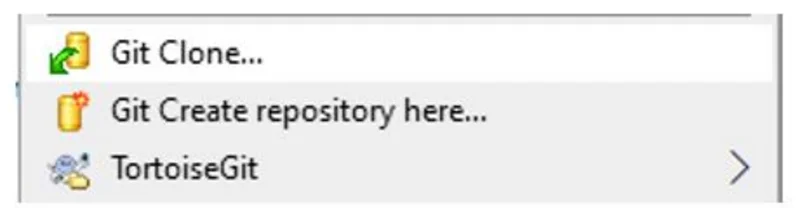
Check out a repository that exists on the server