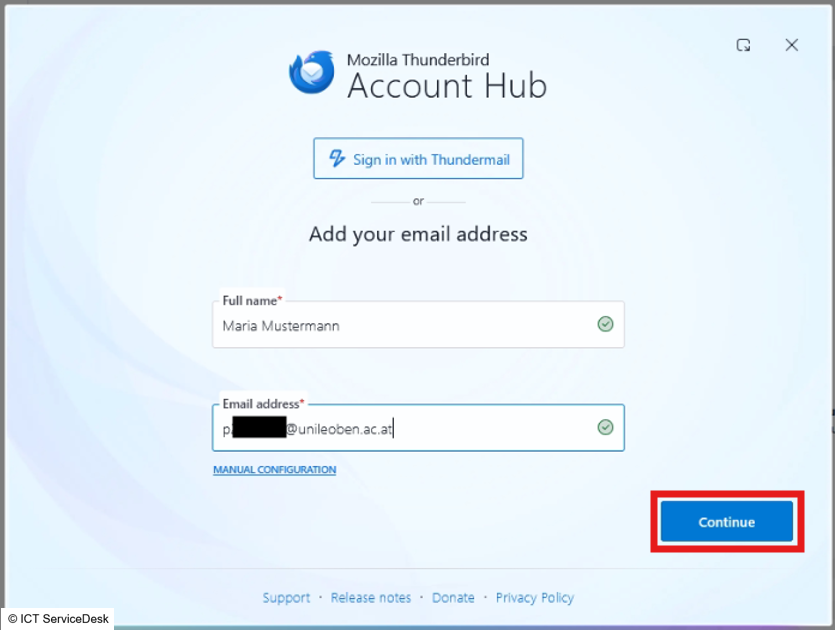
- Set up an email account: Enter your full name and email address [MUonline username]@unileoben.ac.at, then click “Continue” to confirm.
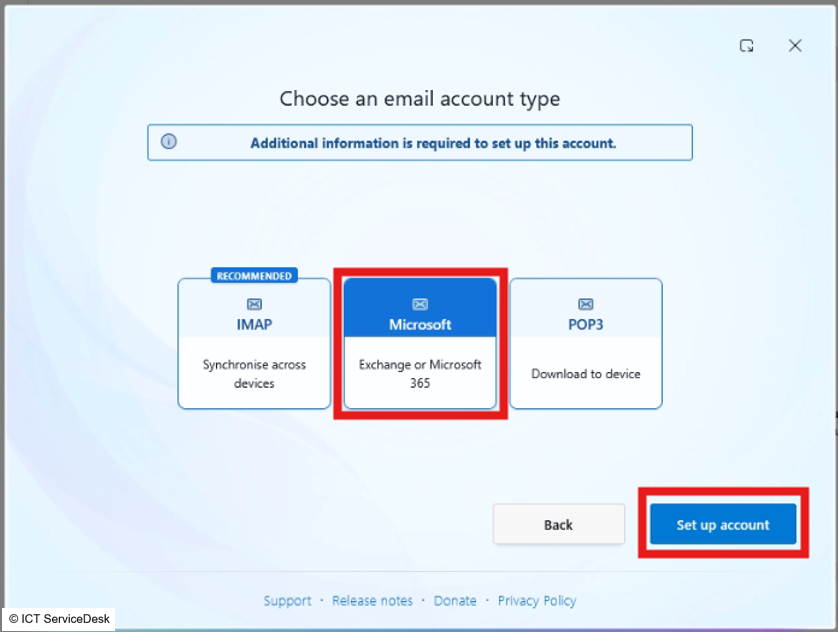
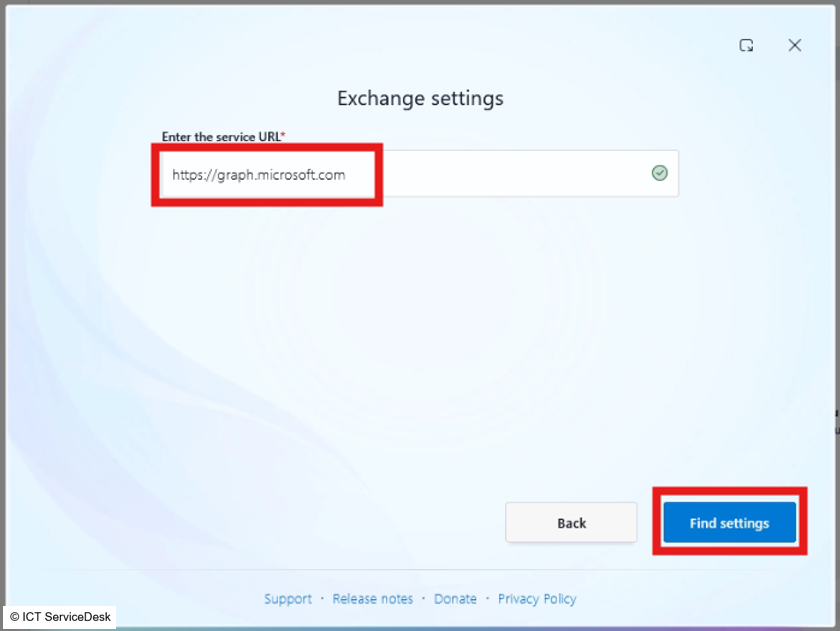
- In the Exchange settings, enter https://graph.microsoft.com and click “Find Settings.”
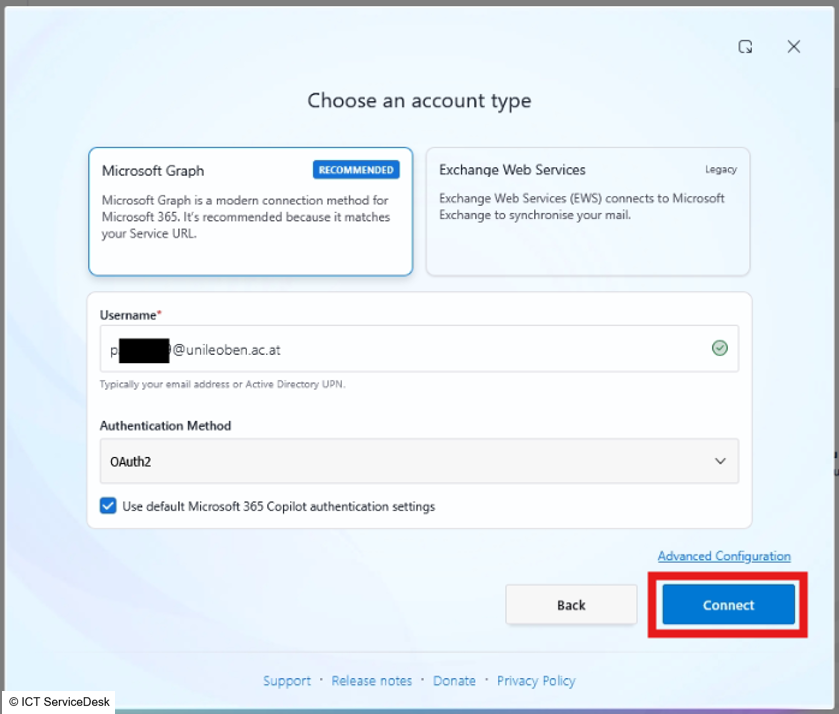
- If “Microsoft Graph” is selected as the account type and the username and authentication method have already been entered correctly, click “Connect.”
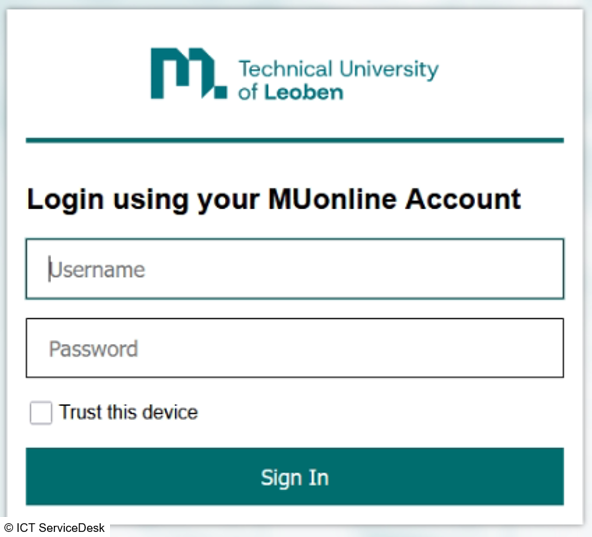
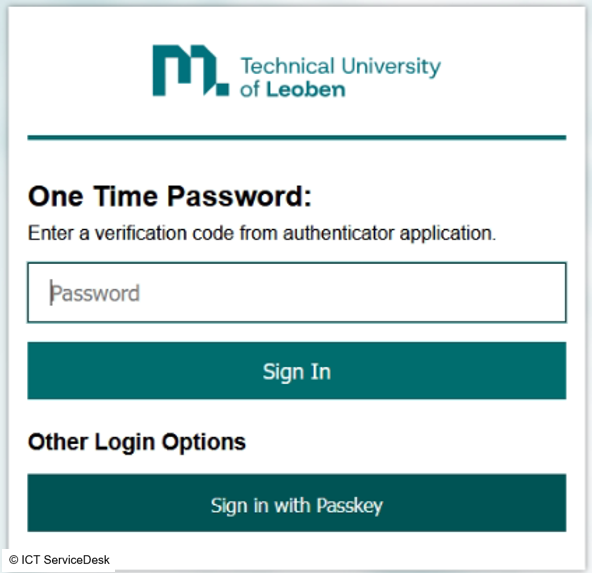
- A window will open in your browser. On this page, log in using your MUonline username (p-number, student ID) and the corresponding password. If you are the only one with access to the current device, you can optionally check the “Trust this device” box. This option saves your login credentials for an extended period, so you don’t have to enter your password and two-factor authentication every time.